
If you need to extend the term of an Exempt Agreement (Short Term or Low Value under IFRS 16), there are some steps you'll need to follow to ensure that the expenses pull through to your Journal Report for the extended period.
How to Extend an Exempt Agreement
- Navigate to the Exempt Agreement.
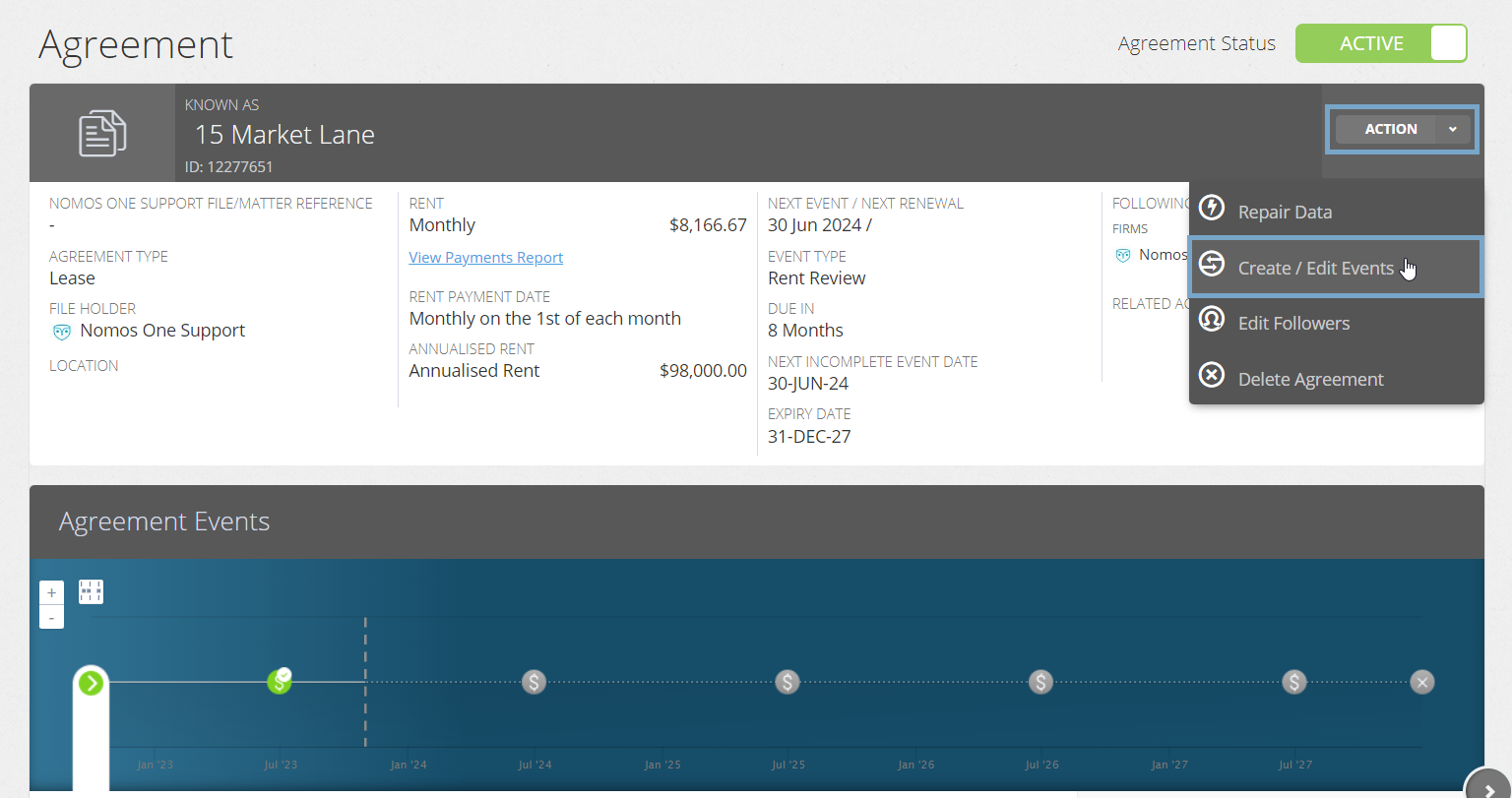
- Click “Action”, then “Create / Edit Events”. This will take you to the Events page of the Agreement creation process.
- On the Events page, scroll to the Variation section and click “Edit”.
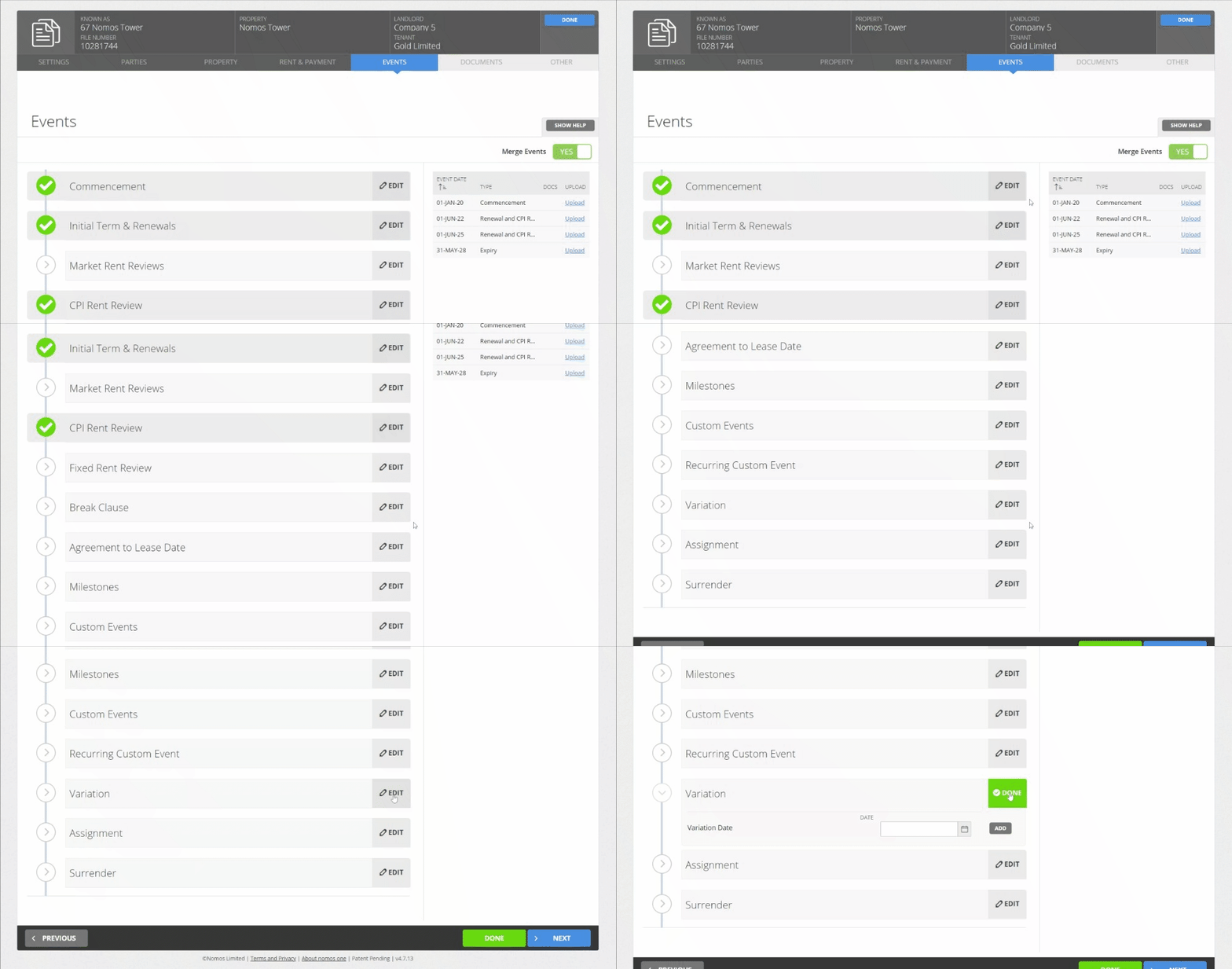
- Using the calendar tool or text field, add in a Variation Event for the date you agreed to increase the term in your Agreement. This Variation Event must be scheduled at least 1 day before the expiry of your existing term. Remember to click “Add”.

Why does the Variation Event have to be at least 1 day before the expiry of the existing term? In Nomos One, a renewal or extension must be processed at least one (1) day before the expiry of the existing term, to ensure reporting is correct. Otherwise, the system reads the Agreement as having expired, and given that you cannot logically extend or renew an Agreement that has expired, the IFRS 16 reports do not reflect the extension or renewal correctly.
- While on the Events page, scroll up to the Initial Term & Renewals section, and click “Edit”.

Depending on which method you've chosen to extend your Agreement, follow either step 6.A for adding a new Renewal or step 6.B for extending the length of existing term. After following step 6.A or 6.B, then go to step 7.
- A: If you're adding in a new Renewal: Simply click the “Add Renewal” button and adjust the term length as required for your new option term.
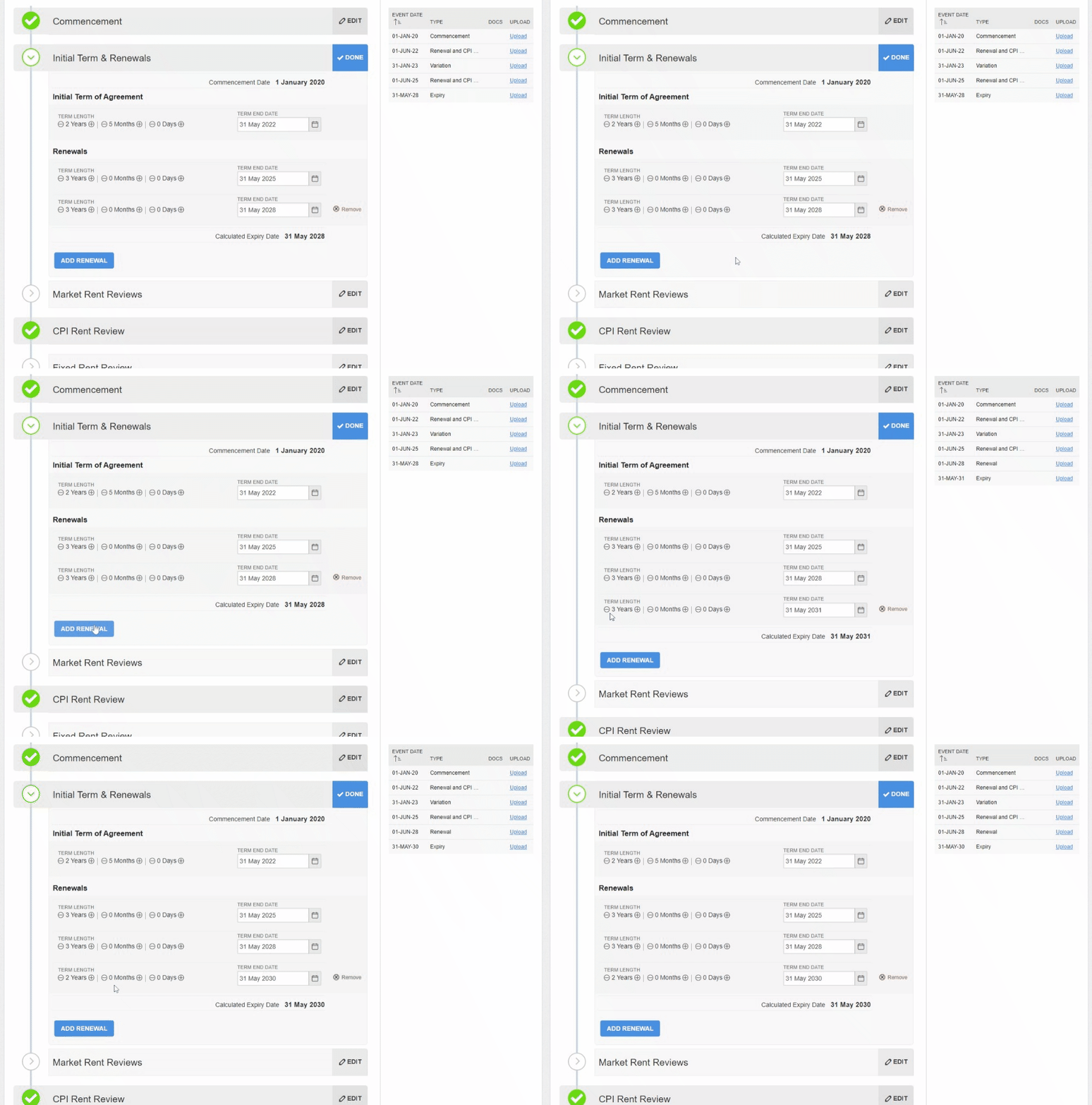
- B: If you need to extend the length of an existing term in your Agreement: You're required to process this extension as a Renewal term for the length of the extension. Simply click the 'Add Renewal' button and adjust the length of the term to match the extension period that has been agreed to.
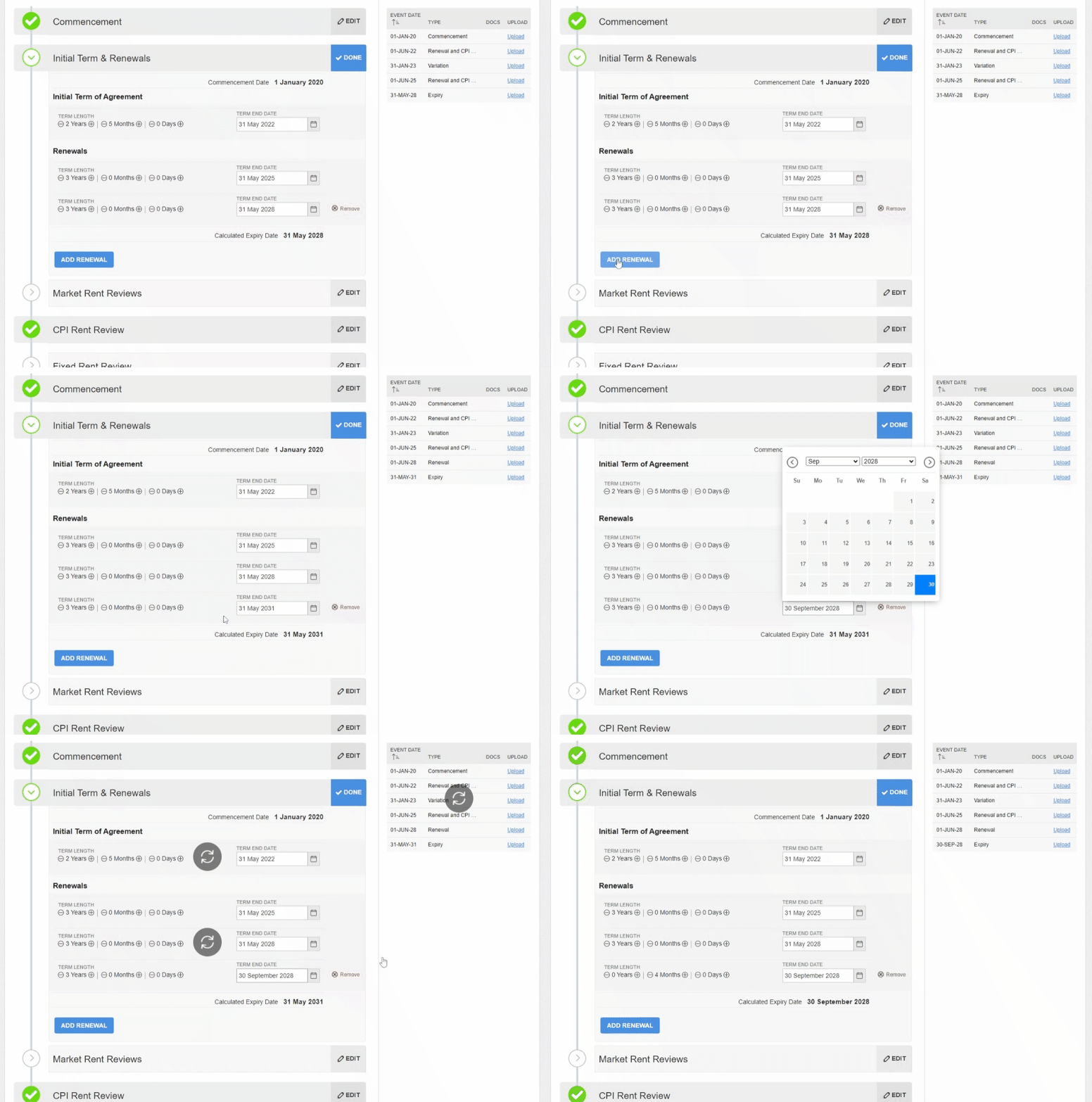
Please note: We understand that your extension of an existing term is not actually a 'Renewal', however due to a current system limitation we require you to process any extensions this way. This process ensures that IFRS 16 Reports correctly factor in any increases in term length that happen throughout the life of your Agreement. Our Developers are working hard to resolve this issue and the workflow for processing extensions. We kindly ask that you follow this work around until we notify you that this has been resolved.
- Once you've added in your Variation and renewal/extension, click “Done” at the top of the page to return to the Agreement Timeline.

- On the Agreement Timeline, click on the Variation Event icon and then click “Start Event”.

While you can add Events on a date that is within a locked period, you cannot complete these Events on the Agreement Event Timeline. If your Variation Event is within a locked period, you'll need to ask a user with the Administrator permission in your Organisation to edit the Lock Date before you can complete the Event. Check out this article for more information.
- At Step 2, select “No additional variations” then click “Next” to continue.

Please note: Currently, the system cannot process rent reviews and most variation changes on Exempt Agreements. These will result in an incorrect Journal entry that states “Removal of Rent Payable”. If you do need to process these changes on an Exempt Agreement, please contact our Support Team.
- Upload any supporting documentation, or select “No Documentation” and click “Next”.

- Click “Complete” to finish the event completion process.

- Now your Variation Event is complete, navigate to the Agreement Header and click “Action”, then “Repair Data”.

- Scroll to the Initial IFRS 16 Questionnaire on the Settings page and and toggle the question “Does this agreement fall within one of the scope exemptions within IFRS 16?” from “Yes” to “No”.

- Navigate to the “Number of Renewals to factor into IFRS 16 Calculations” question, and select the option that corresponds with the extended term you've added.

- Toggle the question “Does this agreement fall within one of the scope exemptions within IFRS 16?” from “No” to “Yes”.

Please note: As per the reporting standard, if a change occurs which means a lease no longer meets the exemption criteria, it should be considered a new lease. The Nomos One platform does not provide the functionality to change an Agreement from exempt to non-exempt (or non-exempt to exempt) and see this reflected in IFRS 16 reports. If you change an Agreement from exempt to non-exempt in Nomos One, all information from the Commencement of the Agreement onwards will be reflected as non-exempt in reports, rather than only information from the desired date onwards. If you require more information on this topic, please reach out to our Support team.
- Click “Done” at the top or bottom of the page to return to the Agreement Overview.
You should now see the expenses for the extended period pull through to your Journals.
Nomos One does not provide or purport to provide any accounting, financial, tax, legal or any professional advice, nor does Nomos One purport to offer a financial product or service. Nomos One is not responsible or liable for any claim, loss, damage, costs or expenses resulting from your use of or reliance on these resource materials. It is your responsibility to obtain accounting, financial, legal and taxation advice to ensure your use of the Nomos One system meets your individual requirements.