
If you've agreed to terminate your Agreement earlier than the original expiry date and the impact of this is to take effect immediately, you can do this by adding in a Surrender for that date.
This article will walk you through the steps required to do so.
Video Tutorial: Surrendering your Agreement
Check out this video guide on how to Surrender your Agreement:
Adding in a Surrender Event
- From the Agreement Timeline click “Action”, then “Create / Edit Events”.
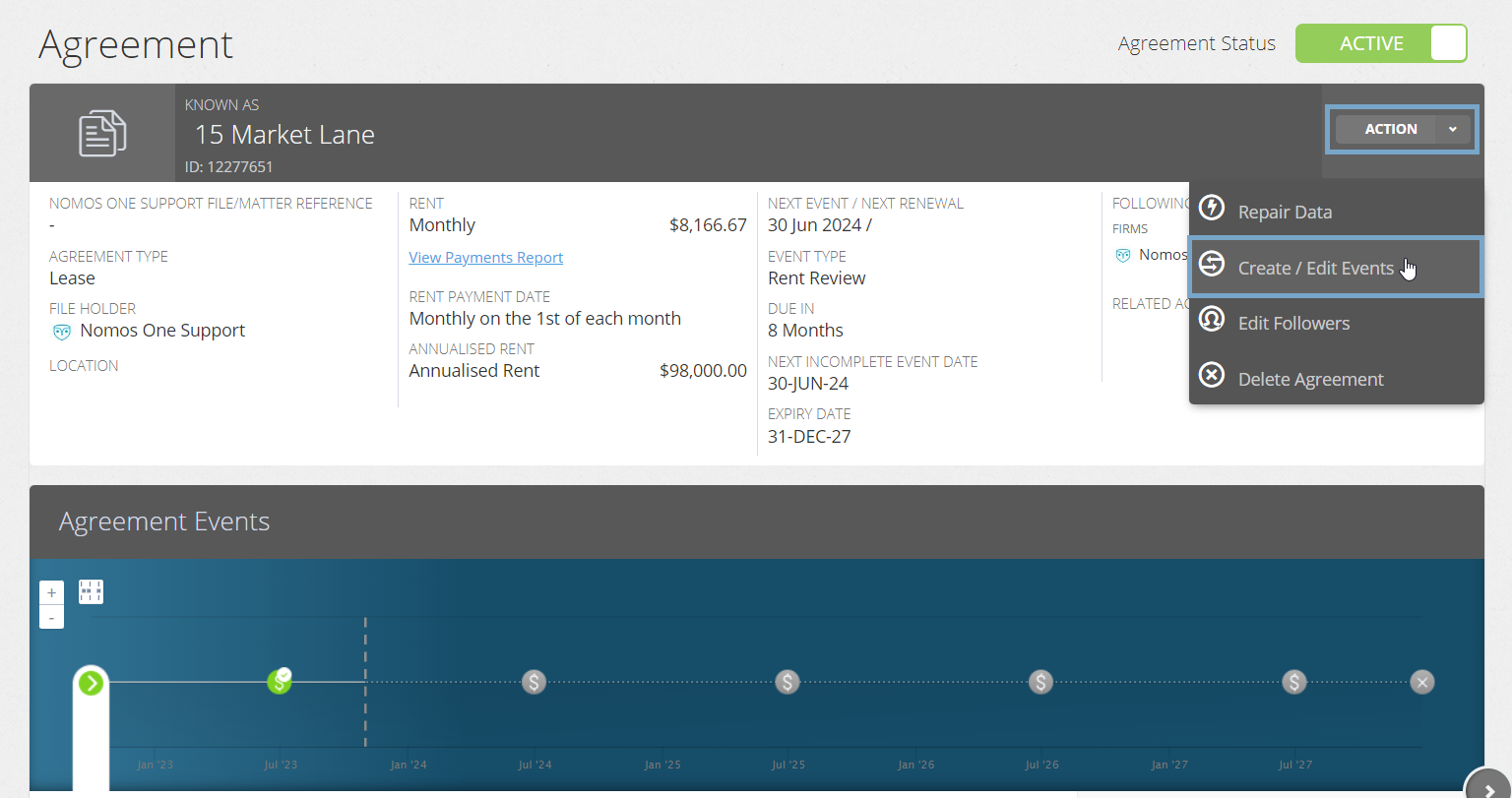
- This will take you directly to the Events page of the Agreement Creation Process. Here, scroll down to the Surrender section and record the date that your Surrender is scheduled for.
Please note: The Surrender date must be at least two days before your Expiry Event is scheduled. This is because a Surrender is an early termination that occurs before the scheduled Expiry of the Agreement.
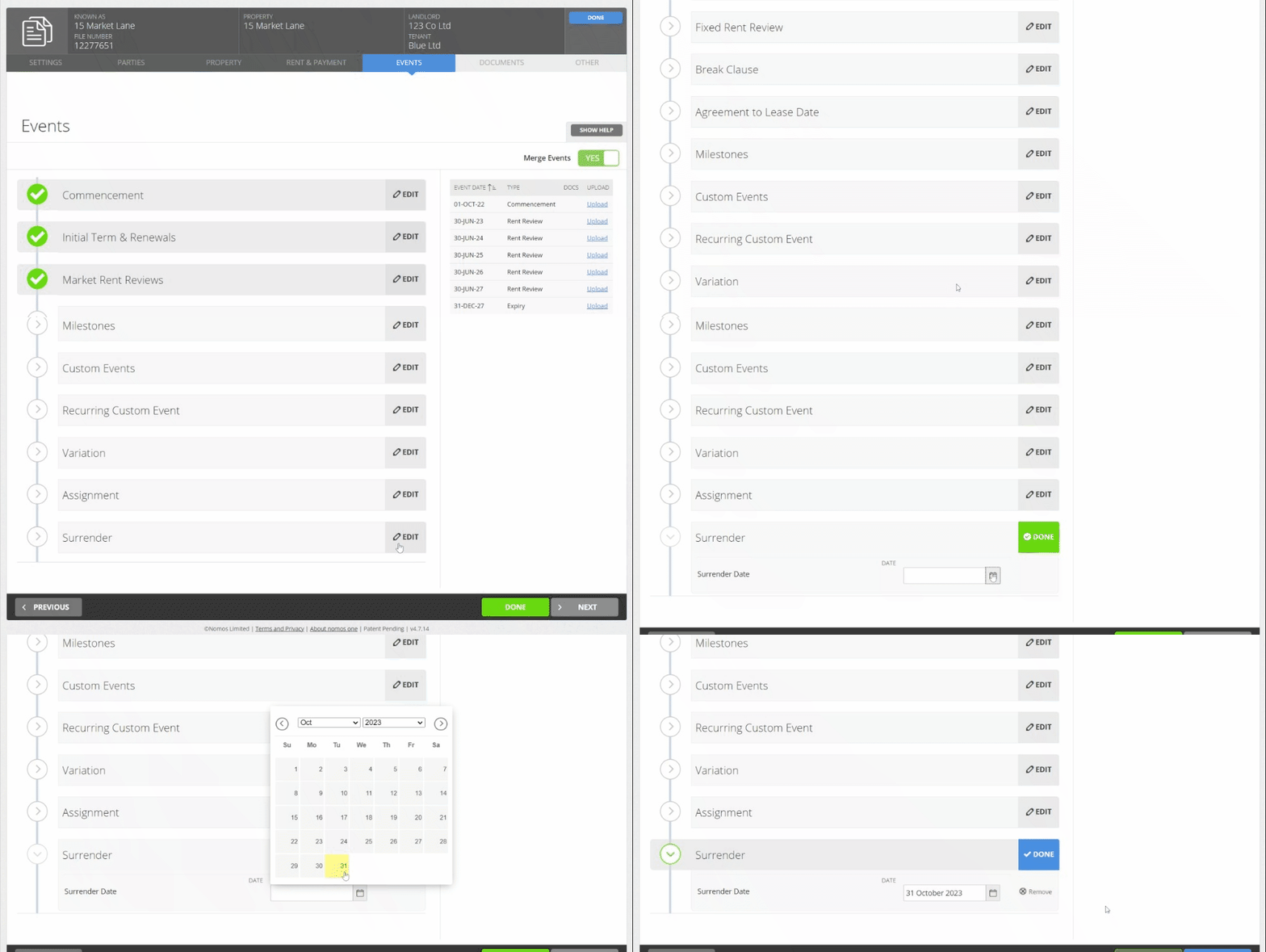
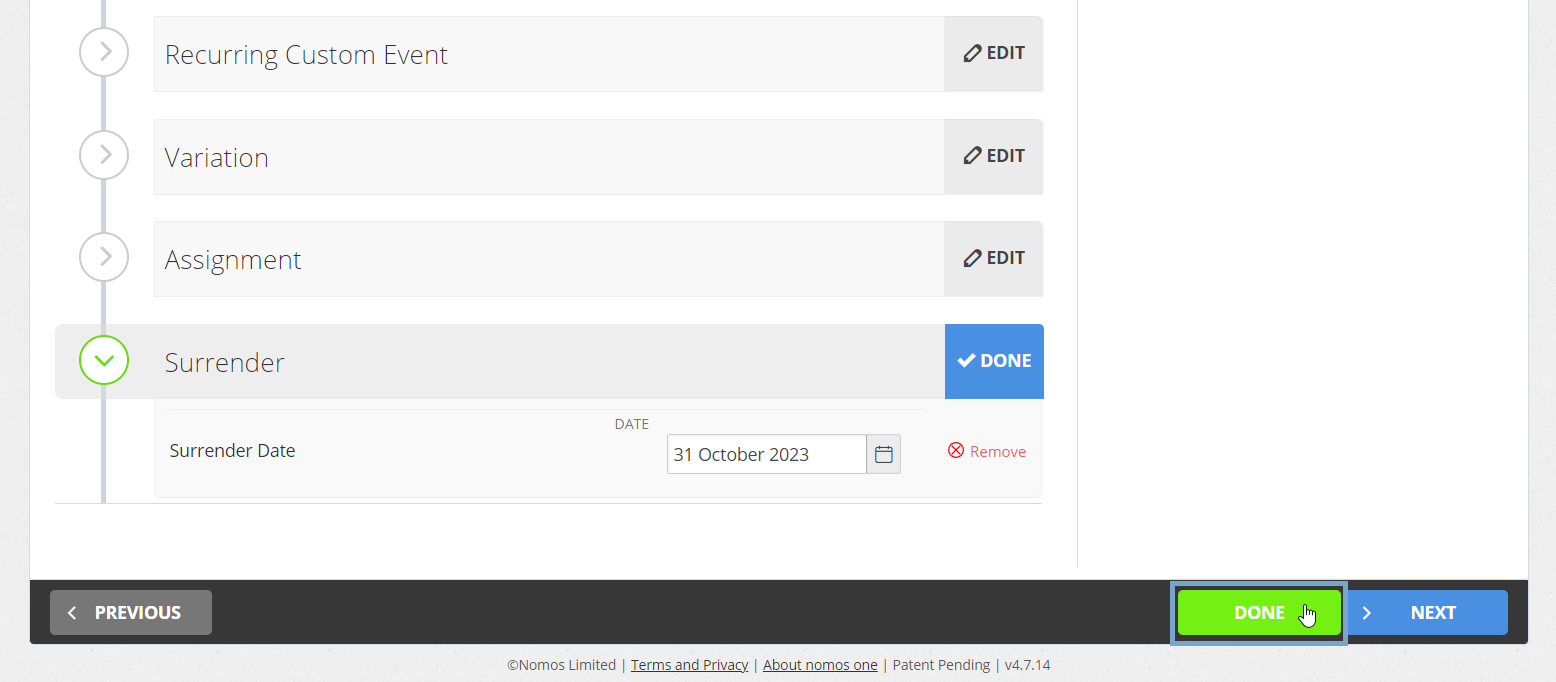
- Once you've added in the date of the Surrender, click “Done” at either the top or bottom of the page to return to the Agreement Timeline.
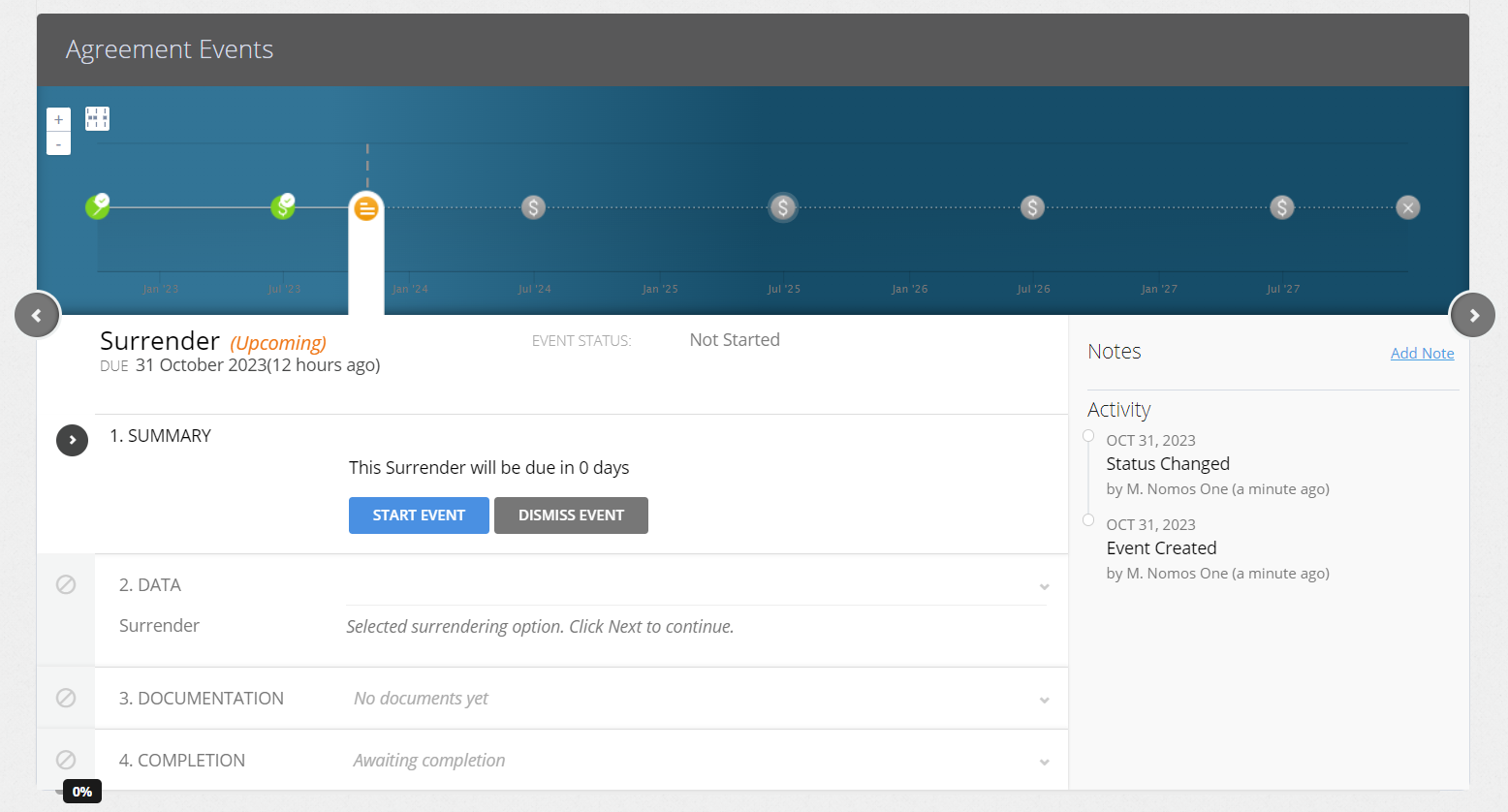
- You will now see an icon on the Agreement Timeline for the Surrender Event.
Completing a Surrender Event
Please note: Before completing a Surrender Event, please make sure that all historic Events on the Agreement Timeline have been completed.
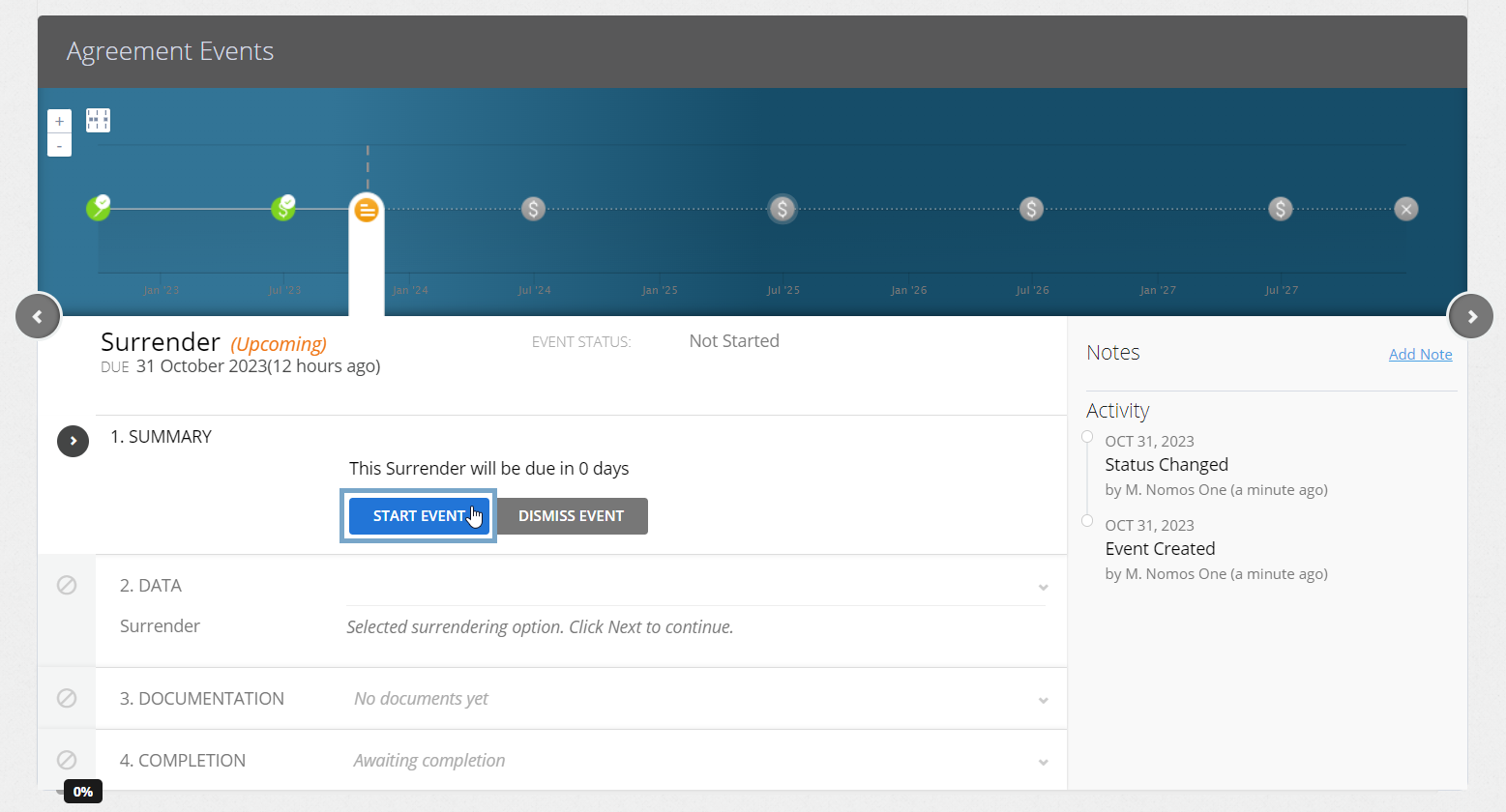
- Select the Surrender icon and at Step 1, click “Start Event”.
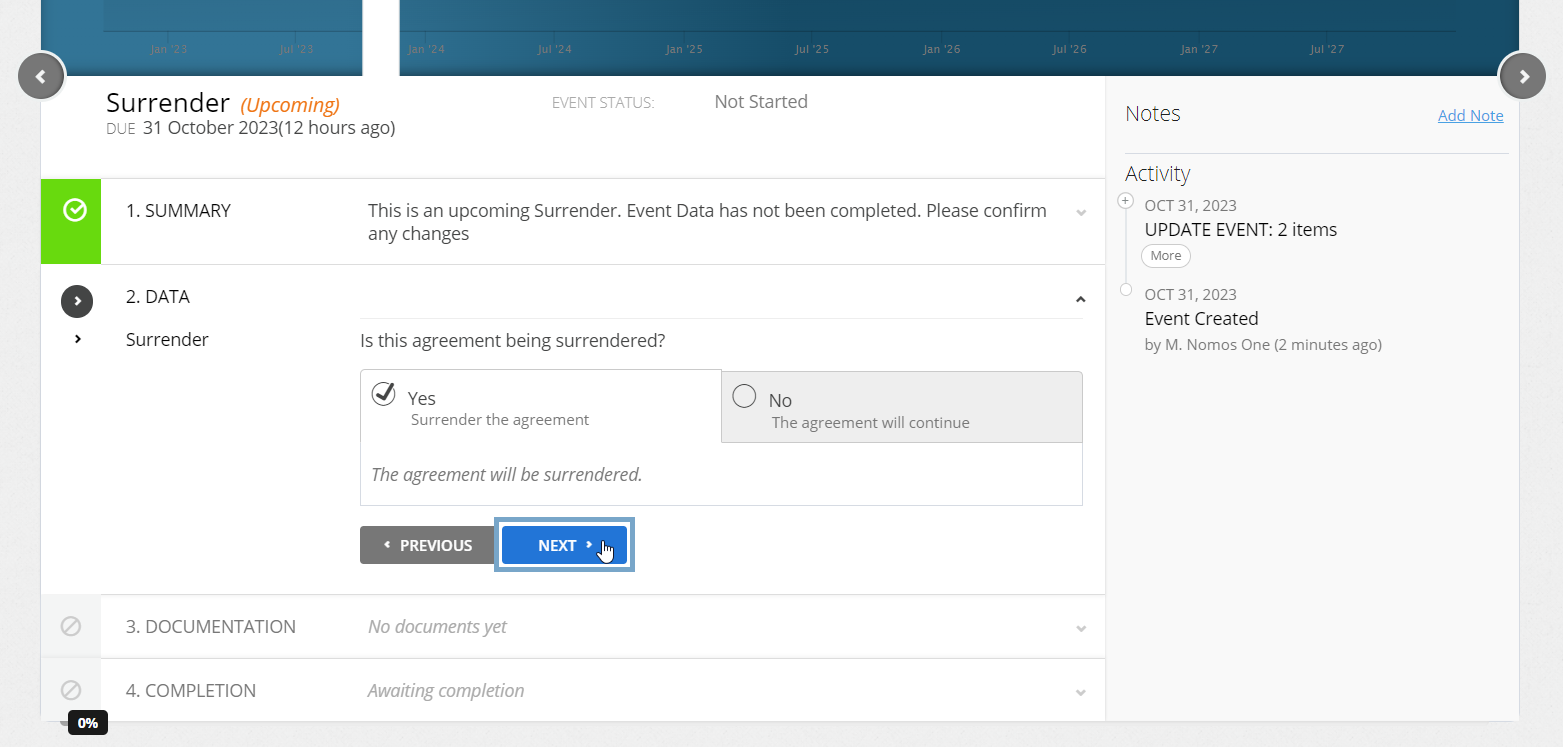
- At the Data change step, select “Yes Surrender the agreement, and click "Next".
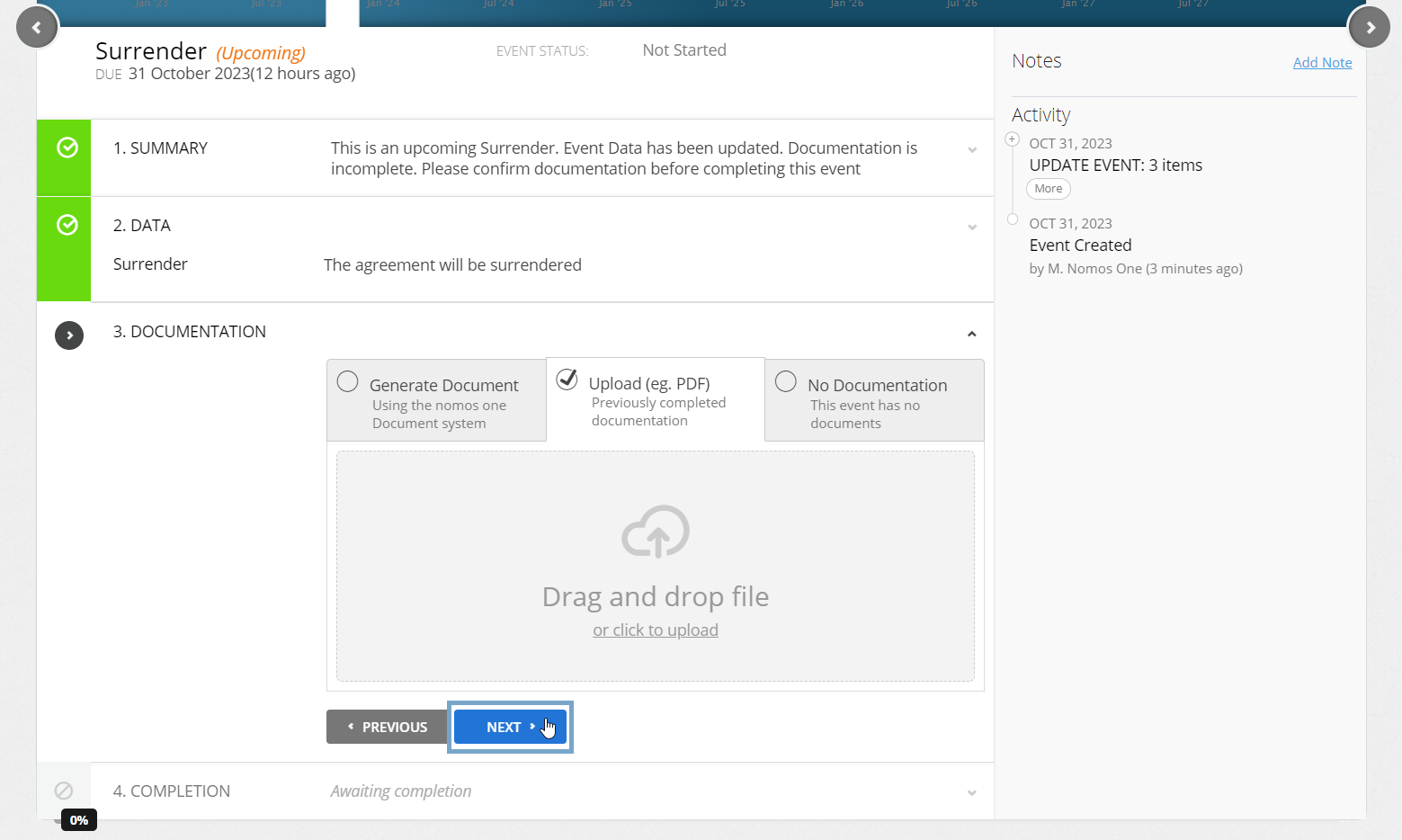
- Upload any supporting documentation, or select “No Documentation”, and click “Next”.
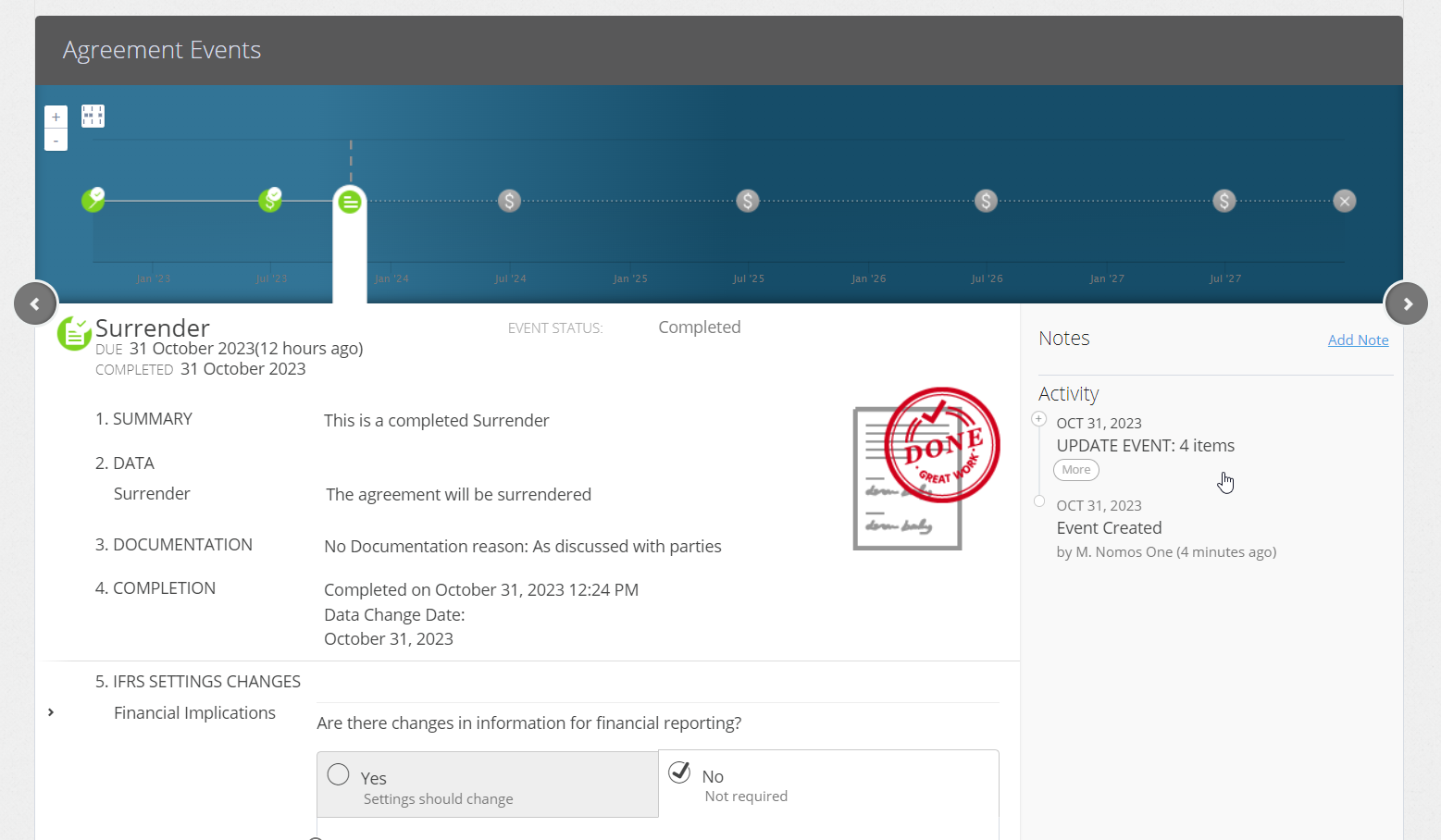
- Click “Complete”. You'll see a certification noting that the Event has been completed, and the event icon will turn green.
Please Note: Don't complete, delete, or dismiss any Renewals, Rent Reviews or other Events that are scheduled to occur after the Surrender Date. Although reports will cease generating balances from the date of the Surrender, meaning those subsequent events will not appear, they are still important for calculating the existing IFRS 16 report balances for the Agreement.
Additionally: Please keep the Agreement active until after the end of the current reporting period. If it is made inactive, it will not be included in your financial reports.
Updating your IFRS 16 Assumptions
Once you've completed your Surrender Event, you will be able to see your Surrender Journal automatically when you run the Journal Report across the Surrender date. If you need to record a penalty cost associated with your decision to surrender the lease early, you will need to update the IFRS 16 Settings Change questionnaire on the completed Surrender Event.
To update the IFRS 16 Settings Change Questionnaire:
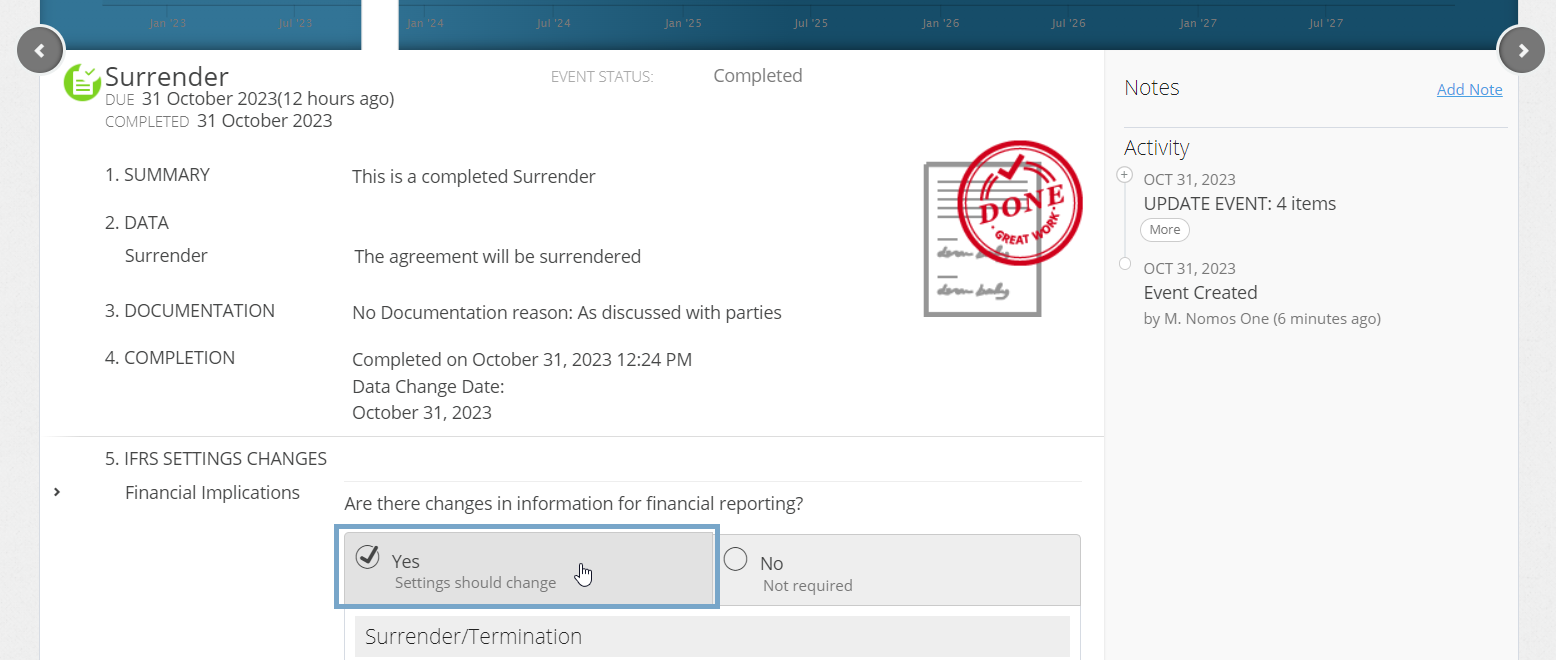
- On the completed Surrender Event, select “Yes, Settings should change”.
- Leave the selection as “Termination”.
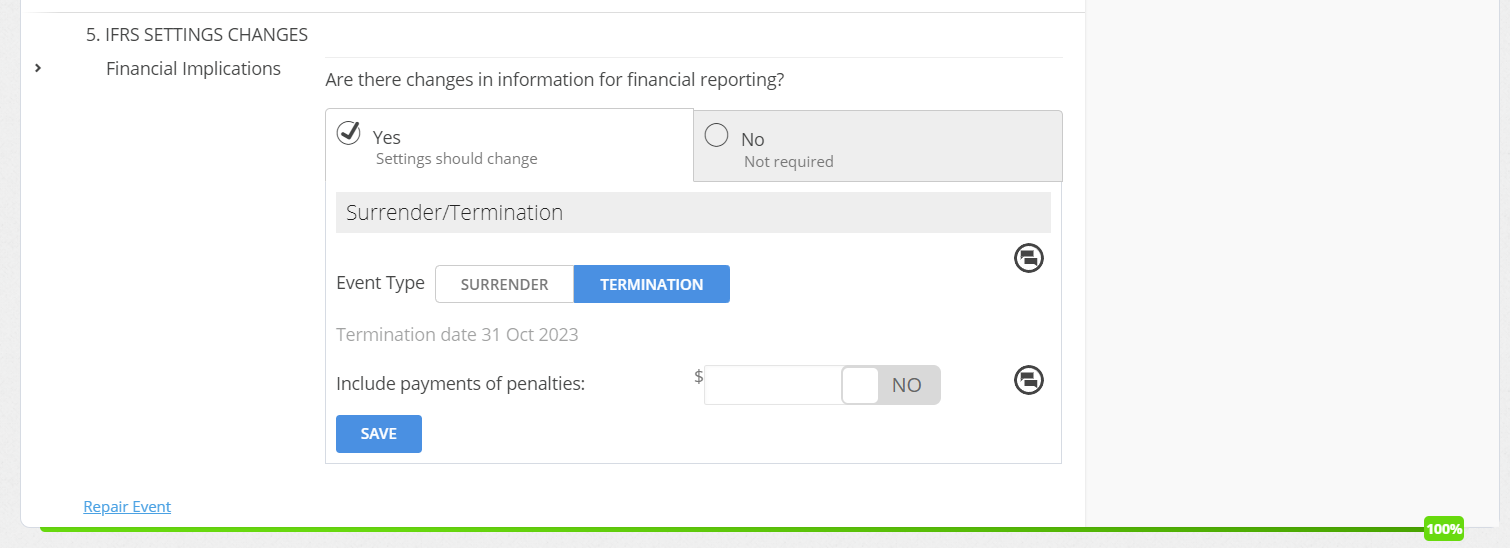
Please be aware: We are currently experiencing an issue with the Surrender button that prevents it from being clicked. Rest assured, this does not affect your IFRS 16 balances, as the selection is for reference purposes only.
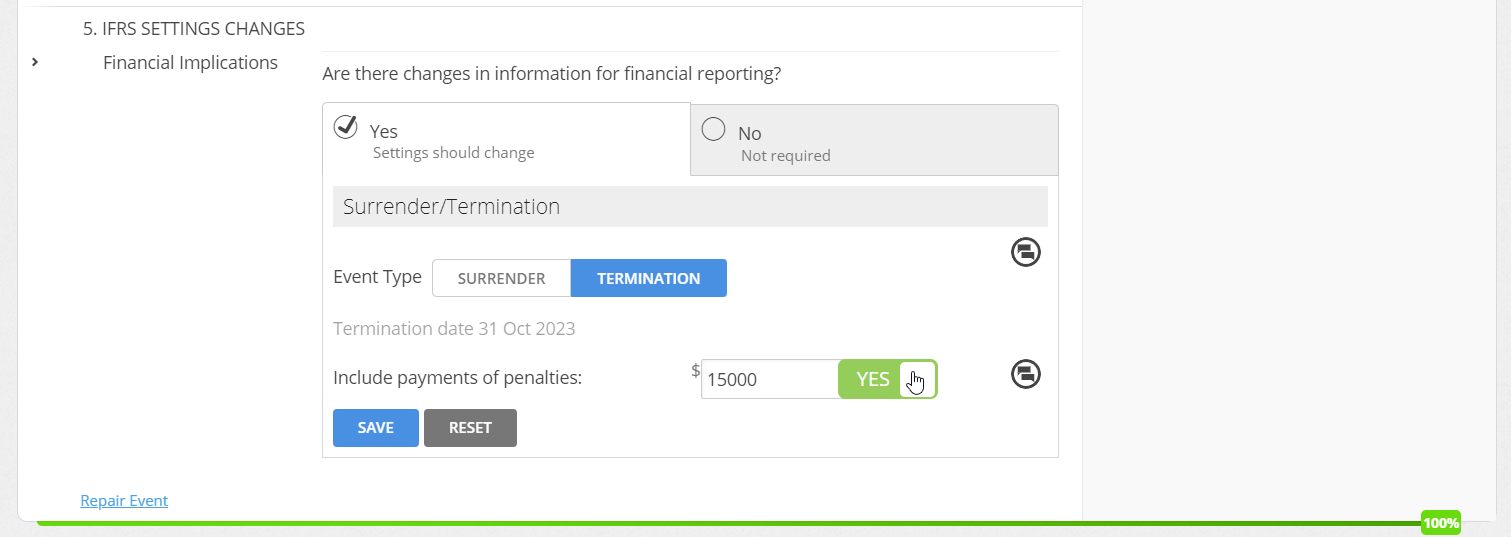
- Record any Payment of Penalties by toggling the bar to “Yes”, and recording the amount.
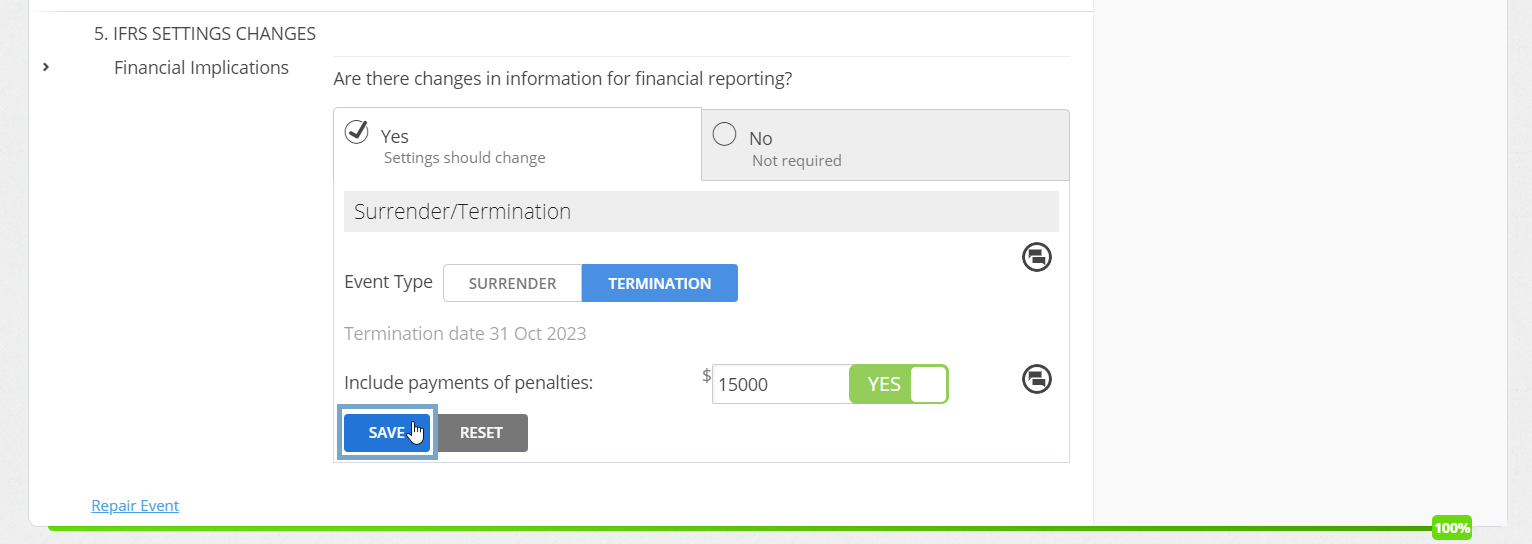
- Click “Save”.
Your Agreement will continue to show in your IFRS 16 reports as long as the Agreement is kept Active and the period you're reporting on is before, or inclusive of, the date of the Surrender. If you generate your reports after the date of the Surrender, you will no longer see the Agreement included.
What to expect after you've completed a Surrender Event in your IFRS 16 Reports
After you've completed a Surrender Event, in your Journals on the Surrender date you can expect to see four surrender entries where the Right of Use Asset, Lease Liability and depreciation balances are closed off; with a gain/loss where these don't balance:

If your Agreement is surrendered part way through the payment period of your Agreement, you'll also see a Reversal of Rent entry for the period of Rent paid after the Surrender date:

If your Agreement ends perfectly inline with the Payment Period of you won't expect to see a Reversal of Rent entry.
If you've included Payments of Penalties on the IFRS 16 Settings Change Questionnaire on the Surrender Event, you'll also see a corresponding entry in your Journal for this:

If your Agreement has a Make Good Provision, you'll see a journal entry for the remaining amount of the make good provision:


Not seeing your Make Good provision come through? Check if you've correctly added your Make Good Provision to the question which matches your transition method.
Please note: If the Agreement commenced after Transition, it should be onboarded using the Modified Retrospective method, with the Make Good Provision captured in the relevant question in the IFRS 16 Questionnaire. The Simplified Transition Method is only available for Agreements that existed at Transition.
Nomos One does not provide or purport to provide any accounting, financial, tax, legal or any professional advice, nor does Nomos One purport to offer a financial product or service. Nomos One is not responsible or liable for any claim, loss, damage, costs or expenses resulting from your use of or reliance on these resource materials. It is your responsibility to obtain accounting, financial, legal and taxation advice to ensure your use of the Nomos One system meets your individual requirements.