
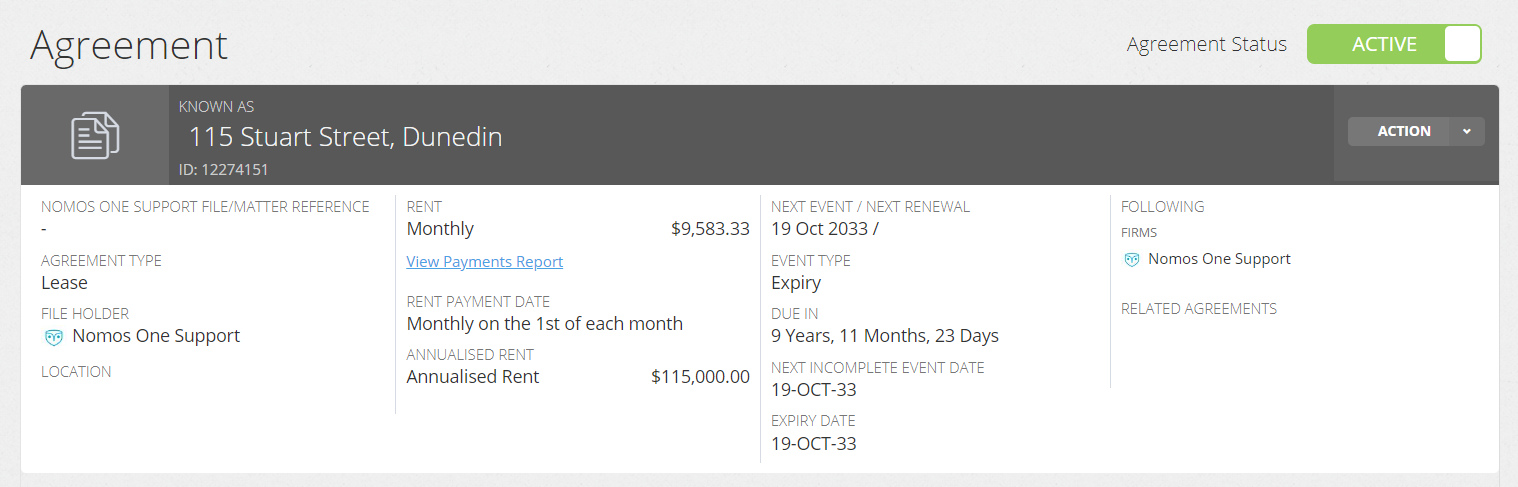
The Commencement Event marks the beginning of your Agreement. It's important you complete this on the Agreement Timeline so that you can see the rent amount reflected in the Agreement Header, run your Payments Report, and run all IFRS 16 Reports for the Agreement (if applicable).
How to Complete the Commencement Event
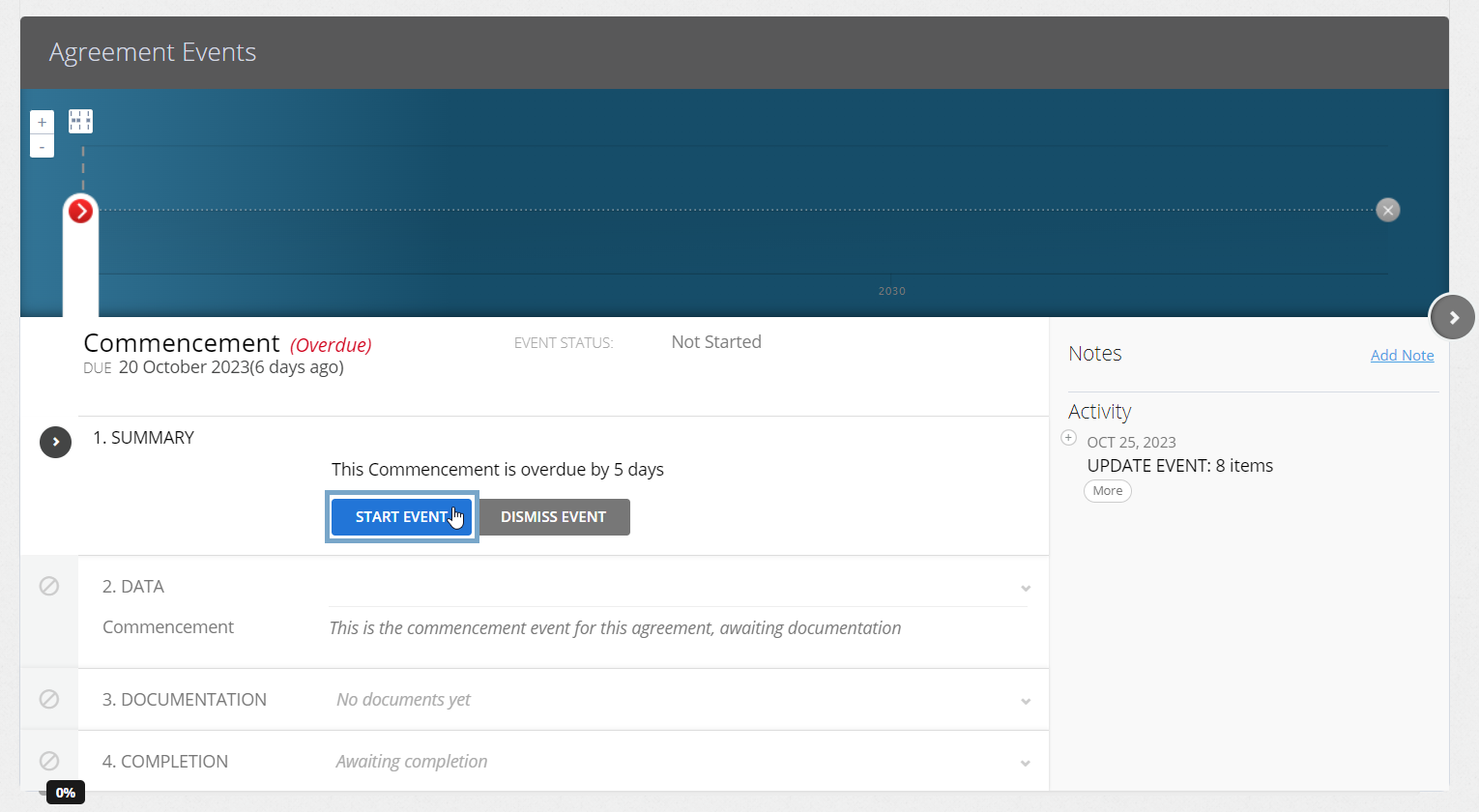
- Click on the Commencement Event icon on the Agreement Timeline, and click “Start Event”.
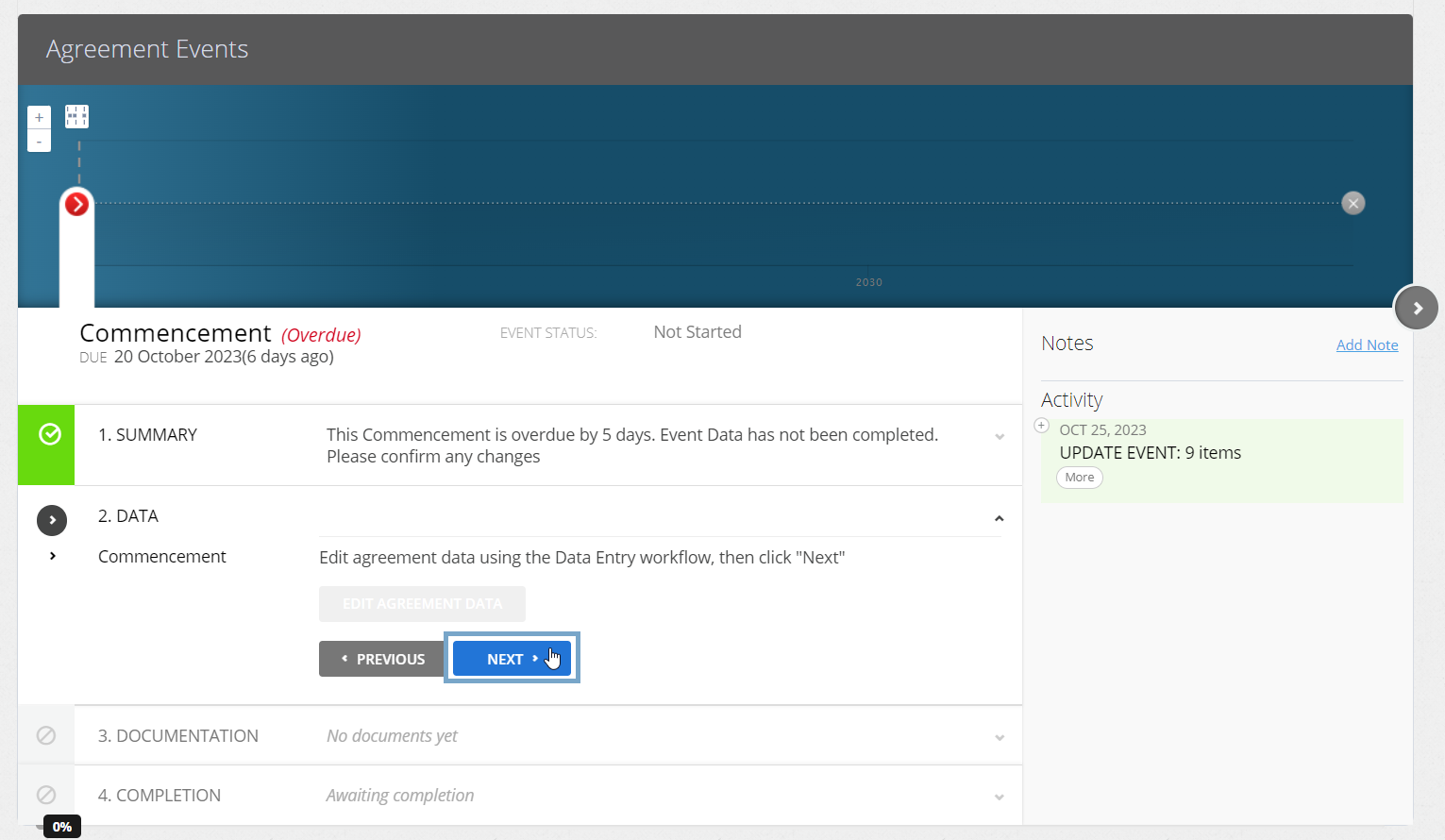
- At the Data step, click “Next”.
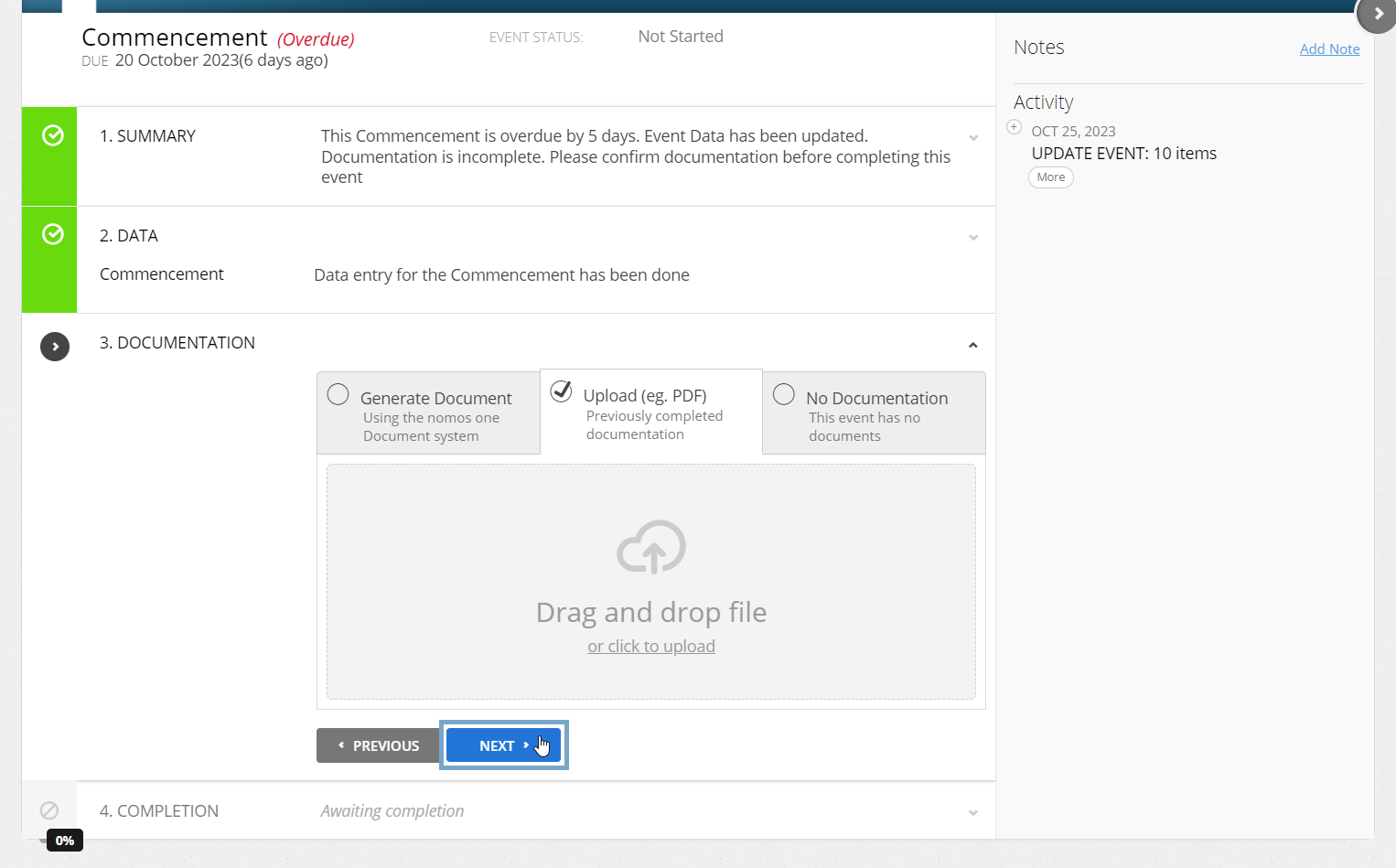
- Upload any supporting Documentation, or select No Documentation and click “Next”.
- Click “Complete”. You'll see a certification nothing that the Event has been completed, and the event icon will turn green.
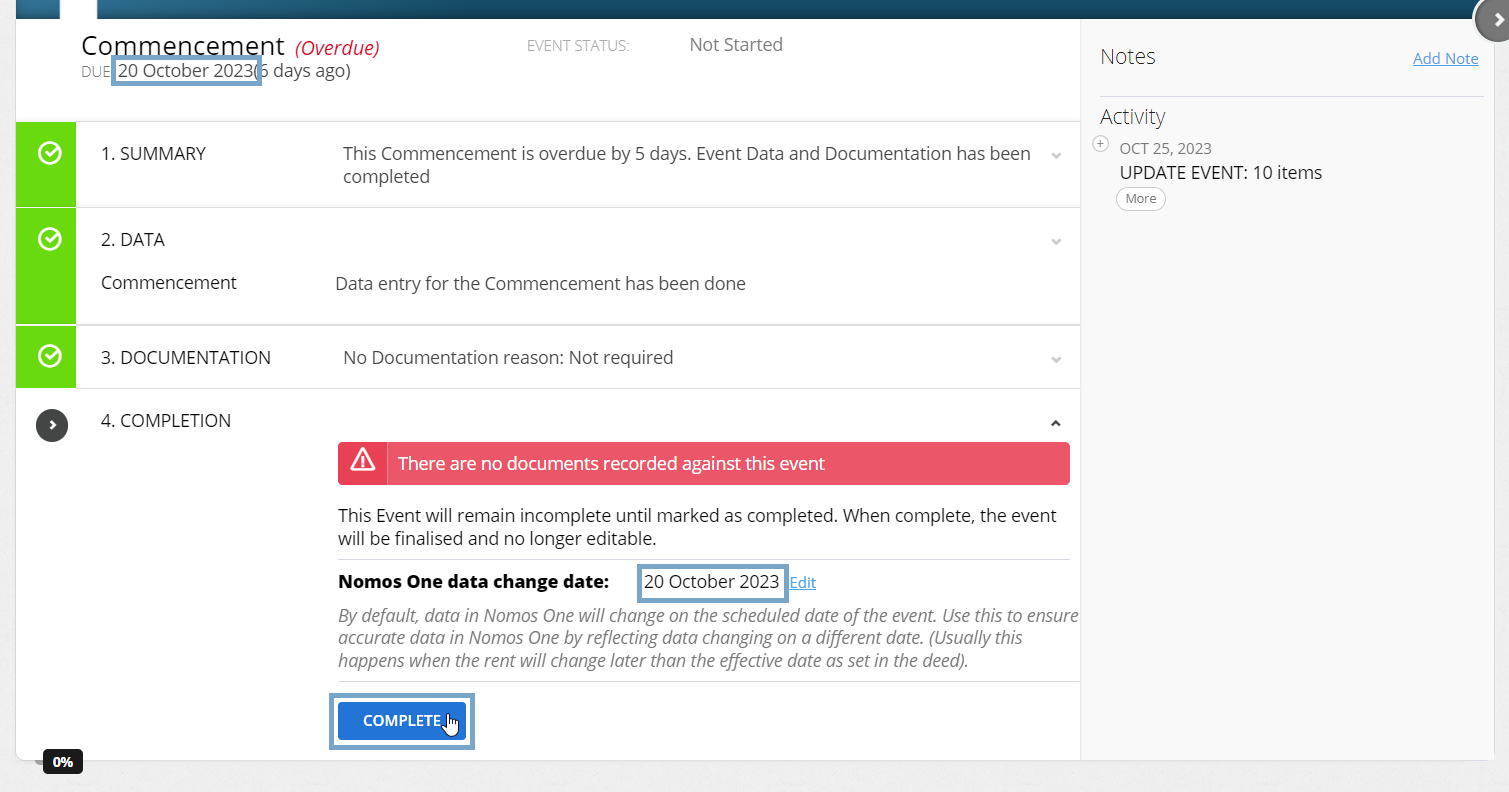
Make sure that you refresh your page to ensure that the Agreement Header displays the commencement rental after you complete your Commencement Event.
Is your Commencement Event in a locked period? You'll need to ask a user with the Administrator permission in your Organisation to edit the Lock Date before you complete the Event. Check out this article for more information.
Nomos One does not provide or purport to provide any accounting, financial, tax, legal or any professional advice, nor does Nomos One purport to offer a financial product or service. Nomos One is not responsible or liable for any claim, loss, damage, costs or expenses resulting from your use of or reliance on these resource materials. It is your responsibility to obtain accounting, financial, legal and taxation advice to ensure your use of the Nomos One system meets your individual requirements.