
The Rent & Payment page is where you record the Rent information and any other Payments known at the Commencement of your Agreement. In this article, you'll find guidance on each of the features on the Rent & Payment page and how to use them.
Rent Payment Information
The first section of the Rent & Payment page is where you'll record basic rent payment information known at the Commencement of your Agreement. Any changes to this information that occur throughout the life of the Agreement must be recorded by completing events on the Agreement Timeline after the Agreement has been created - not by changing this original information.
First Payment Date, Payment Period, and Rent Payment Day
The First Payment Date is where you'll record the date that rent payments commence, as per the contract. This should be inclusive of any Rent Holidays, Discounts, or Pre-Payments. For example, if the Agreement commences on 1 January 2019, and there is a rent-free period of 3 months, we still recommend you record 1 January 2019 at the First Payment Date. You can use either the text field or calendar tool to record this date.

Use the Payment Period to select whether your Rent is paid Annually, 6 monthly, Quarterly, Monthly, Weekly, or Other.

Please note: If you choose the "Other" option, the Agreement will not be included in IFRS 16 reports and will instead produce an error message. Please choose a different option if you wish to see this Agreement included in IFRS 16 reports. If the frequency option you require is not available, we recommend you choose the option that best matches your payment frequency. If you experience any issues when using the Weekly payment period option, please reach out to our Support Team at support@nomosone.com.
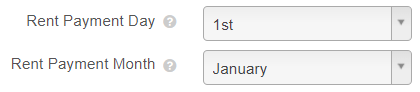
Use the drop-down bar to select the regular Rent Payment Day, and if applicable, the Rent Payment Month. Note that these fields will not automatically update to match the First Payment Date - e.g., if using the Annual option, the Day and Month fields will display 1st January even if your First Payment Date is recorded as 15th February - so you will need to check what is recorded here.
Rent (Premises) and Rent (Carparks)
The Rent (Premises) field is where you'll record the rent amount as at the Commencement of your Agreement. You can record either the Annual, Monthly, or Weekly amount and the system will automatically calculate the other amounts for you. As IFRS 16 Reporting deals with before tax balances, we recommend entering the Plus Tax (tax exclusive) rent amount.

Please note: If you leave the Rent (Premises) field blank, the Agreement will not be included in IFRS 16 reports and will instead produce an error message. If you do not pay rent for the Agreement, but need to see it reflected in IFRS 16 reports, please enter the value 0.01 in the Annual field.
If your Agreement contains a carpark/carparks, you can capture any rent for these using the Rent (Carparks) field. This is a great option if your carpark rent is reviewed in the same manner and frequency as your premises rent, but if it's not, we'd recommend setting up a separate Agreement to capture this. Note that this field can be left blank if not relevant to the Agreement - it won't cause any issues for reporting.
Payment Mode
Select the Payment Mode of your rent payments. You can choose either In Advance (meaning you pay for the period ahead), In Arrears (meaning you pay for the period just finished), or Other/Unknown.
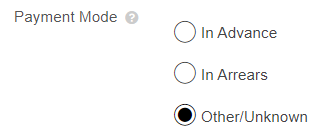
Please note: If Payment Mode is set to "Other/Unknown", the Agreement will not be included in IFRS 16 reports and will instead produce an error message. Please choose one of the other options.
Currency
Use the drop down bar to select the Currency your Rent is paid in. The default option is based on the selection made in the Organisation Settings page, but can be changed on an individual Agreement basis.

Taxation
Select whether the rent you've recorded is the Plus Tax, Including Tax, or Tax Exempt amount.
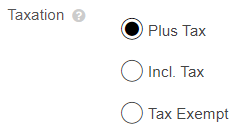
Please note: The Taxation feature can only be used for lease management purposes. You will only see the impact of this selection in the Payments by Period report, a non-IFRS 16 report.
The IFRS 16 Reporting functionality does not recognise the taxation setting, so will not apply it to calculations. If using IFRS 16, select Plus Tax or Tax Exempt, and ensure that the Rent amount entered doesn't include tax.
Proportion of Outgoings and Default Interest Rate
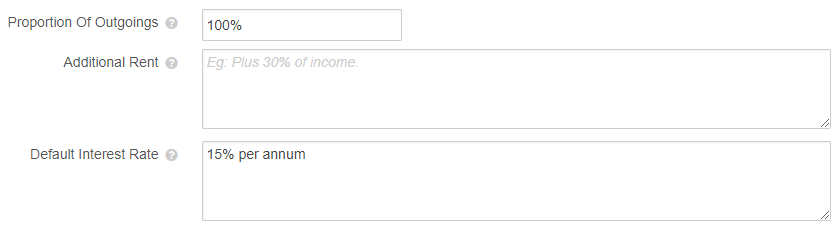
If you'd like to record a Proportion of Outgoings, Default Interest Rate, or any Additional Rent payable under your Agreement, you can record this information using the corresponding text fields. Information recorded in these fields won't impact IFRS 16 calculations or appear in the Payments by Period report, but can be included in the Custom Agreement Report.
Split Rent Payment
If paying rent to multiple parties in an Agreement, you can use the Split Payments feature to represent the percentage share that each party receives.
To split your Rent Payments:
- Click “Add Party” and select the relevant party from the drop-down. You will see all parties related to the Agreement here.
- In the Percentage field, record the share of the rent that the selected party receives.
- Click “Save”.
Repeat this process until you've recorded all of the parties, and the total percentage adds to 100%.

If the Split Payments feature is used, the Payments by Period and Universal Payment Report will display multiple rent payments, reflecting the number of parties recorded. The rent payment will remain as one transaction in IFRS 16 reports.
Component Payments
If you have other payments in your Agreement beyond the regular rent, you can capture these using the IFRS Component and Non IFRS Component payment fields. Payments entered in the first section will appear in IFRS 16 reports, and most will impact IFRS 16 balances. Payments entered in the second section will only appear in contractual payment reports.
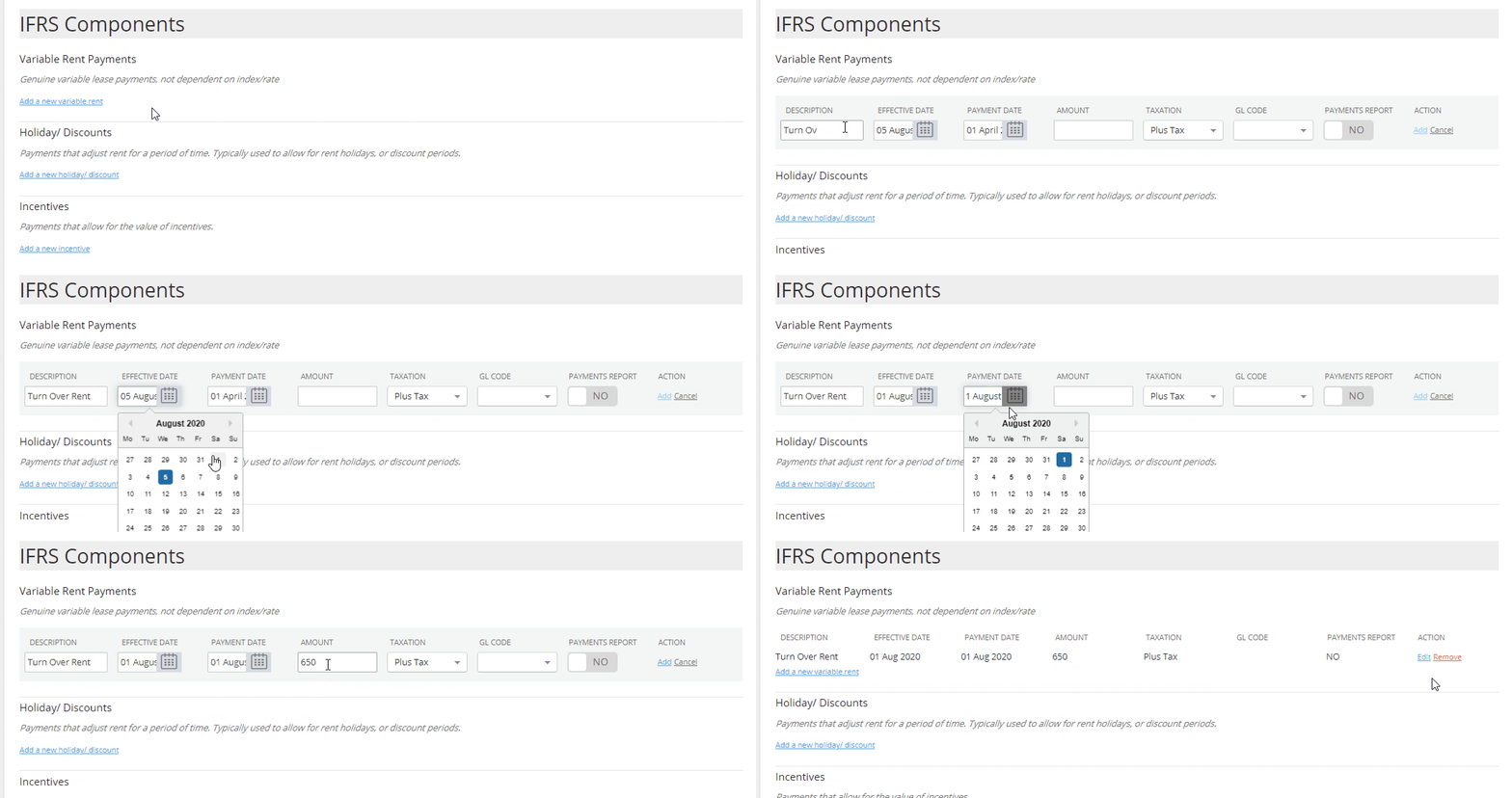
To record an additional payment, you'll need to:
- Click “Add a new...” under the section you want to add.
- Record a Description of the payment.
- Record the Effective Date of the payment. For IFRS Component payments, this is the date you will see any resulting remeasurement appear in the IFRS 16 reports.
- Record the Payment Date and/or Start Date of the payment. This is the date the payment transaction actually occurs.
- Record the Amount of the payment.
- Select the Taxation that applies (for contractual reporting purposes only).
- Click “Add” to save the payment line.
Please note: The “GL Code”, “Payments Report”, “Split”, and “Exclude” fields across the payment options are legacy features, and will not impact how the payments appear in reports.
The above is a high level summary of Component Payments. For detailed information about each payment option, including any impact on IFRS 16 balances, check out this article.
What's next?
Once you've finished entering your Rent and Payment information, click “Next” to move to the Events page.
Nomos One does not provide or purport to provide any accounting, financial, tax, legal or any professional advice, nor does Nomos One purport to offer a financial product or service. Nomos One is not responsible or liable for any claim, loss, damage, costs or expenses resulting from your use of or reliance on these resource materials. It is your responsibility to obtain accounting, financial, legal and taxation advice to ensure your use of the Nomos One system meets your individual requirements.