
If you need to record a rent deferral on an Agreement after it has commenced, you can do this through a Variation Event. In this guide, we'll walk you through the steps of how to record that regular rent payments have ceased for a given period, then record the owed rent being paid at a later date.
Please note: If your rent deferral was agreed to at or before the Commencement of your Agreement, you can skip some of the instructions in this guide. From the Agreement Overview page, click “Action”, then “Repair Data" in the top right corner, and skip to the Rent & Payments page of the Agreement creation process. In this guide, skip to step 8 to begin recording the rent deferral. As you don't need to add in a Variation Event, reference to the "Variation Date" in this guide should be replaced with the Commencement Date. For more guidance, please contact our Support Team at support@nomosone.com.
Add a Rent Deferral to your Agreement
To add a Rent Deferral to your Agreement:
- On the relevant Agreement, click “Action”, then “Create / Edit Events”.
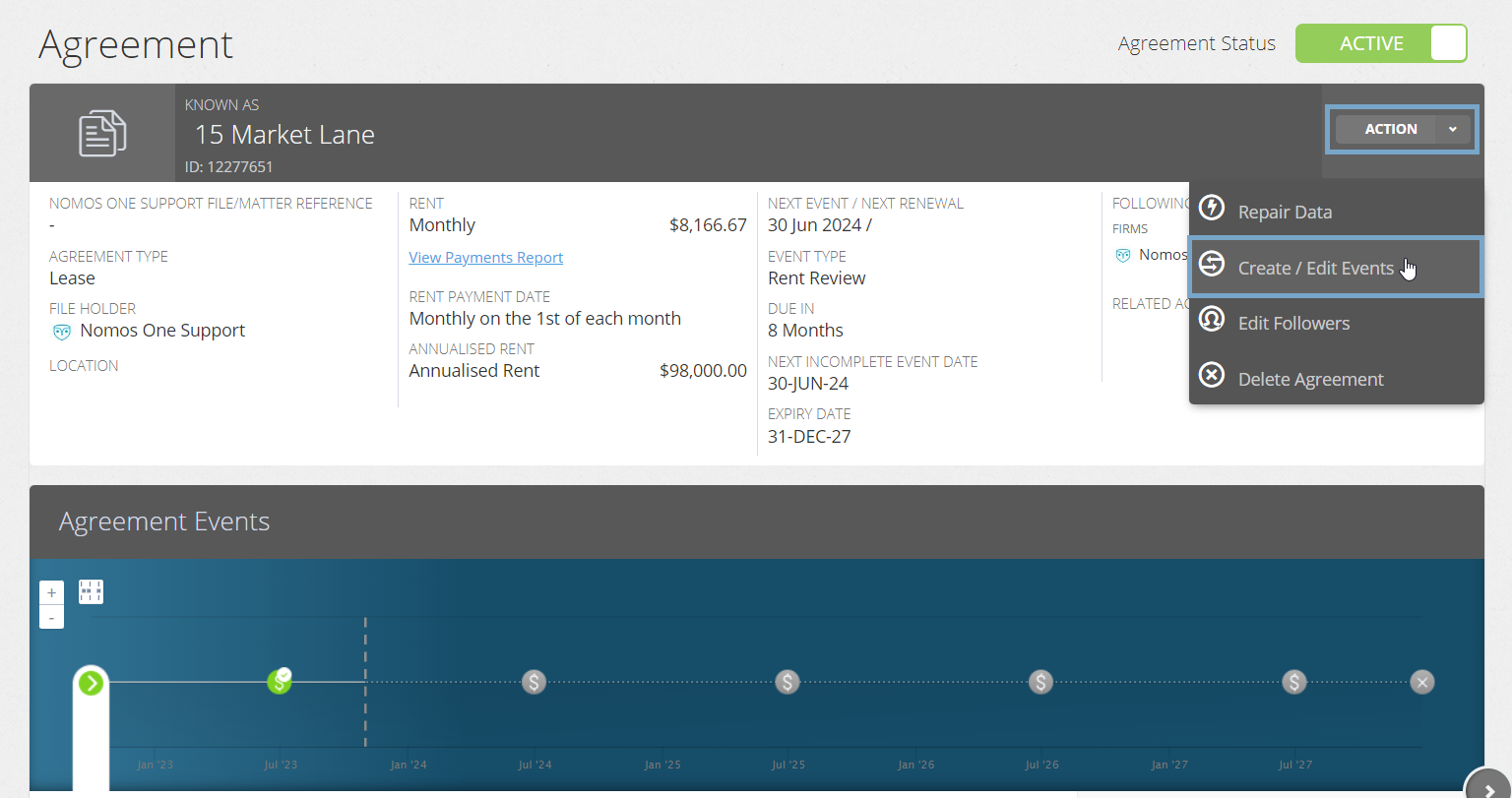
- This will take you to the Events page of the Agreement creation process. Scroll to the Variation section and click “Edit”.
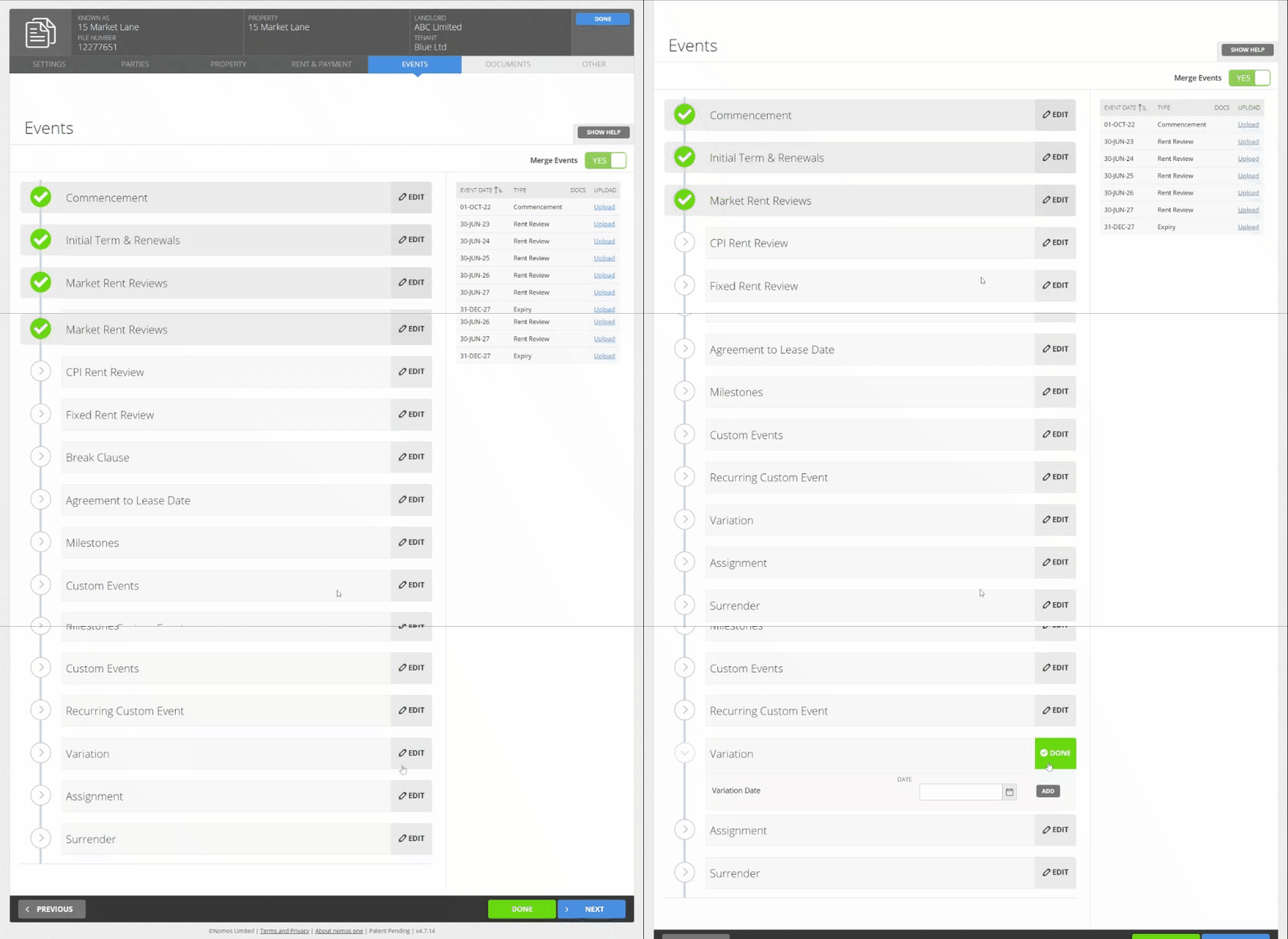
- Using the calendar tool or text field, enter the date you agreed to the terms of the rent deferral. Click “Add”.
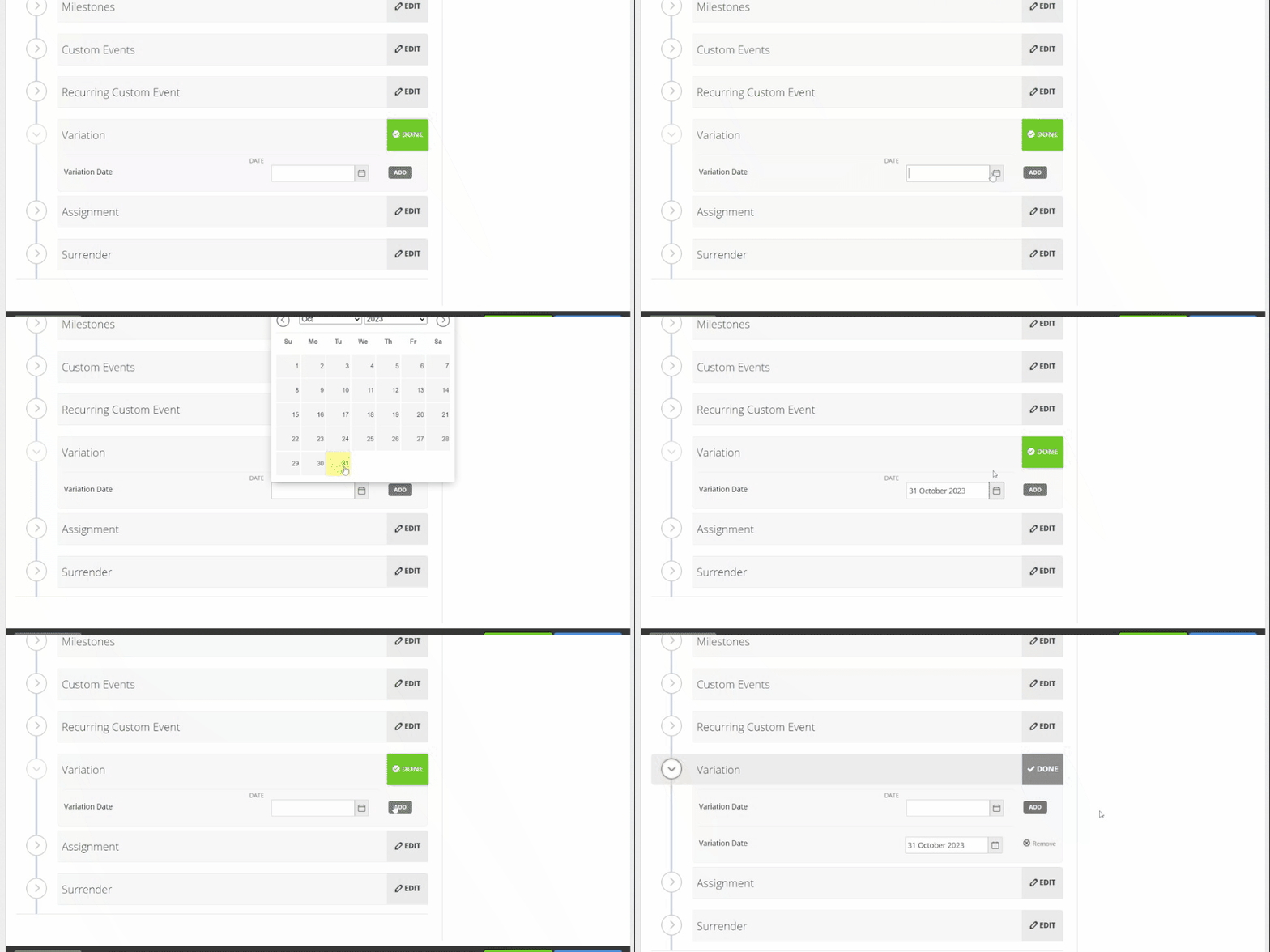
Please note: We recommend that you do not edit other Event information while adding this Variation event. If you alter Events that were known at the commencement of the Agreement, this may impact your IFRS 16 Opening Balances for this Agreement. This warning also applies to Events that are scheduled during a period already factored into IFRS 16 reporting.
- Click “Done” at the top or bottom of the page to return to the Agreement Timeline.
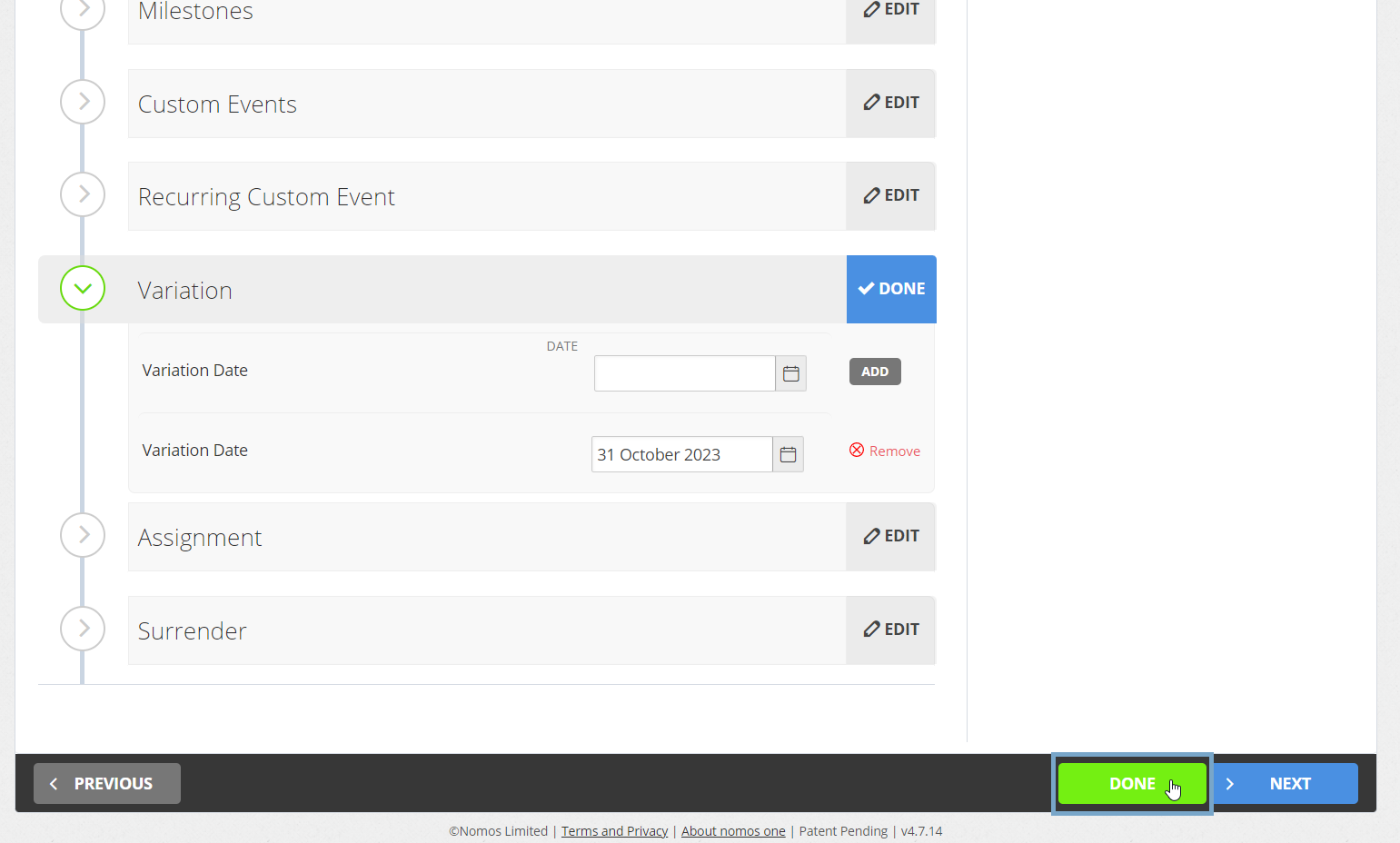
- You'll now see a new icon on the Agreement Timeline representing the Variation Event. At Step 1, click “Start Event”.
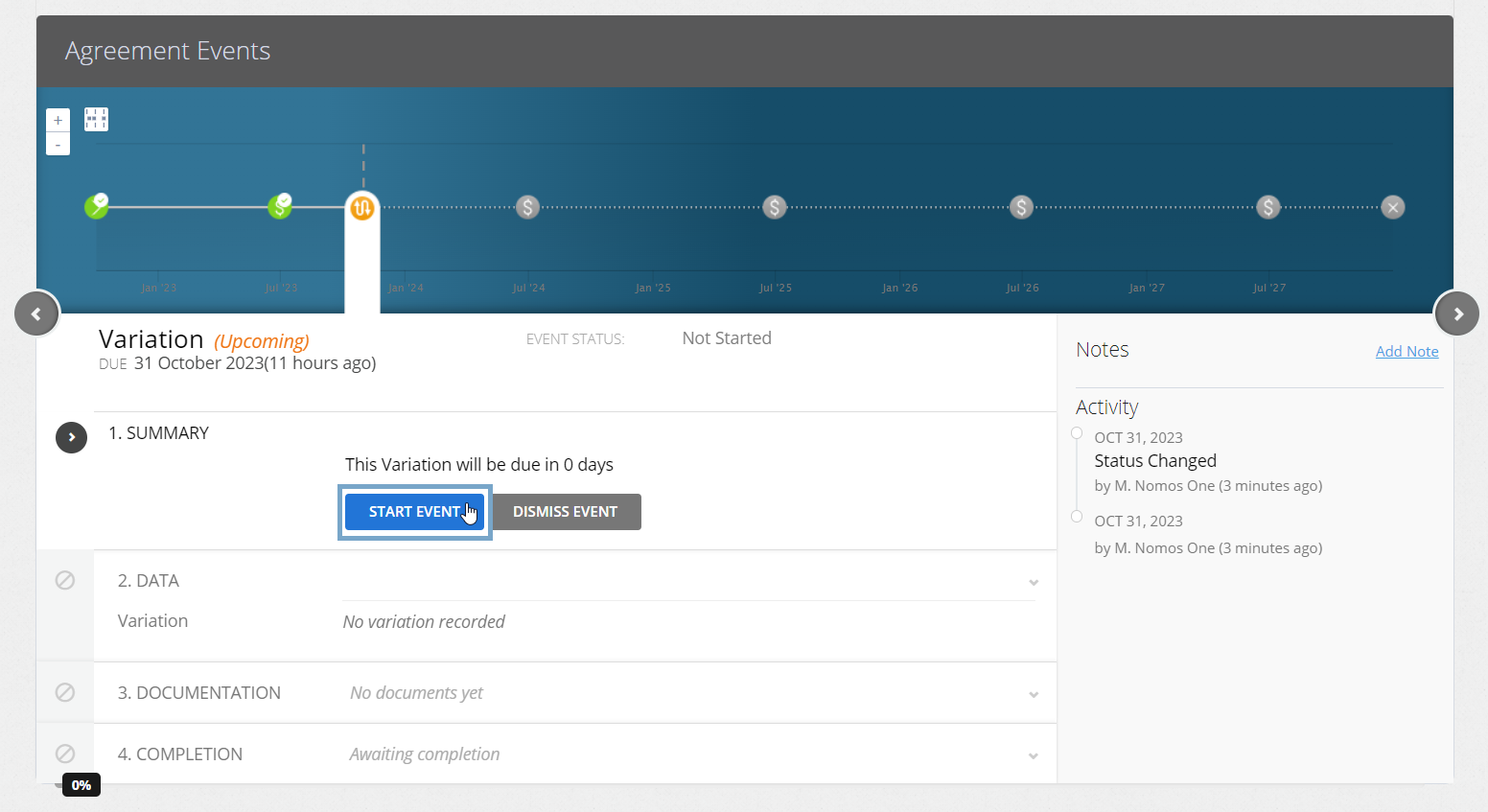
While you can add Events on a date that is within a locked period, you cannot complete these Events on the Agreement Event Timeline. If your Variation Event is within a locked period, you'll need to ask a user with the Administrator permission in your Organisation to edit the Lock Date before you can complete the Event. Check out this article for more information.
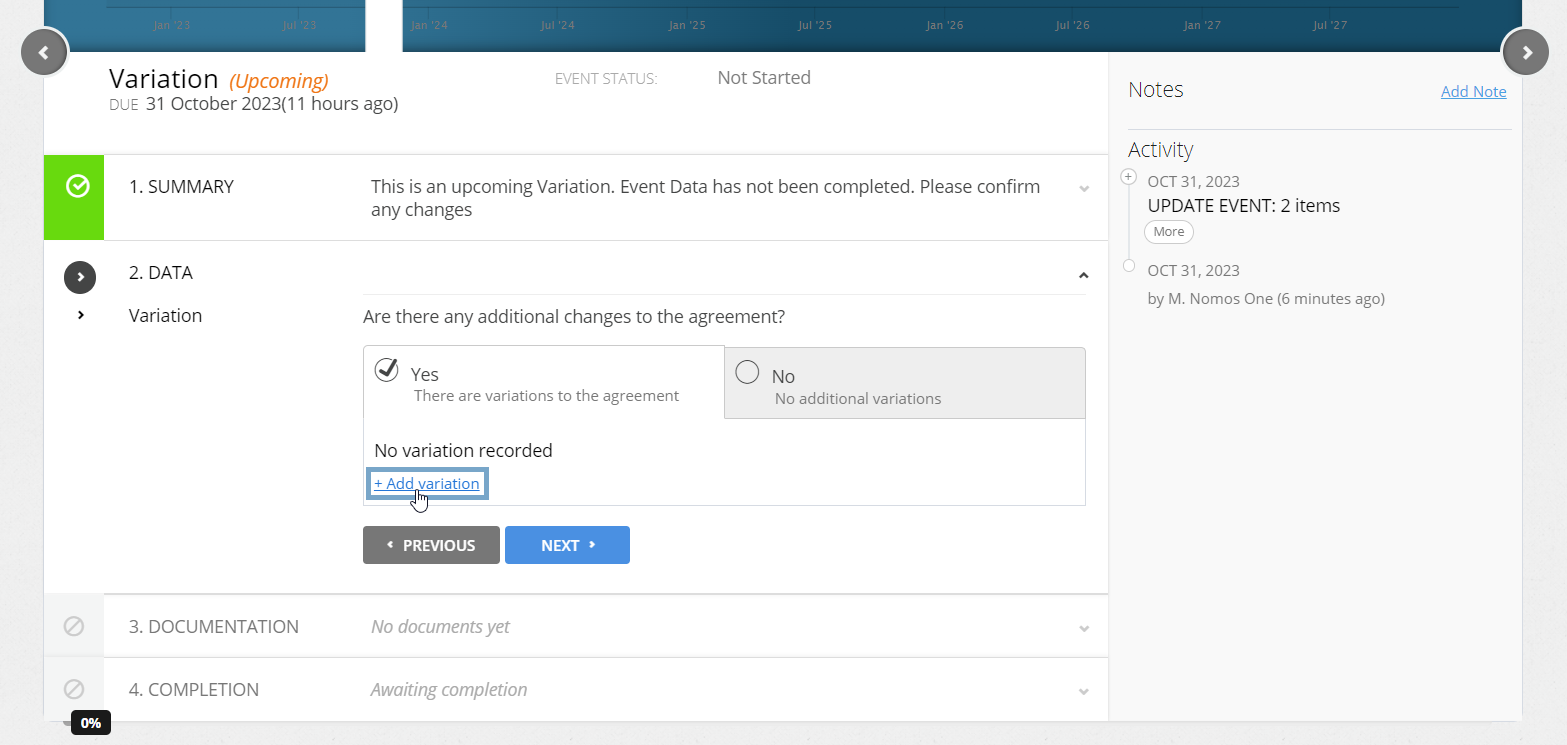
- At Step 2, select “Yes, there are variations to the agreement”, then click “+ Add variation”.
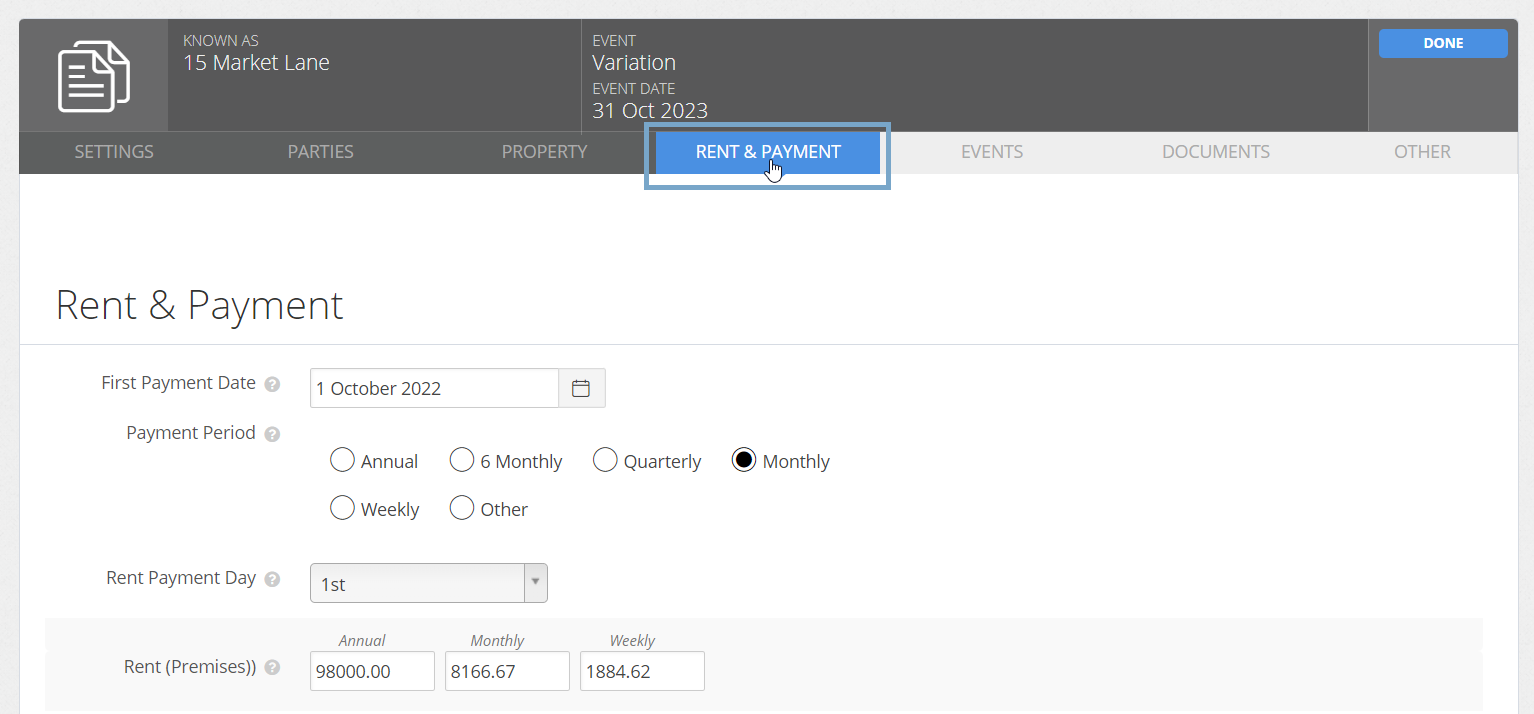
- Navigate to the “Rent & Payment” page of the Agreement creation process.
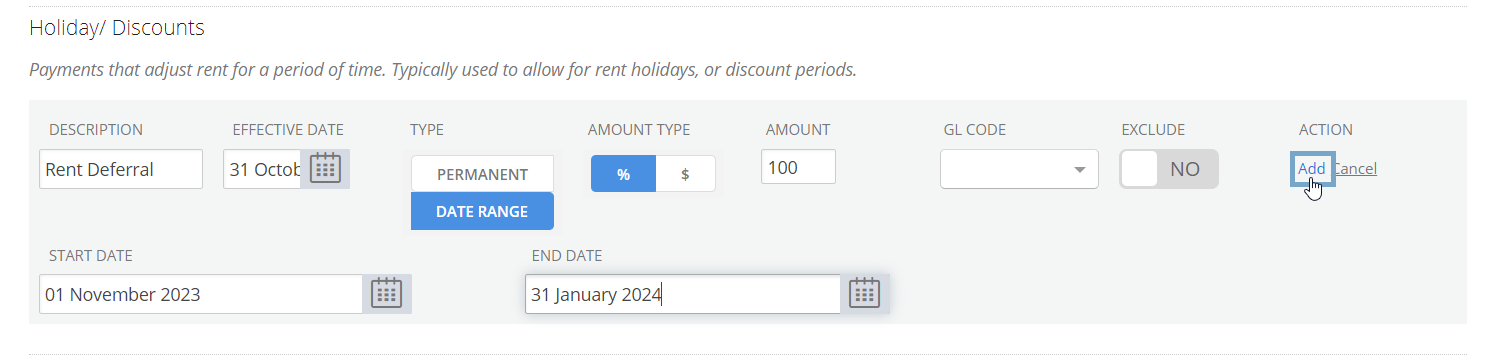
- To stop the regular rent payments being recorded for the period during which you've deferred your rent, you'll need to use the Rent Holiday/Discount functionality.
- In the “Effective Date” field, record the date that you agreed there would be a deferral in Rent (the same as the Variation date). This will be the date you'll see any resulting remeasurement in your IFRS 16 reports. The Effective Date must be on or before the “Start Date” to allow you to click “Add”.
- Select “Date Range” for the “Type” field. Use the “Start Date” and “End Date” fields to record the period during which rent is not being paid.
- To record that no rent is being paid, choose percentage (%) for the “Amount Type”, and enter “100” in the “Amount” field. If there is still some amount of rent being paid during this period, please refer to the article on recording a Rent Holiday / Discount to determine how to record this.
- Skip the “GL Code” and “Exclude” fields.
- To record the back-payment of the rent at a later date, you'll need to add in a One-off Payment. You may need to add in multiple of these, depending on how you are paying the deferred rent.
- In the “Effective Date” field, record the date that you agreed there would be a deferral in Rent (the same as the Variation date). This will be the date you'll see any resulting remeasurement in your IFRS 16 reports. The Effective Date must be on or before the “[payment] Date” to allow you to click “Add”.
- In the “[payment] Date” field, record the date that you are making the payment of the deferred rent.
- Record the amount that you are back-paying in the “Amount” field.
- Skip the “GL Code” and “Split” fields.

As mentioned, you may need to record multiple one-off payments here.
- If back-paying the rent in one lump sum amount, you can use just one one-off payment, and record the total amount owed in the “Amount” field.
- If back-paying in a weekly/monthly/quarterly/etc. manner, to match the regular rent payments, you'll need to create multiple one-off payments. Record the amount paid in each back-payment in the “Amount” field for each separate one-off payment.
- Once you've recorded the Rent Holiday/Discount and any One-off Payment(s), click “Done” at the top or bottom of the page to return to the Variation Event on the Agreement Timeline.
- Back at Step 2 of the the Variation Event, click “Next” to confirm the changes you've made.
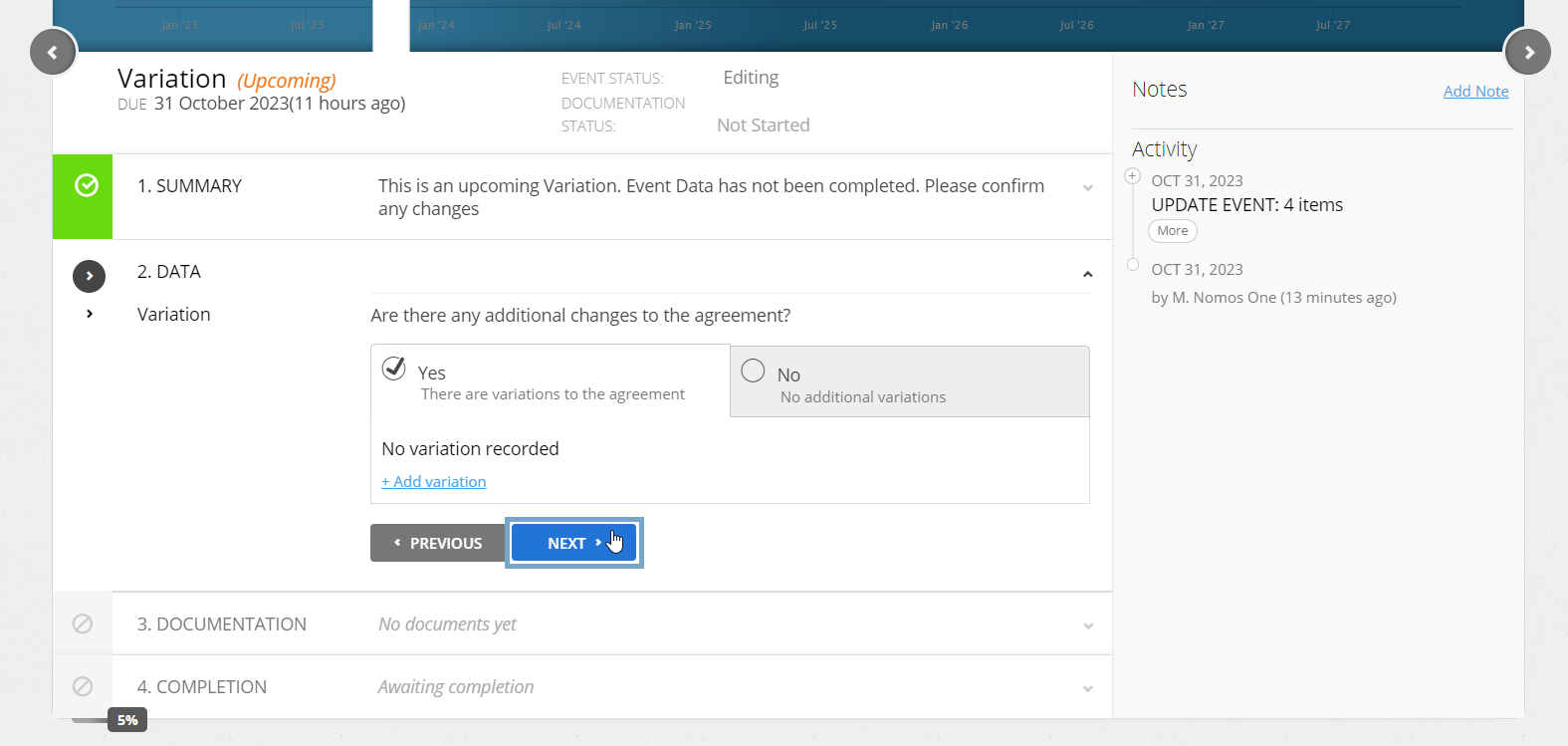
Please note that adding an IFRS 16 Component Payment such as a Holiday / Discount or One-off Payment won't produce a text note summarising the change made in the Variation Event. You may like to add your own Custom Event Note to record details of the Holiday / Discount and/or One-off Payment that was added through the Variation Event.
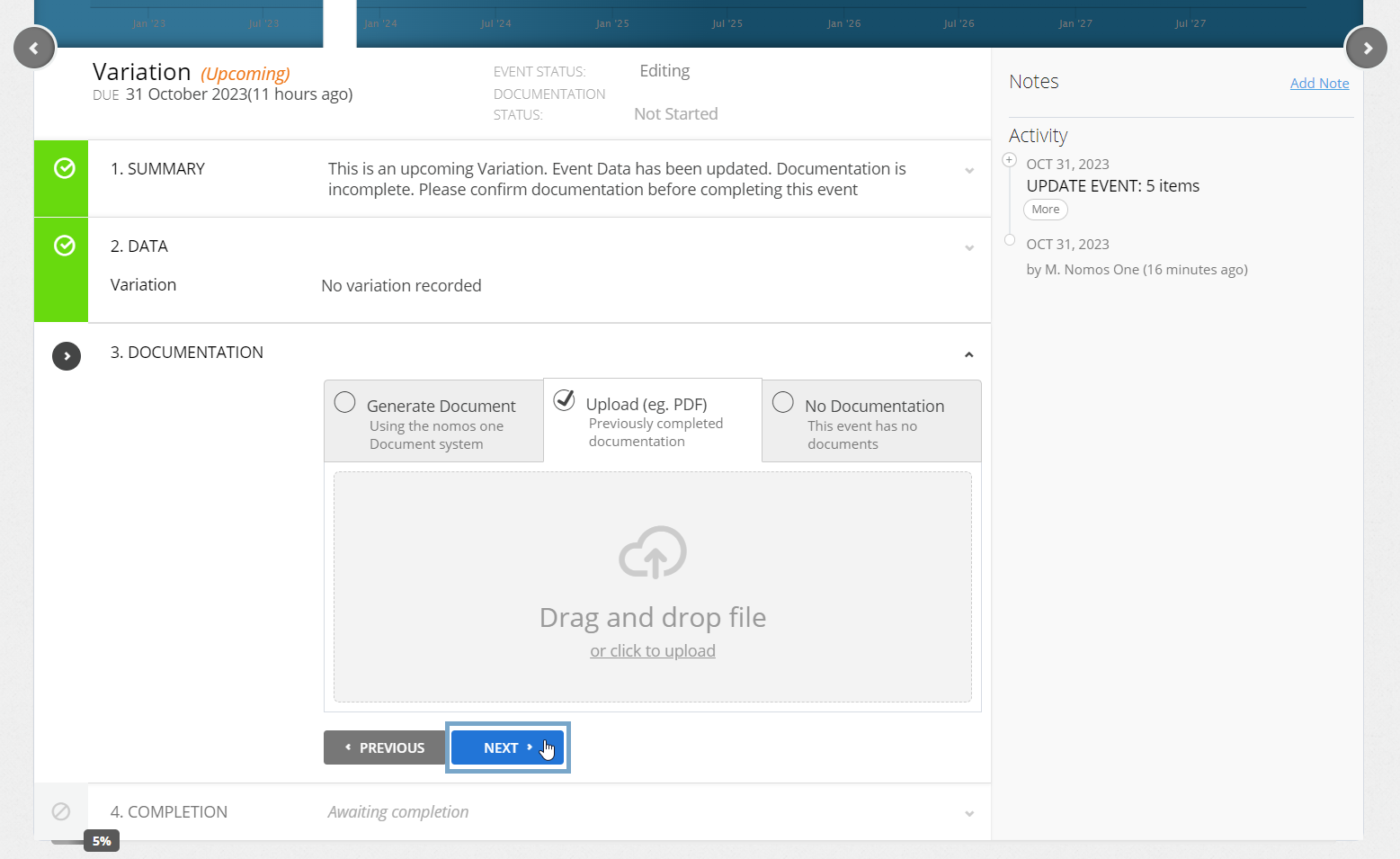
- Upload any supporting Documentation, or select “No Documentation”, then click “Next”.
- Click “Complete”. You'll see a certification noting that Event has been completed, and the Variation Event icon will turn green.
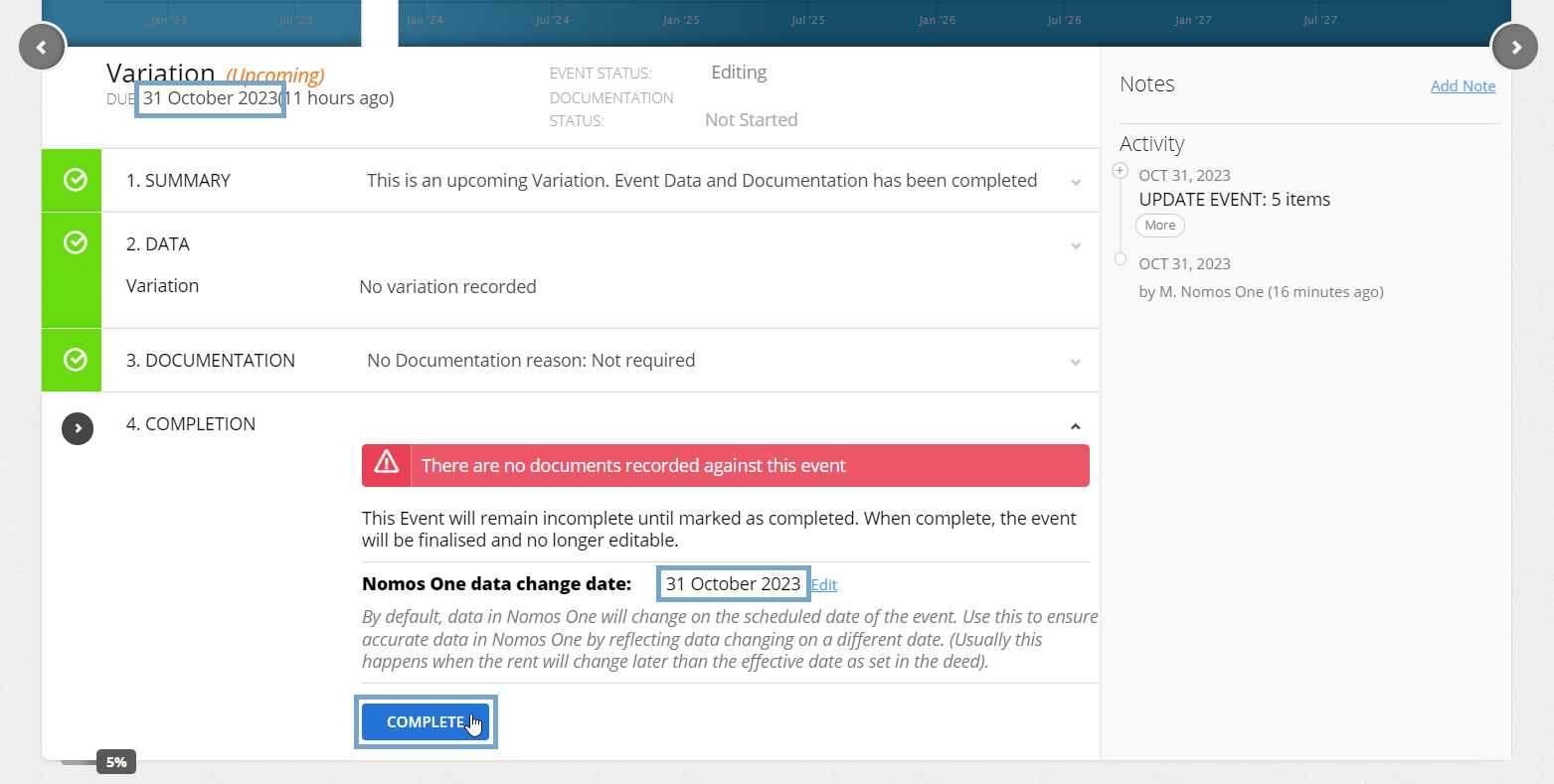
You have now successfully added a rent deferral to your Agreement.
Validating your Rent Deferral was Added Correctly
If you use Nomos One for IFRS 16 Reporting, you can validate that the rent deferral was added correctly using the Journal Report. To do this, run the Journal Report over the Effective Date of the Rent Holiday or Discount, and you should see “Remeasurement of Lease Liability” journal lines. You will also see the reduced rent payment amount, if you run the report over the Start Date and End Date of the Rent Holiday or Discount. If you run the report over the payment date(s) of the One-off Payment(s), you should see payment journal lines that display the back-paid balance(s).

Nomos One does not provide or purport to provide any accounting, financial, tax, legal or any professional advice, nor does Nomos One purport to offer a financial product or service. Nomos One is not responsible or liable for any claim, loss, damage, costs or expenses resulting from your use of or reliance on these resource materials. It is your responsibility to obtain accounting, financial, legal and taxation advice to ensure your use of the Nomos One system meets your individual requirements.