
You can add notes to any of the Events on the Agreement Timeline. Adding an event note is a great way to record extra information against your Event, leave messages to others in your team who might review an Agreement, or keep track of changes that don't automatically produce notes. Event notes are specific to the event that you add them to, and you can add multiple notes to any event.
Please note: If a User is removed from the Nomos One system, any notes that have been left be them will display as being left by a “previous user”. For more information on removing users, check out this article.
Add an Event Note
To add a note to an Event:
- From the Agreement Timeline, click on the Event icon you want to add a note to.
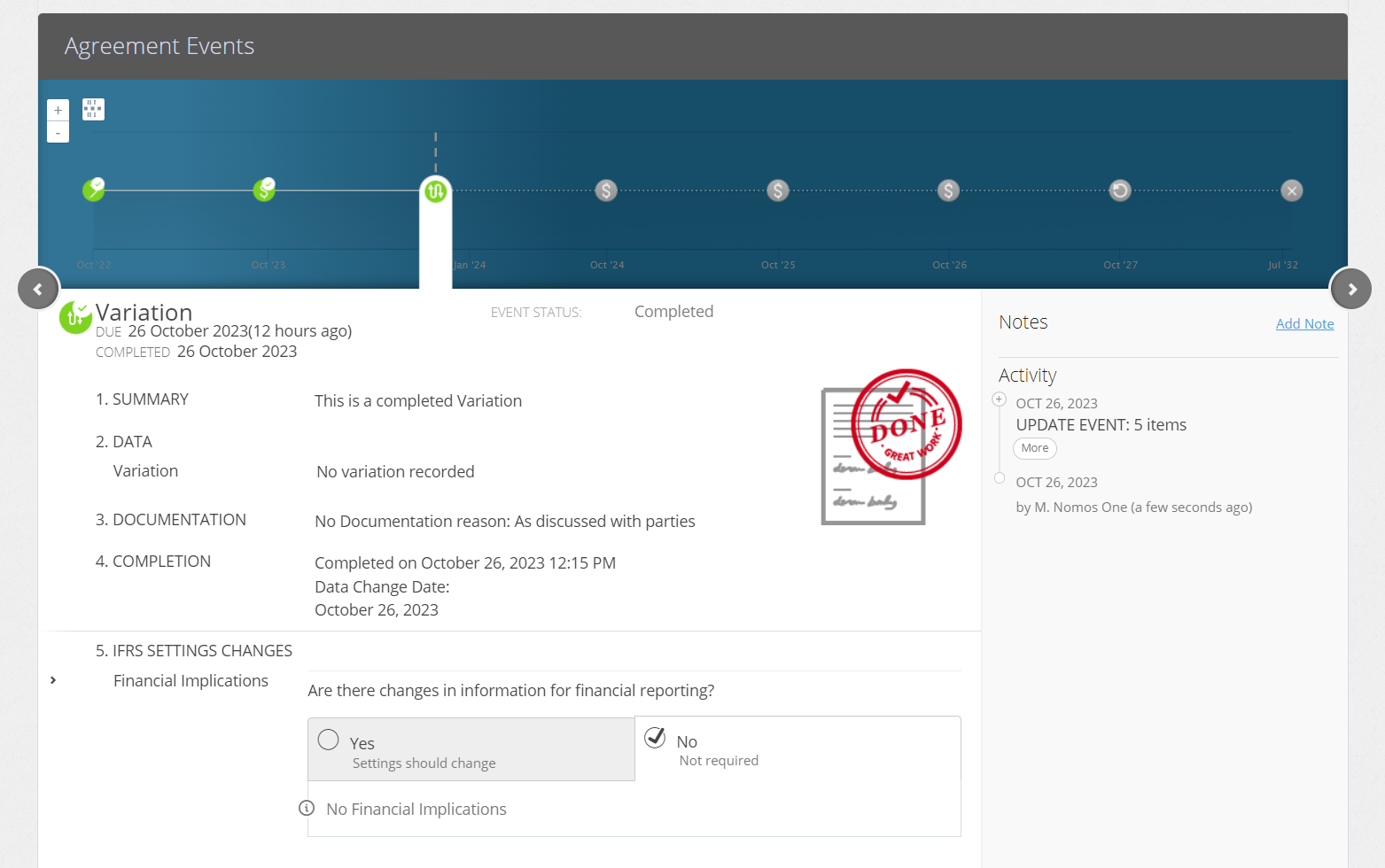
- On the Event sidebar, click “Add Note”.
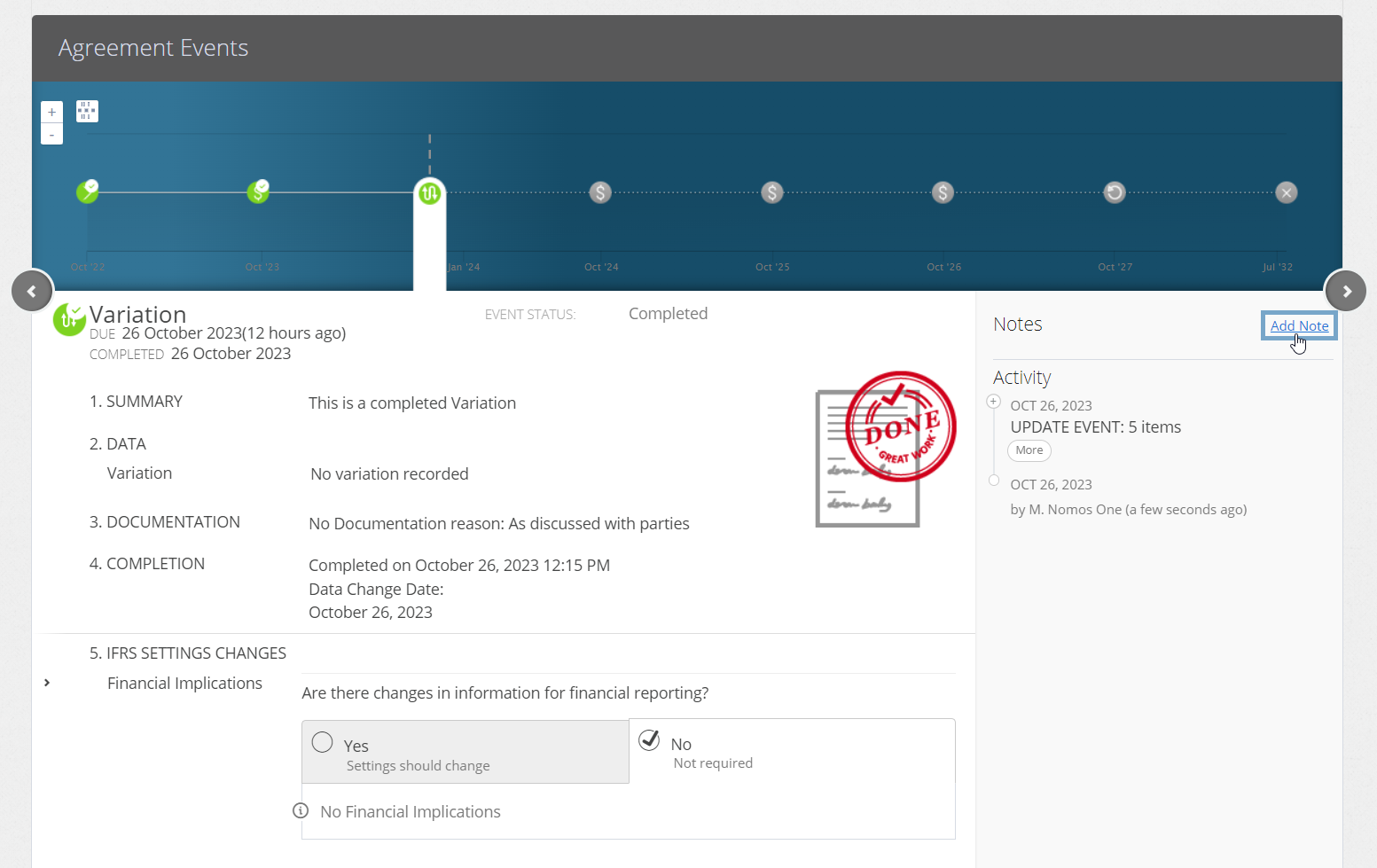
- In the text field, enter the note you want to record, then click “Add”.
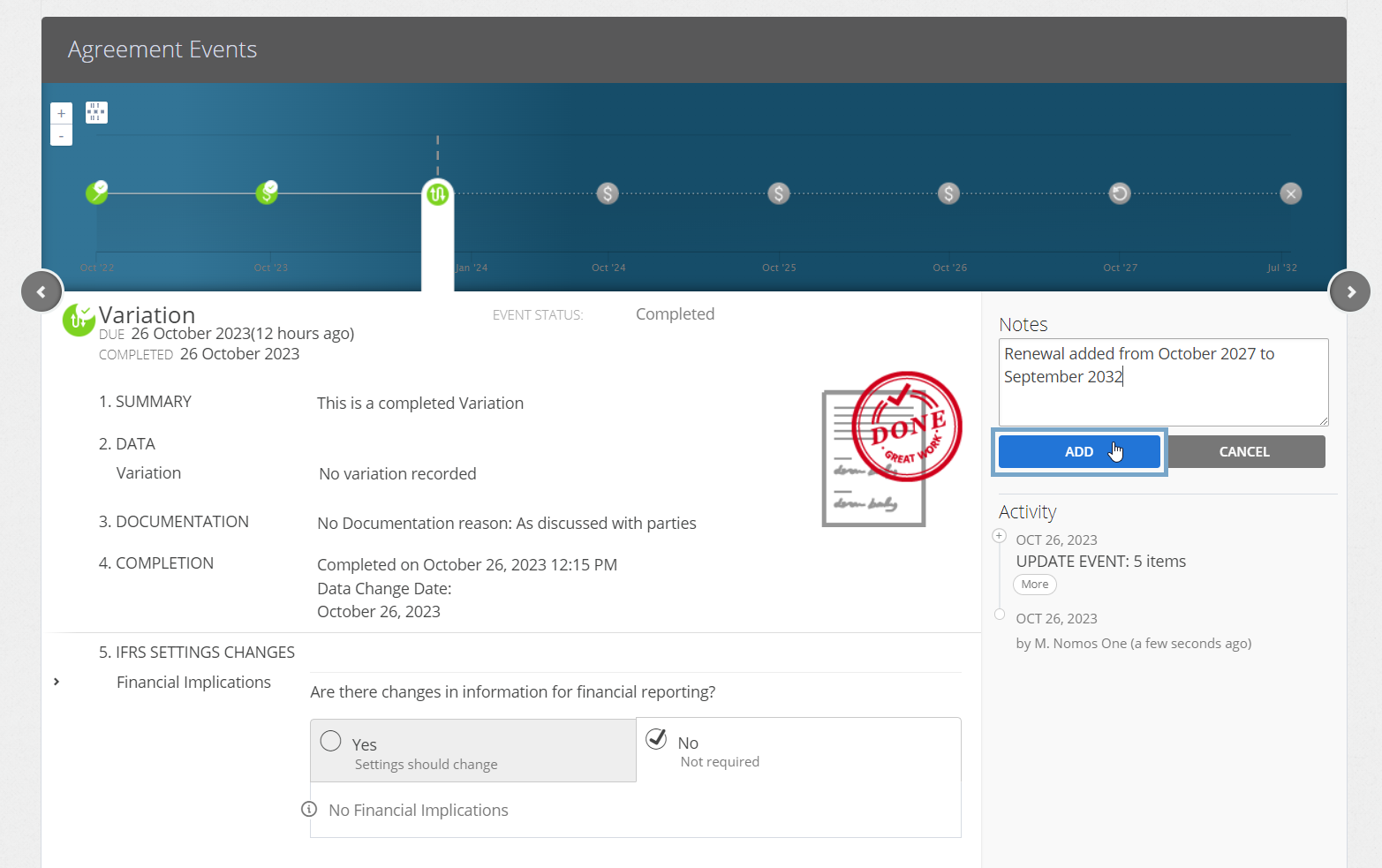
Handy Tip: We like using the Event Note feature to record details of the changes made in a Variation Event, as not all changes will produce a text summary in the “DATA - Variation” section of the event.
Changes that don't produce a text summary within a Variation include changes to Properties and Parties, as well as the addition or deletion of any IFRS 16 or Non-IFRS 16 Component Payments to your Agreement. Check out our article for more information on recording Contractual Changes to Agreements through a Variation.
You'll now see your custom note appear in the sidebar of the Event.
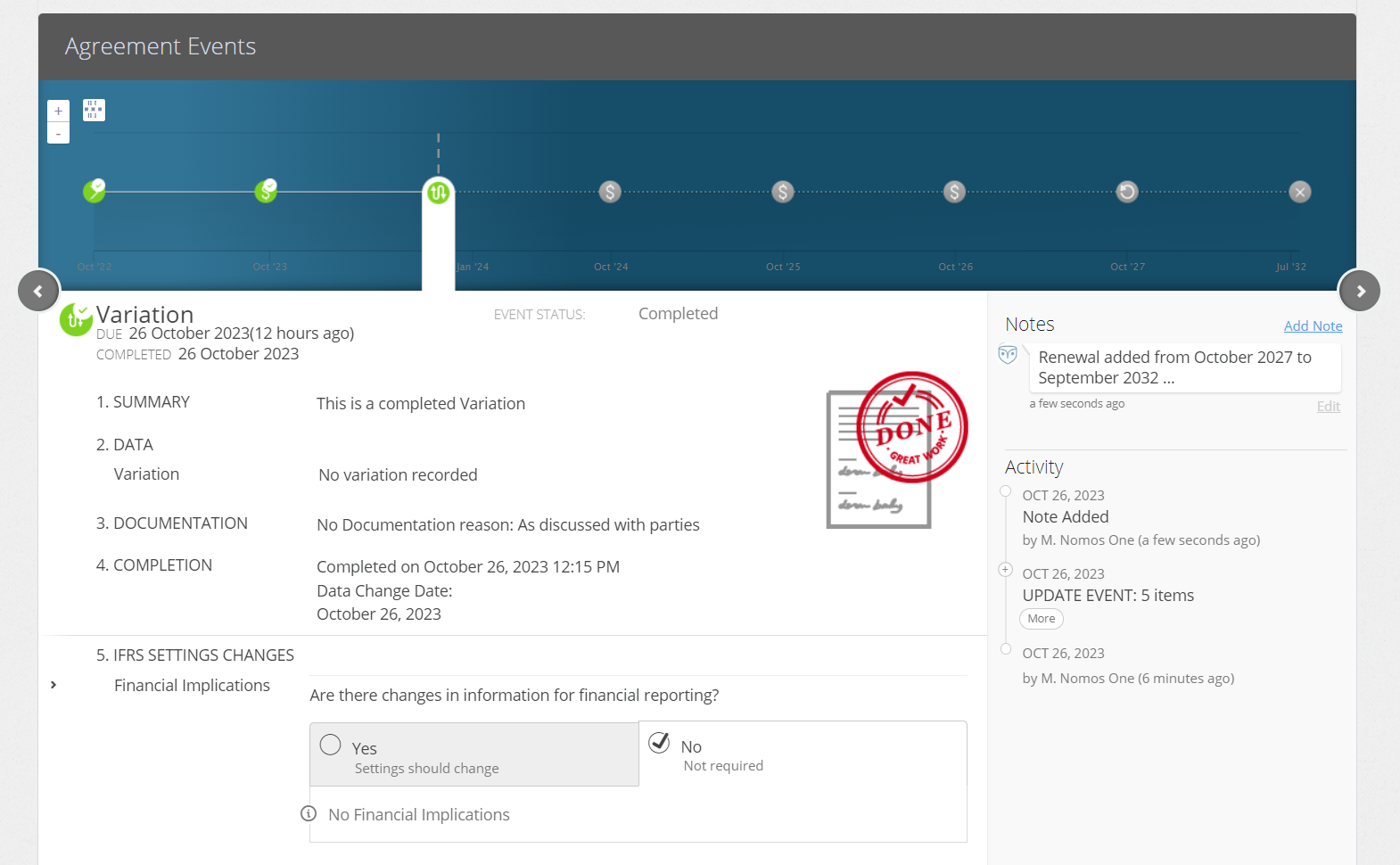
Please note: If you reset an Event on the Agreement Timeline, this will also delete any event notes added to that Event.
Nomos One does not provide or purport to provide any accounting, financial, tax, legal or any professional advice, nor does Nomos One purport to offer a financial product or service. Nomos One is not responsible or liable for any claim, loss, damage, costs or expenses resulting from your use of or reliance on these resource materials. It is your responsibility to obtain accounting, financial, legal and taxation advice to ensure your use of the Nomos One system meets your individual requirements.