
If you need to update or amend the contractual terms of an Agreement, you can do so using a Variation Event. These events allow you to record certain changes to your Agreements, without having that information apply retrospectively and potentially impact your IFRS 16 opening balances.
Video Tutorial: How to Update your Agreement using a Variation Event
Check out this video tutorial on how to update your Agreement after it has Commenced using a Variation Event:
Important Information about Variation Events
Please take the time to read this section, as it contains important information about adding and completing Variation Events in Nomos One.
Please note that only some information fields can be updated in a Variation Event and have the change correctly apply from the Variation Date forward. If you update other fields in a Variation Event, or by simply editing the field directly, the change will retrospectively apply from the Commencement of the Agreement, resulting in changes to opening balances, or causing an error in IFRS 16 Reporting.
Changes that can't be made, in a Variation or directly, without taking retrospective effect, include changes to:
- First Payment Date
- Payment Period (annual, monthly, weekly, etc.)
- Rent Payment Day
- Payment Mode (in advance or in arrears)
- Rent Reviews (frequency, dates, amounts) within reporting periods already factored into IFRS 16 Reporting
- Cap and Floors which will impact any Rent Reviews already factored into IFRS 16 Reporting
- The Start/End Dates of existing IFRS 16 Component Payments
- Financial Allocations
- GL Templates
- Any settings within the Initial IFRS 16 Settings Change Questionnaire
If a change is made to any of these aspects of your Agreement, this will result in the change being applied from the Commencement of your Agreement, and will likely change your Opening Balance / Transition Take Up amounts. If you need to record a change that impacts one of the fields listed above, please contact our Support Team who can help you with a workaround.
Changes that will cause an error for IFRS 16 Reporting if processed inside a Variation Event:
- Extending the length of an Existing Term on your Agreement, or adding new Renewal Options
- Decreasing the length of an Existing Term on your Agreement, or removing Renewal Options
Processing the above changes inside a Variation Event will produce IFRS 16 Reporting Errors. As such, we've come up with best practice guides on how you can still record these changes on your Agreements without running into these errors. Find these linked above.
How to Add a Variation Event to your Agreement
The following section instructs you how to add an independent Variation event to your Agreement. If the effective date of the change you need to record aligns with an existing event, such as a renewal or rent review, you do not need to work through this section. Please skip to Step 2 of the next section of this Article.
To add a Variation Event to your Agreement:
- On the relevant Agreement, click “Action”, then “Create / Edit Events”.
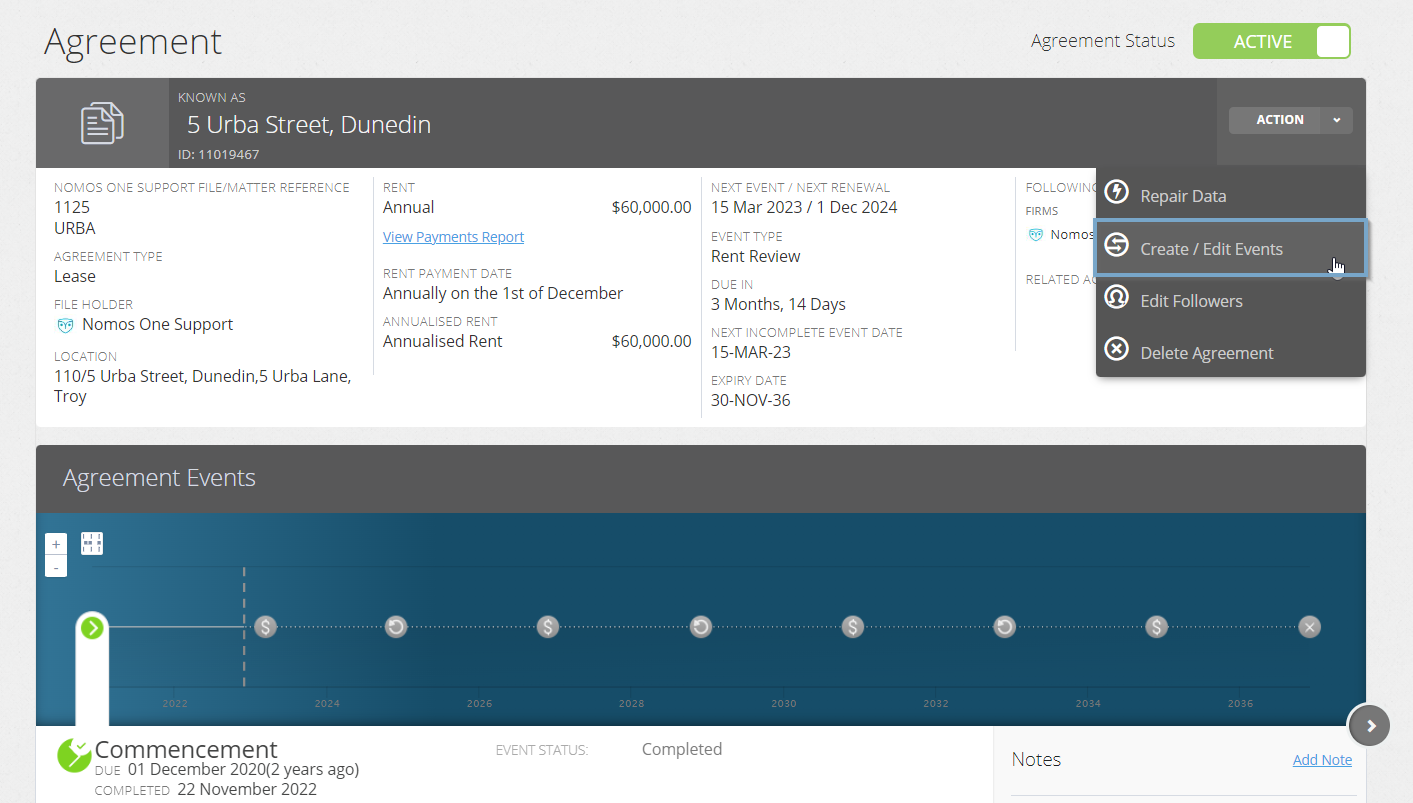
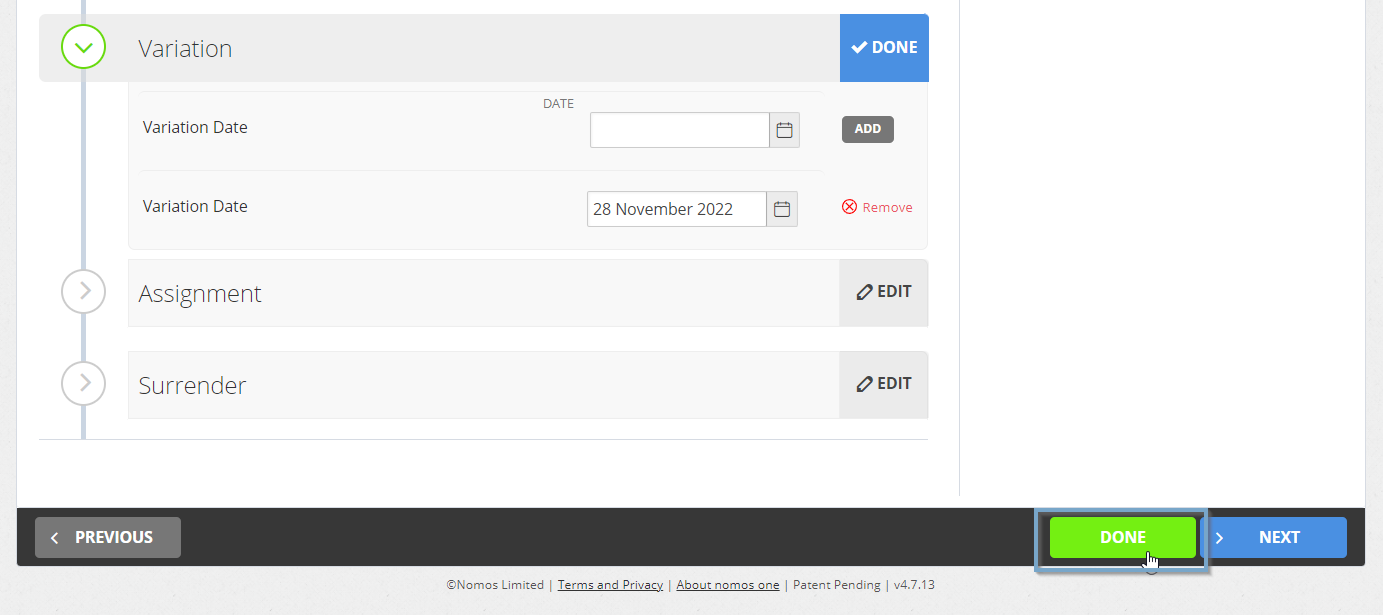
- This will take you to the Events page of the Agreement creation process. Scroll to the Variation section and click “Edit”.

3. Using the calendar tool or text field, enter the effective date of the Variation. Click “Add”.

Please note: We recommend that you do not edit other Event information while adding this Variation event. If you alter Events that were known at the commencement of the Agreement, this may impact your IFRS 16 Opening Balances for this Agreement. This warning also applies to Events that are scheduled during a period already factored into IFRS 16 reporting.
- Click Done at the top or bottom of the page to return to the Agreement Timeline.
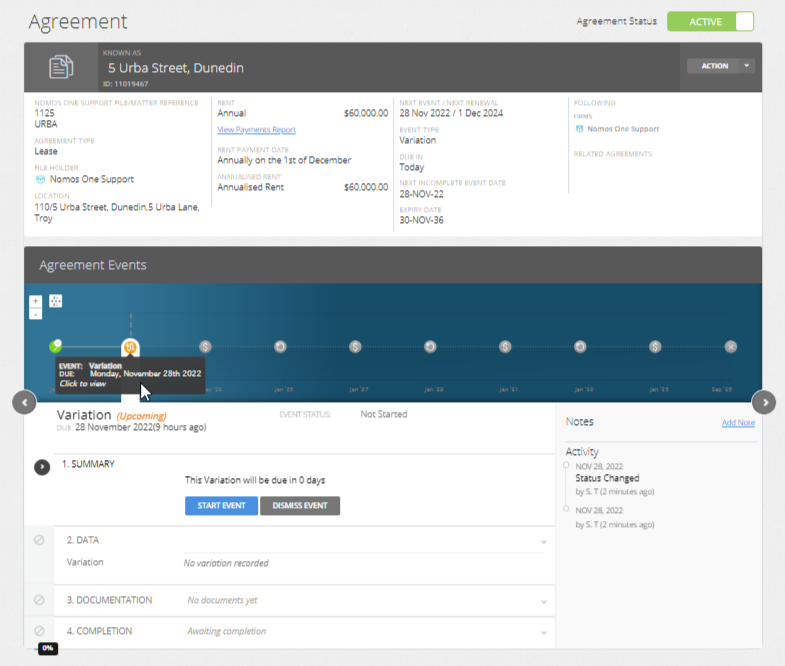
- You'll now see a new icon on the Agreement Timeline representing the Variation Event.
How to Complete a Variation Event
To complete a Variation Event:
- Click on the Variation Event icon. At Step 1, click “Start Event”.
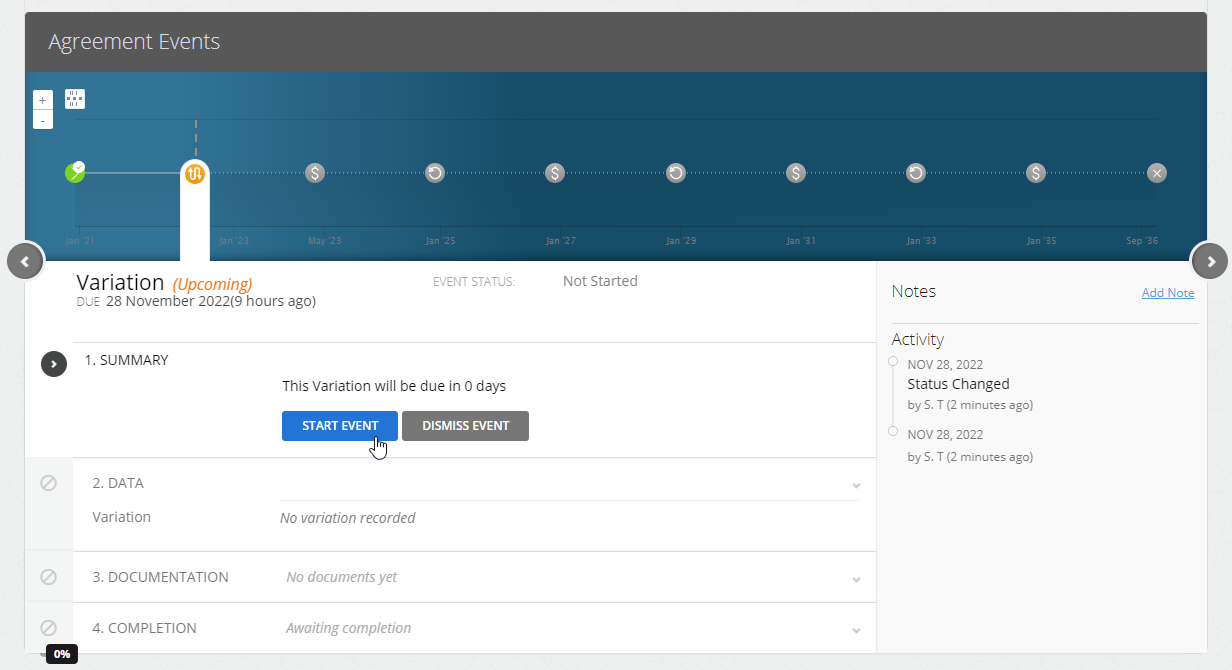
While you can add Events on a date that are within a locked period, you cannot complete these Events on the Agreement Event Timeline. If your Variation Event is within a locked period, you'll need to ask a user with the Administrator permission in your Organisation to edit the Lock Date before you can complete the Event. Check out this article for more information.
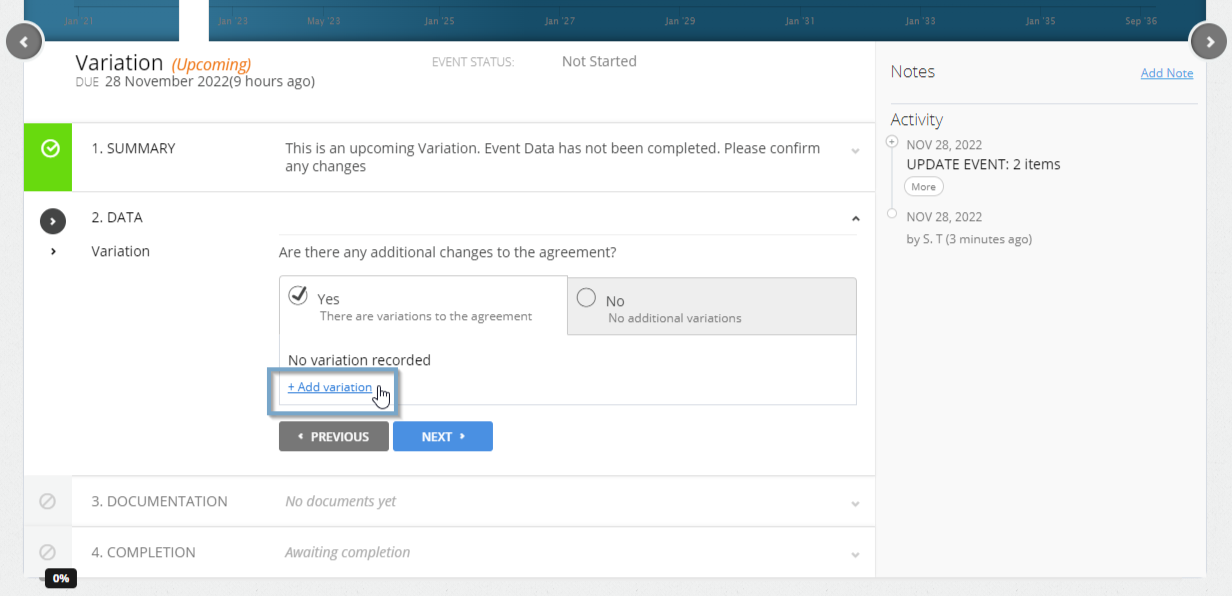
- At Step 2, select “Yes, there are variations to the agreement”, then click “+ Add variation”.
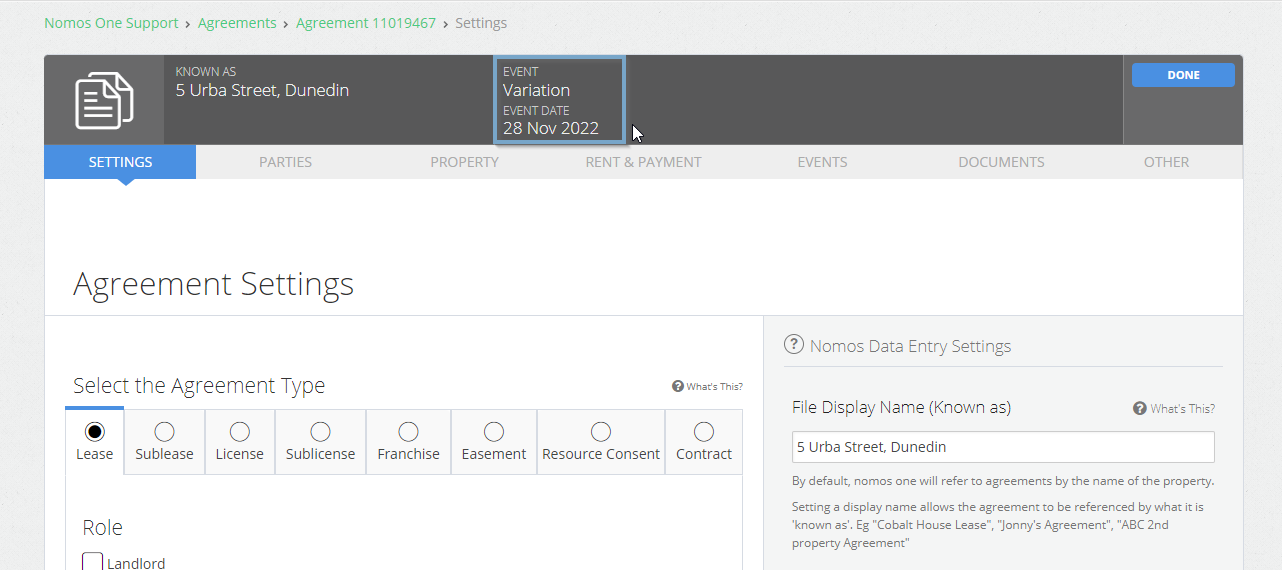
- This will open up the first page of the Agreement creation workflow, the Settings page. Note that the header is different from the regular Agreement creation workflow - stating that you are working within a Variation event on a specific date. Please check the header to ensure that the change you record only applies from that specific date forwards, rather than from the commencement of the Agreement.
- Work through each page of the Agreement creation workflow to update the information required. Click “Done” at the top or bottom of the page to return to the Agreement Timeline.
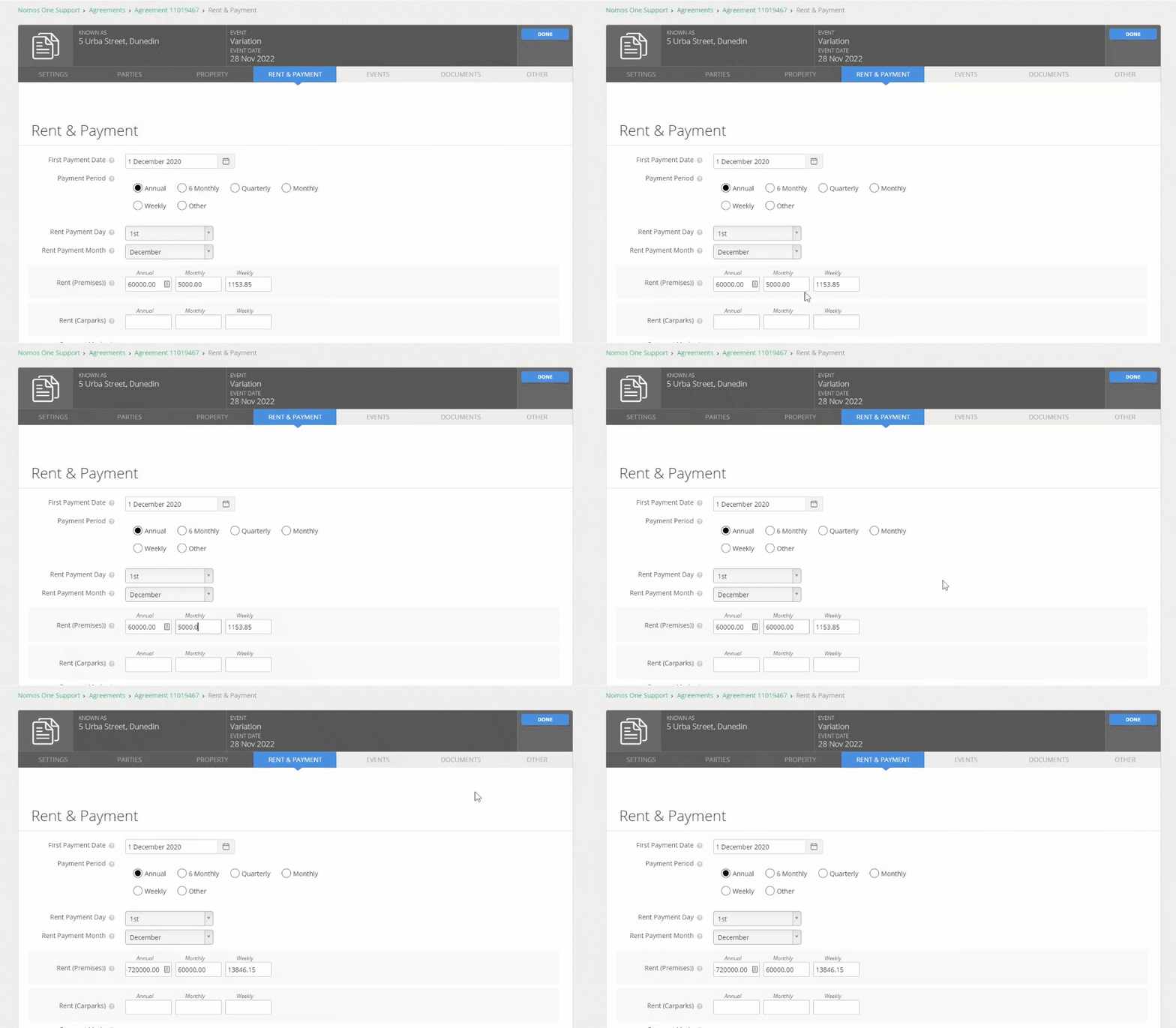
If you haven't already done so, please make sure that you read the important information about Variation Events. Some information fields cannot be updated using a Variation Event, or at all. If you update these fields in a Variation Event, or by simply editing the field directly, the change will retrospectively apply from the Commencement of the Agreement, resulting in changes to opening balances, or causing an error in IFRS 16 Reporting.
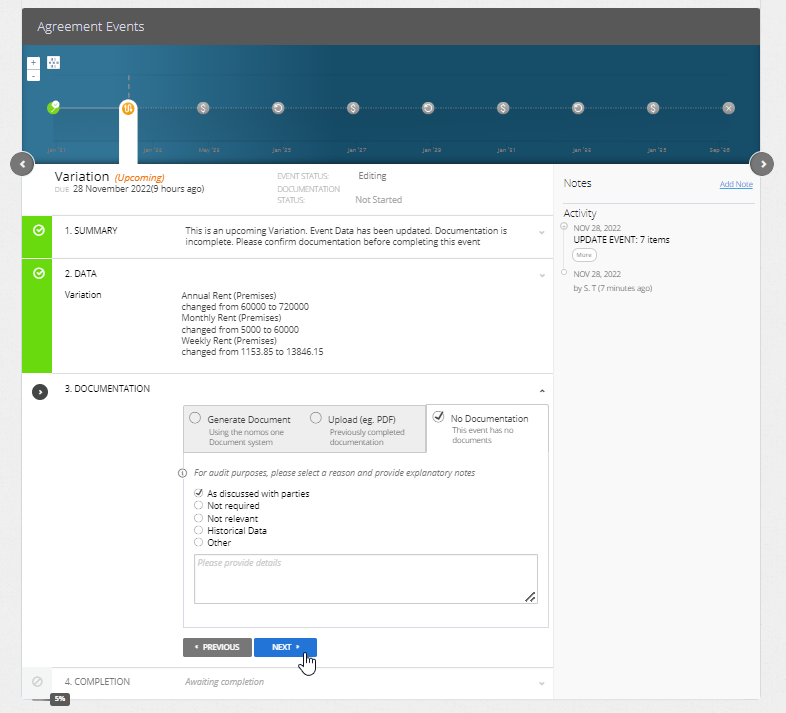
- On the Agreement Timeline, you'll see a summary of the changes you've made. Click “Next” to confirm these changes.
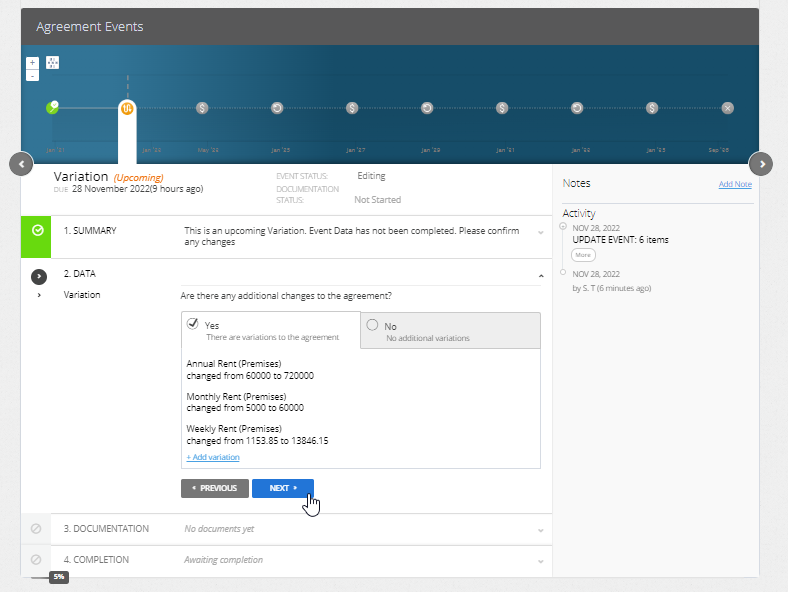
Please note: Some changes will not produce a note summarising what was done. These changes include changes to:
- Property
- Parties
- IFRS Component Payments and Non-IFRS Component Payments.
You can use the Event Note functionality to record details. If you expect to see a summary note, but do not, please contact our Support Team for troubleshooting help.
- Upload any supporting Documentation, or select “No Documentation”, then click “Next”.
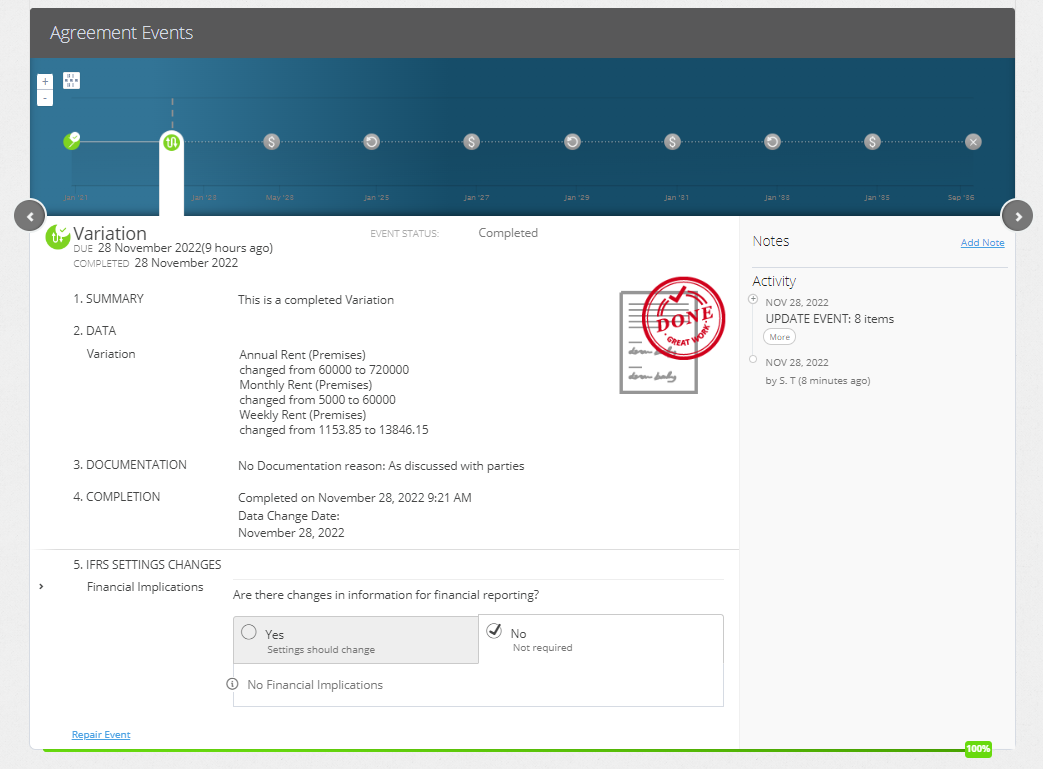
- Click “Complete”. You'll see a certification noting that Event has been completed, and the Variation Event icon will turn green.
Validating that Variation Applied Correctly
There are a number of ways you can validate that the Variation was recorded correctly, and that the change to your Agreement was applied. If the Variation event produces a note summarising the changes, this indicates that the change was recorded correctly. Please note that this tip does not apply to recording term extensions or decreases - these should not produce a display note if processed correctly.
If you've made a change to the contractual data of your Agreement (such as the parties, property, or contractual details on the Other page) you can observe these changes on the Agreement Overview, or when running our Contractual Reports which will show you a snapshot of Agreement data at present day.
If you've varied the current rent amount, this will be reflected in the header of the Agreement Overview page.
If you have added Component Payments, you can run reports to validate the change. To view added Non-IFRS Component Payments, run the Payments by Period report or Universal Payment Report over the payment date(s). To view added IFRS Component Payments you can run the two aforementioned reports, or one of our IFRS 16 Reports - we recommend the Journal Report or Daily Calculation Report. You can run the report over the effective date of the change (this should be the date of the Variation event) to view the impact on your IFRS 16 balances, or over the actual payment date to view the transaction. A variation to the rent amount will also be reflected in all of the mentioned reports.
Nomos One does not provide or purport to provide any accounting, financial, tax, legal or any professional advice, nor does Nomos One purport to offer a financial product or service. Nomos One is not responsible or liable for any claim, loss, damage, costs or expenses resulting from your use of or reliance on these resource materials. It is your responsibility to obtain accounting, financial, legal and taxation advice to ensure your use of the Nomos One system meets your individual requirements.