
The Journal Report shows you a detailed account of financial transactions filtered by your organisation's GL codes.
Before generating your Journal Report
To generate Journal Reports in Nomos One, you'll first need to set up a GL Template with your organisation's GL Codes. To learn how to set up your GL Template, refer to our GL Template help guide.
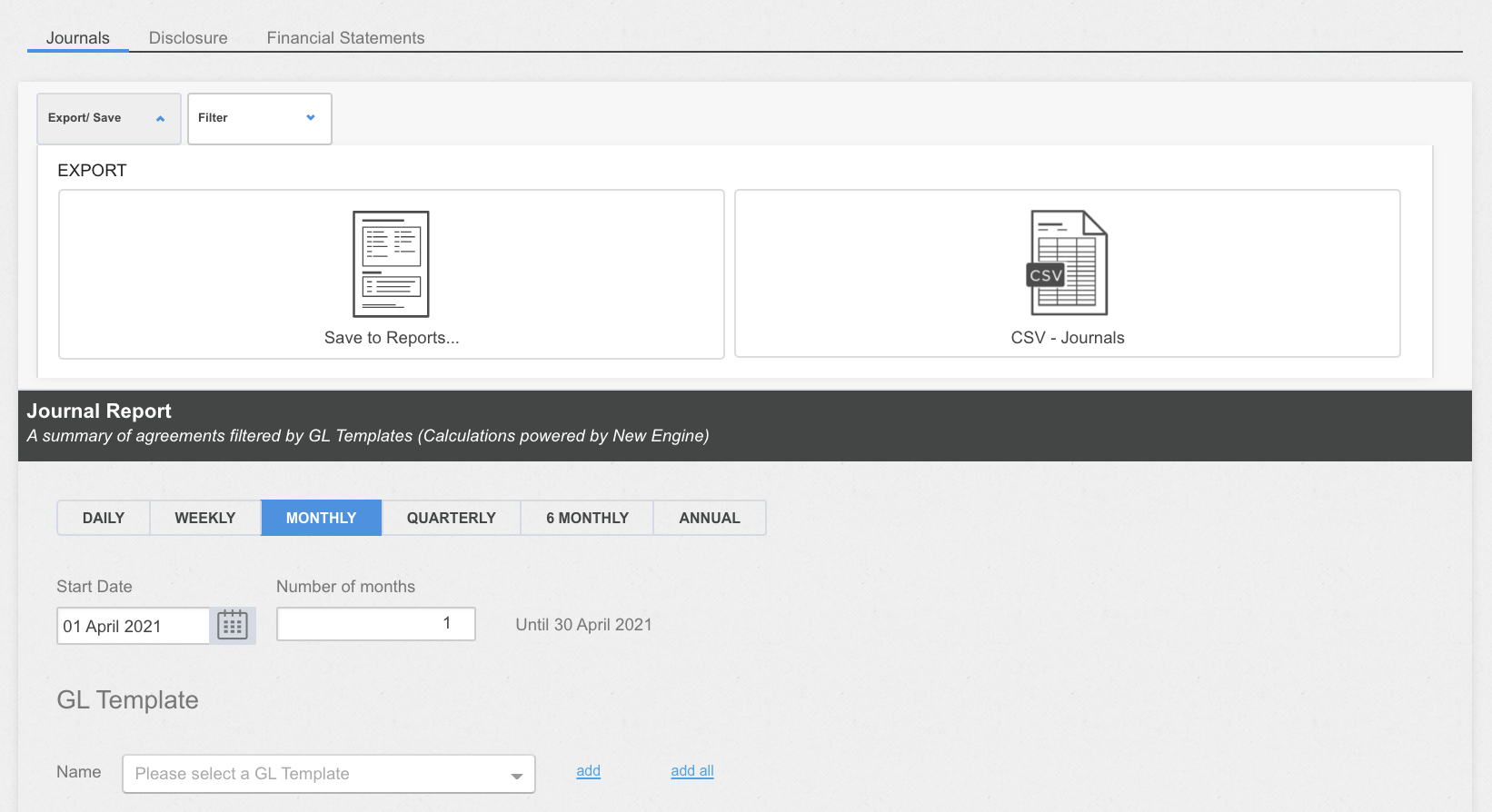
You'll be able to tell your calculations are powered by the New Engine from the description provided under the Journal Report:

Generating your Journal Reports
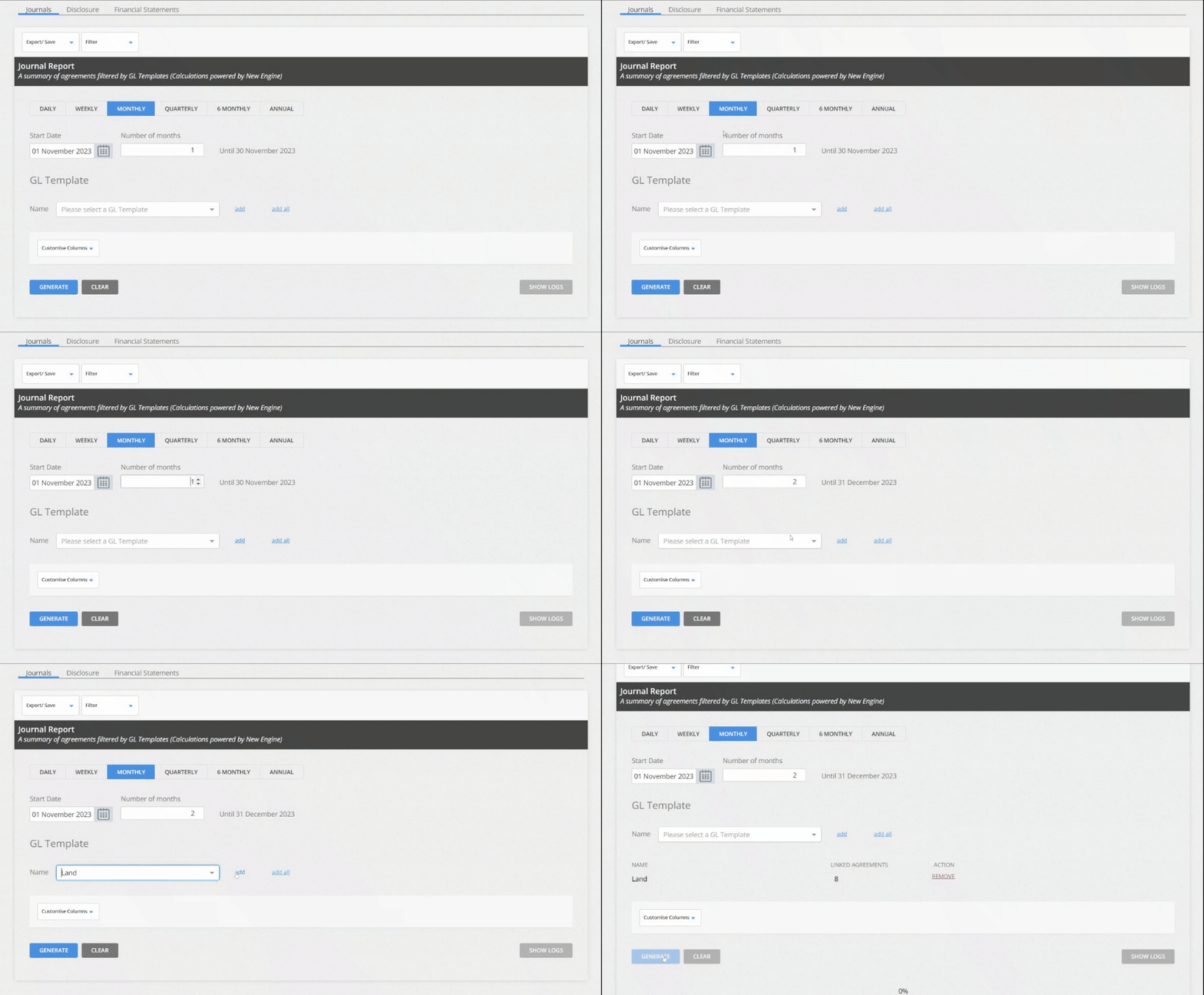
To generate your Journals:
- Select the period you want to report for (Daily, Weekly, Monthly, Quarterly, 6 monthly, or Annual). This will determine how frequently you see a statement of the Lease Liability and Right of Use Asset balances.
- Select the Start Date of your report.
- Record how many periods you'd like to report on.
- Use the drop down bar to select a GL Template, then click “Add”.
- Click “Generate”.
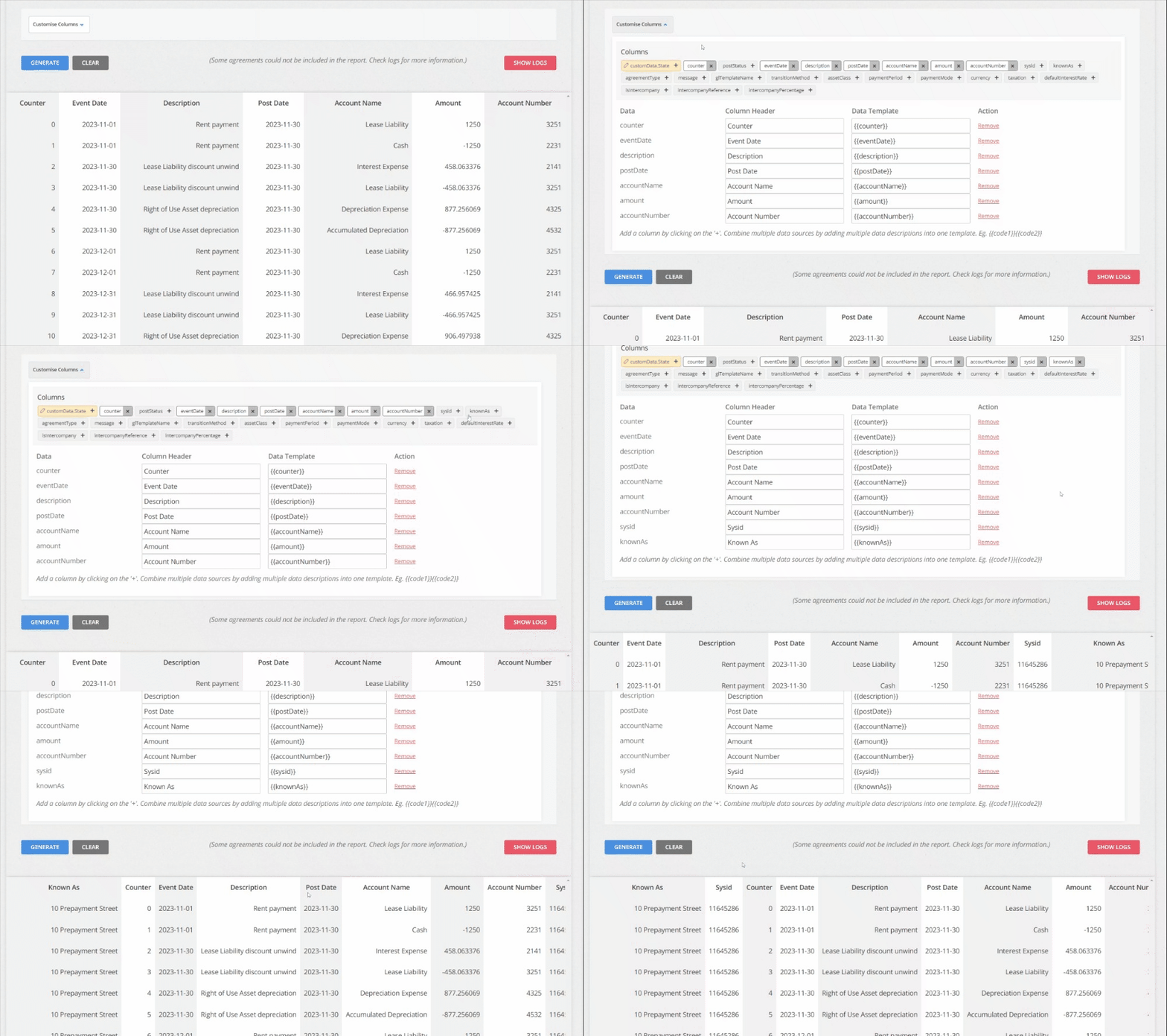
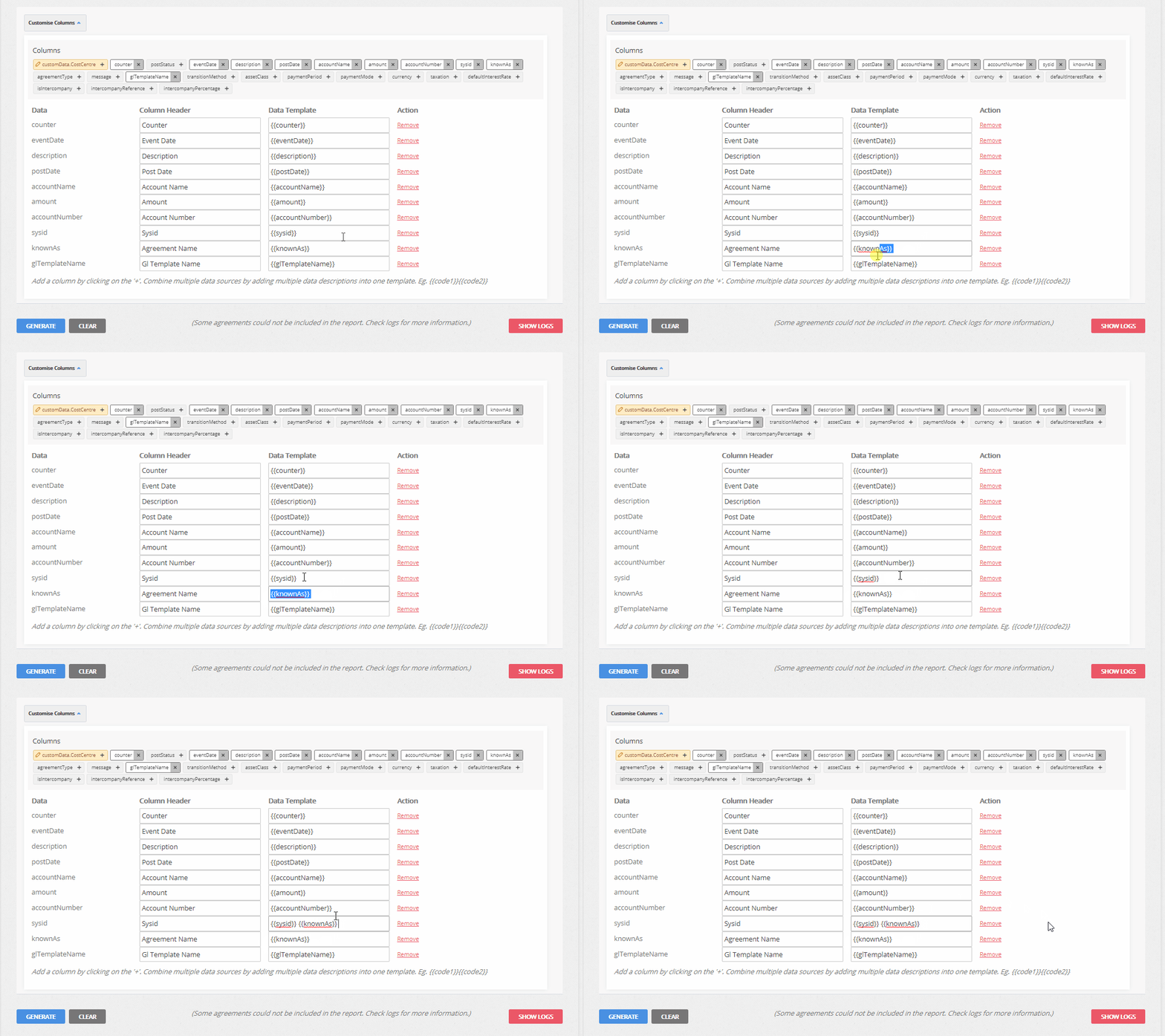
Once your Journal Report has generated, Agreements' individual journals will stack on top of each other. To identify which Agreement relates to any given line you can click Customise Columns and add the sysid (Agreement ID) and/or the knownAs (Agreement name/Agreement Known As):
Filtering the Journal Report
If you want to find a particular Agreement on your Journal Report you can use the Filter tool and search for an Agreement Name/Known As or ID. Once you apply a filter and click “Generate” again, you'll only see Agreements that match the profile, or contain the keyword searched for.

If an Agreement is not populating in your Journal, check if your Agreement has a GL Template attached or take a look at the Reporting Logs.
Customise your Journal Report
Once your Journal Report is generated, you can customise how Columns appear by using the Customise Columns tool.
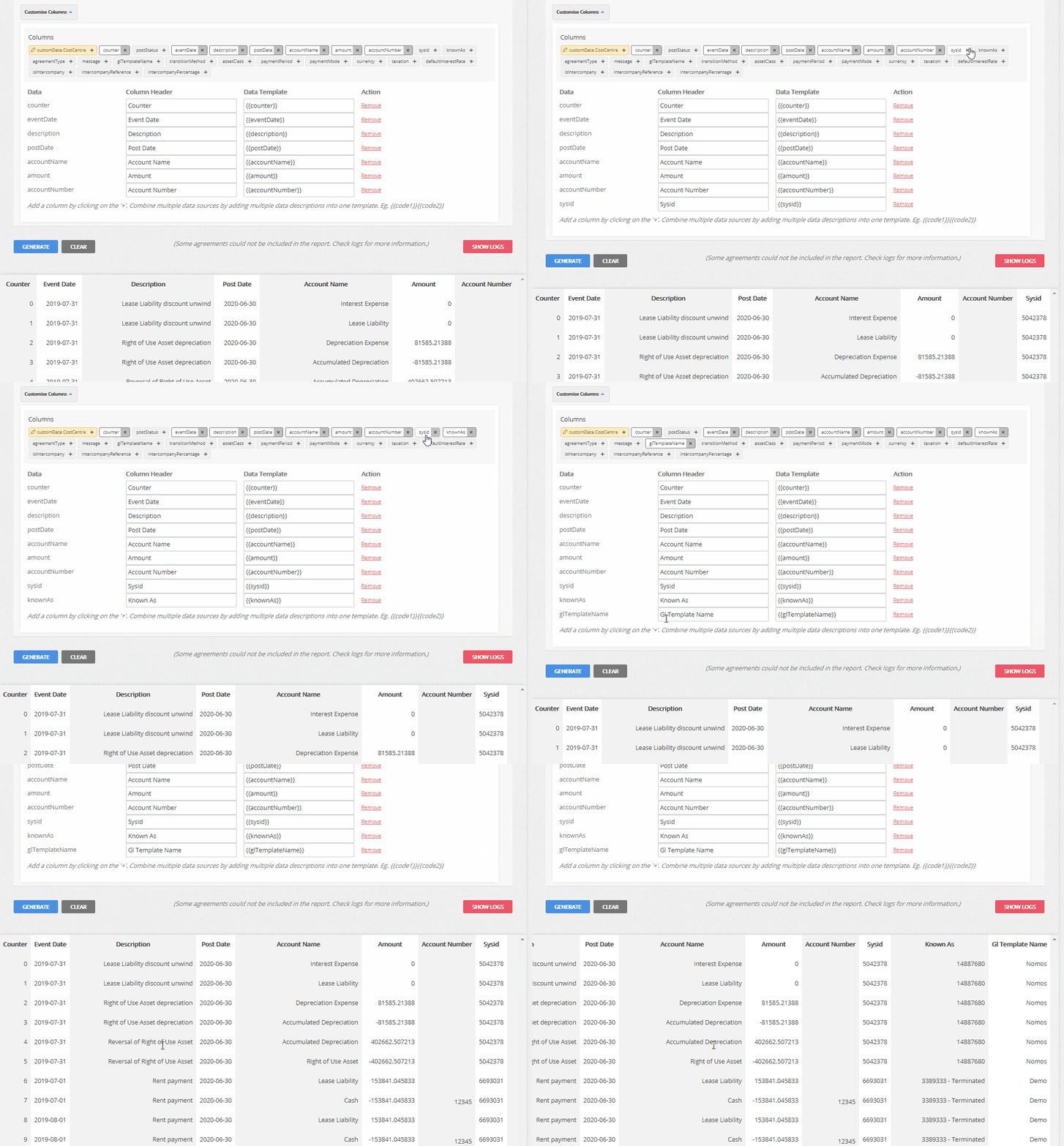
You can add or remove Columns from your report by selecting the “+” or “x” buttons next to any field:
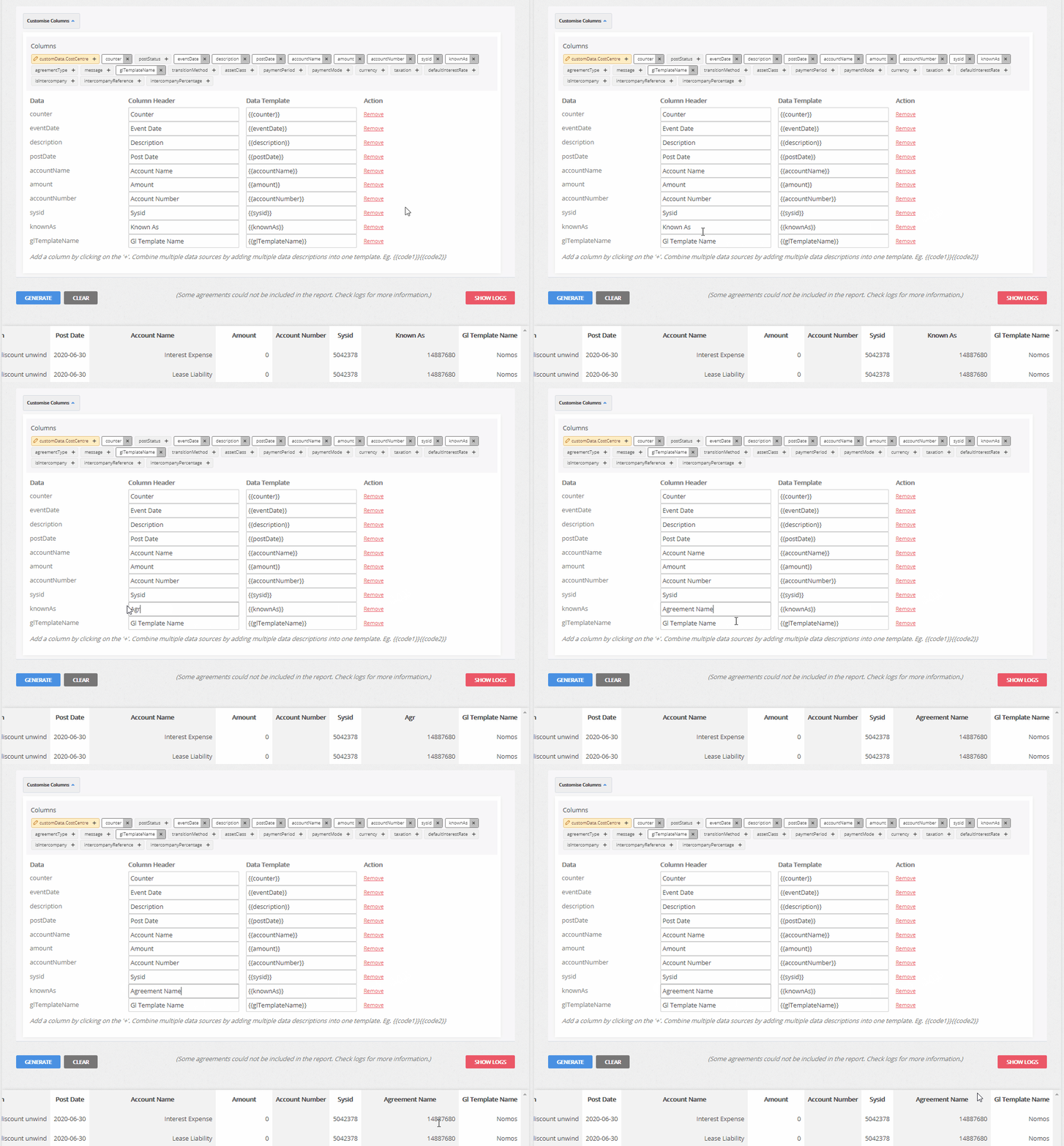
You can rename any of the Columns by editing the “Column Header” field with your desired convention:
If you want to combine columns together, you can do this by adding multiple Data Template codes together in the “Data Template” field:
Exporting and Saving your Journal Report
To download a copy of your Journal Report, click “Export/Save” and select “CSV - Journals”:
You can also Save your customised Journal Report as a template in your Organisation so you can generate it again with the same fields and formatting in a few clicks. To create and save a Journal template:
- Click “Export/Save”.
- Select “Save to Reports…”.
- Give your report a Name.
- Add an optional Description.
- Click “Save”.
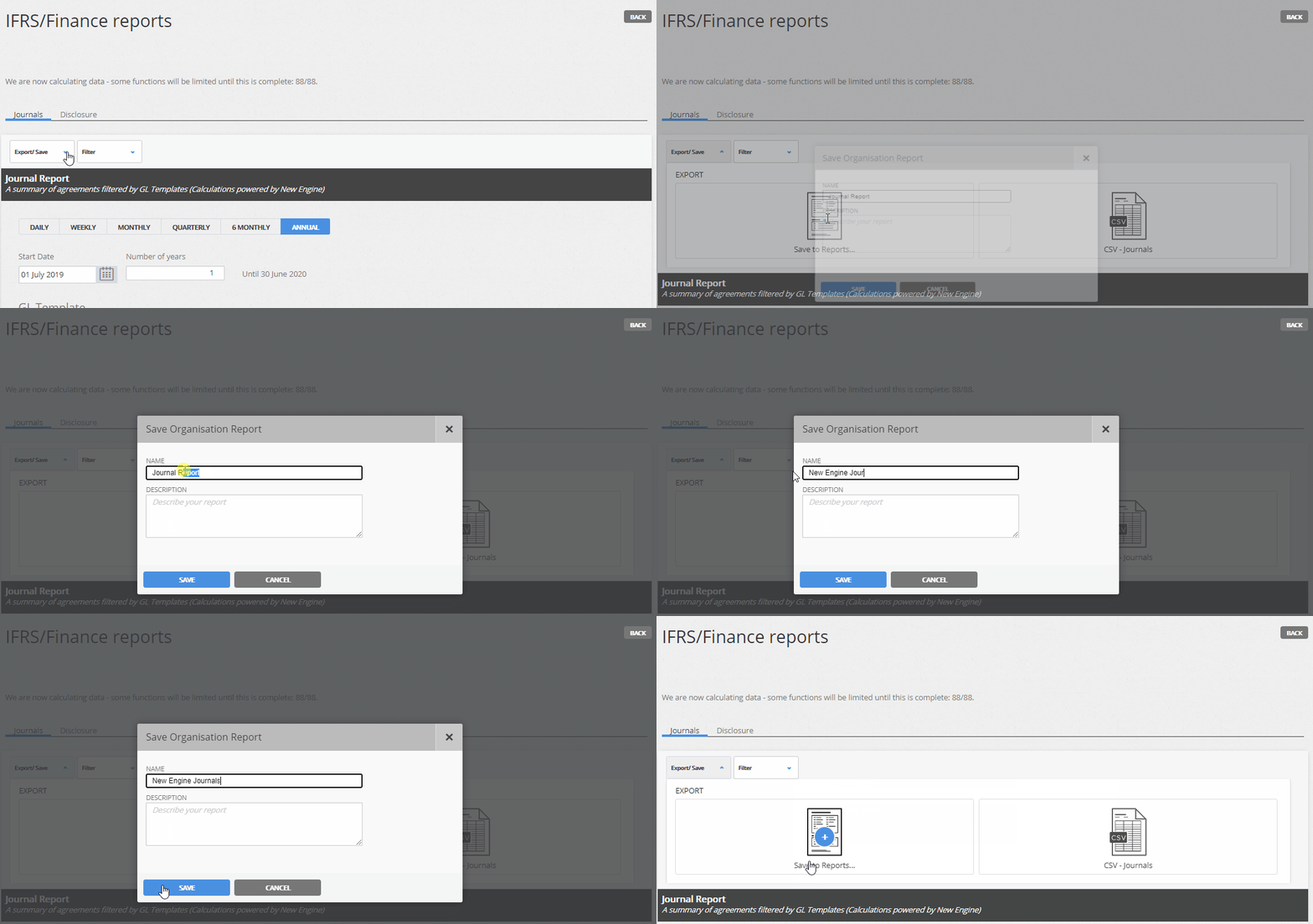
This report will be added to your Saved Organisation Reports at the bottom of the Reports page. Any User in your Organisation can re-run this with a single click.
Nomos One does not provide or purport to provide any accounting, financial, tax, legal or any professional advice, nor does Nomos One purport to offer a financial product or service. Nomos One is not responsible or liable for any claim, loss, damage, costs or expenses resulting from your use of or reliance on these resource materials. It is your responsibility to obtain accounting, financial, legal and taxation advice to ensure your use of the Nomos One system meets your individual requirements.