
To be able to run the Journal Report in Nomos One, it's essential that all of your Agreements have a General Ledger Template attached. If an Agreement doesn't have a GL Template, it won't be included in the report output.
Are Agreements missing a GL Template?
You can check if your Agreements have GL Templates assigned to them by running the Financial Reports.
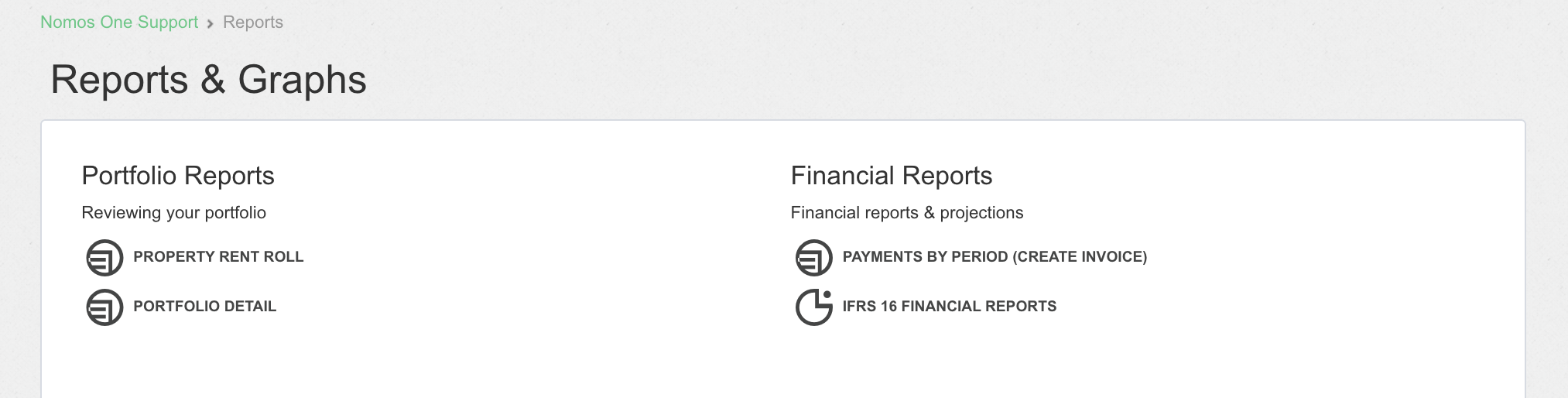
- Go to the Reports page and click on “IFRS 16 Financial Reports”.
- You'll see a counter appear at the top of the page. This shows you the total number of Agreements in your Organisation that are to be included in your IFRS 16 Reporting. This means that the Initial IFRS Questionnaire has been completed on these Agreements.

- Scroll down to the GL Template selector and click “add all”.
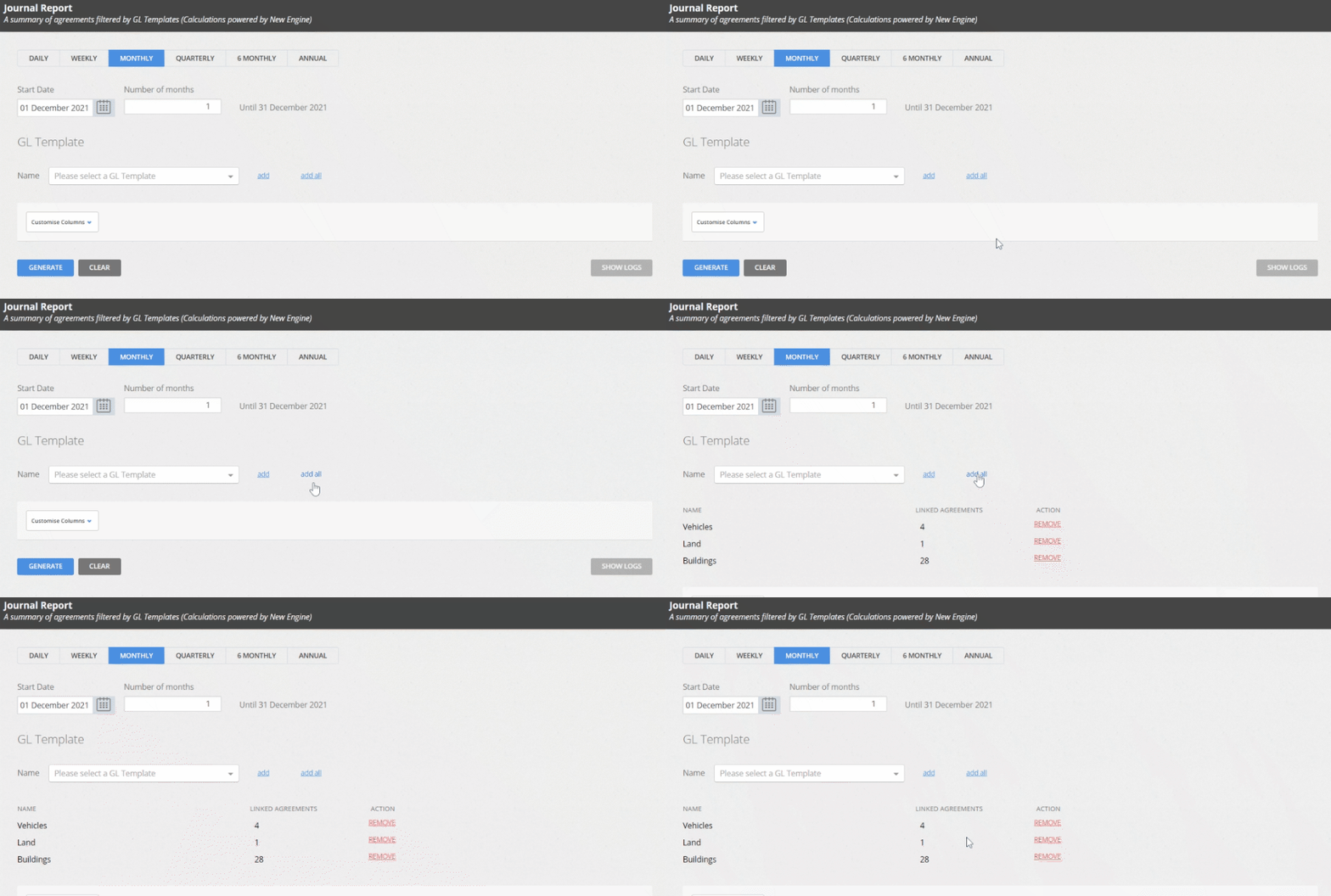
This will show you each GL Template created in your Organisation, and the number of Agreements linked to each template.
- Add up the total number of “Linked Agreements”. This should match the total number of Agreements to be included in your IFRS 16 Reporting, identified in Step 2.
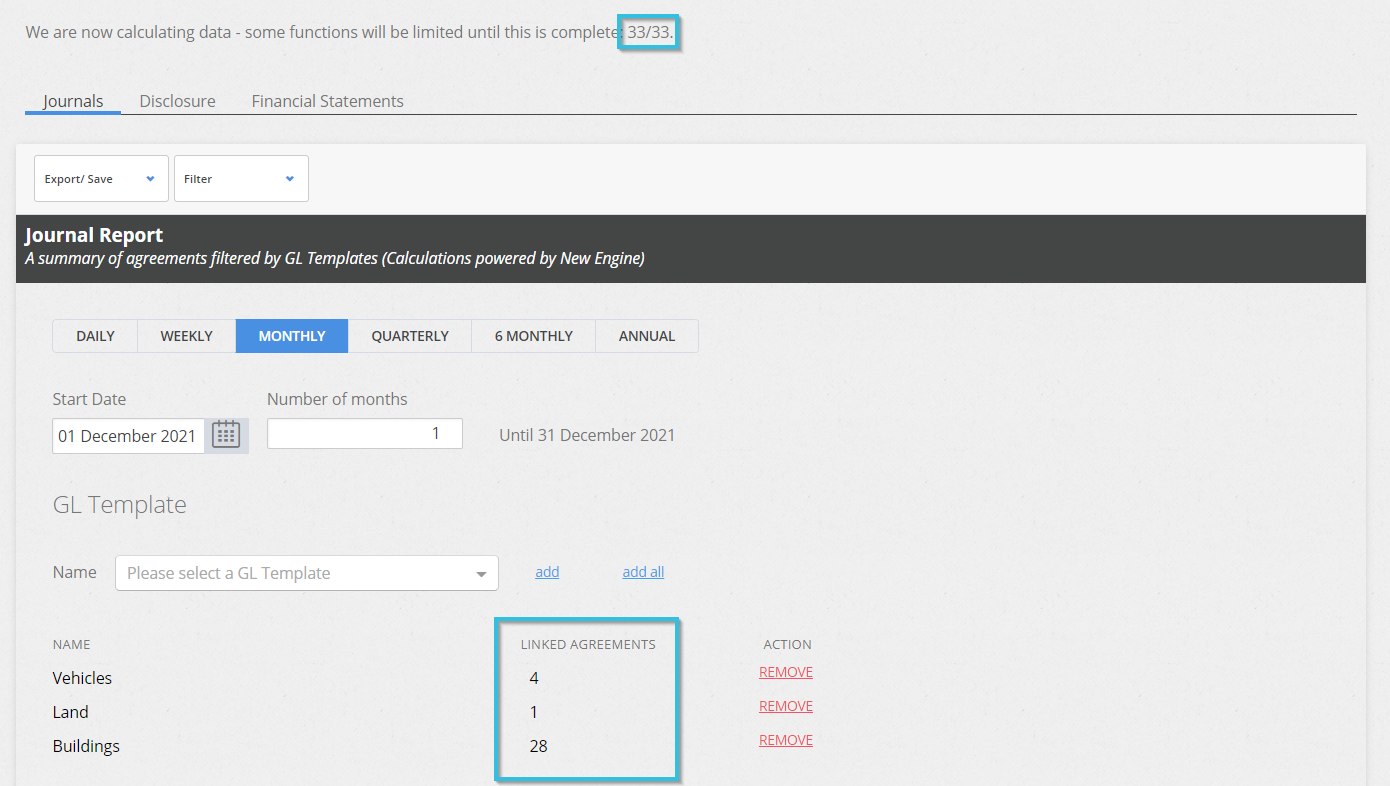
If these numbers match, it means all of your Agreements have GL Templates attached. If the total number of Linked Agreements doesn't match the total number of Agreements to be included in IFRS Reporting, you'll know that one or more of your Agreements don not have a GL Template attached.
Which Agreements are missing a GL Template?
You can compare the Journal Report and Custom Agreement Report to determine which Agreements are missing a GL Template.
To find out which Agreements are missing a GL Template:
- Generate a Journal Report and add all GL Templates in the Organisation.

- Once the report has generated, click “Show Logs”. This will provide you with a list of Agreements that have been set up for IFRS 16 reporting, with GL templates attached.

- Export the Logs as a CSV file. You will use this exported file to view the Agreements that currently have GL templates attached.

- Next, navigate back to the Reports page.
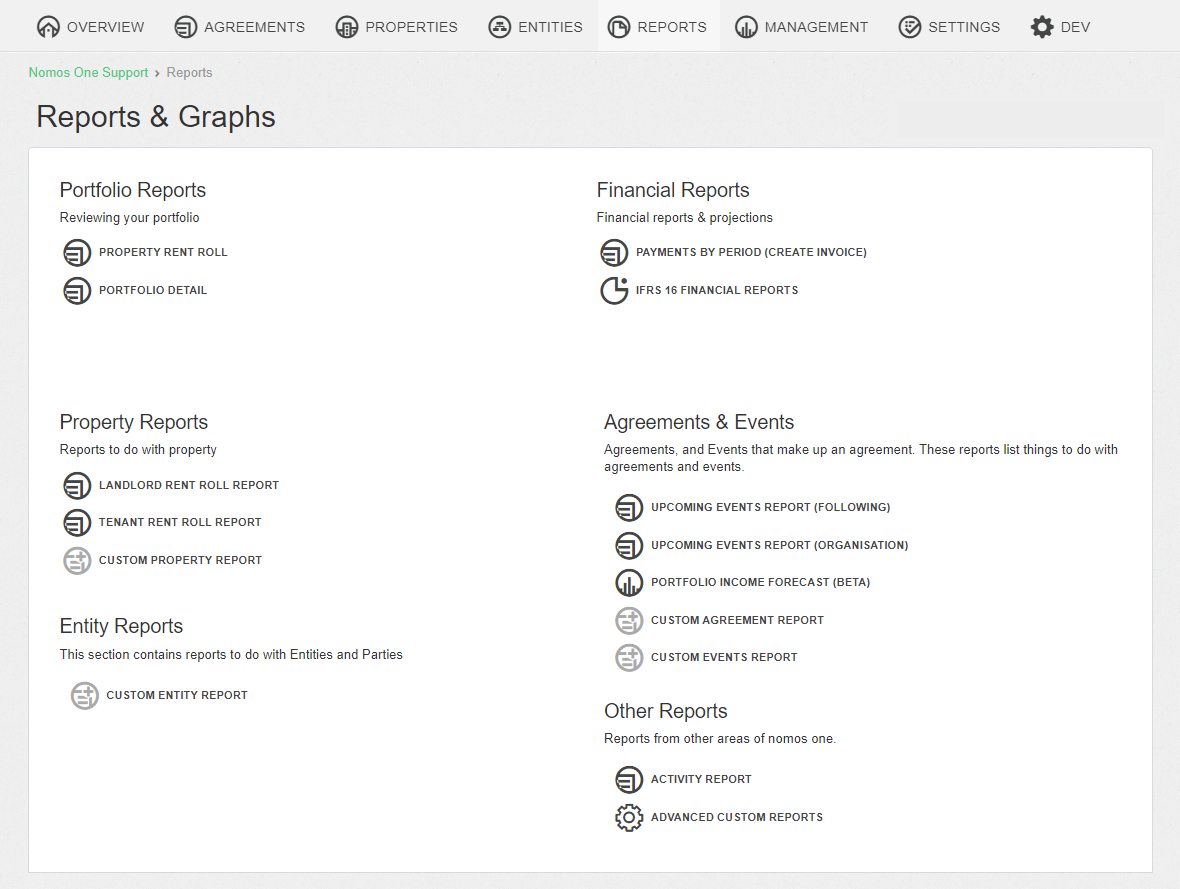
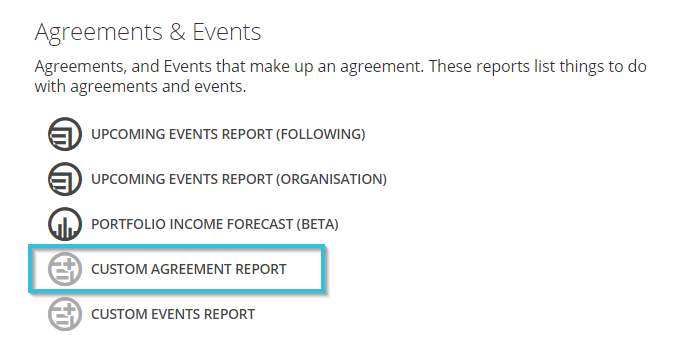
- Click on the Custom Agreement Report. This will automatically generate a report that provides information about all of your Agreements.
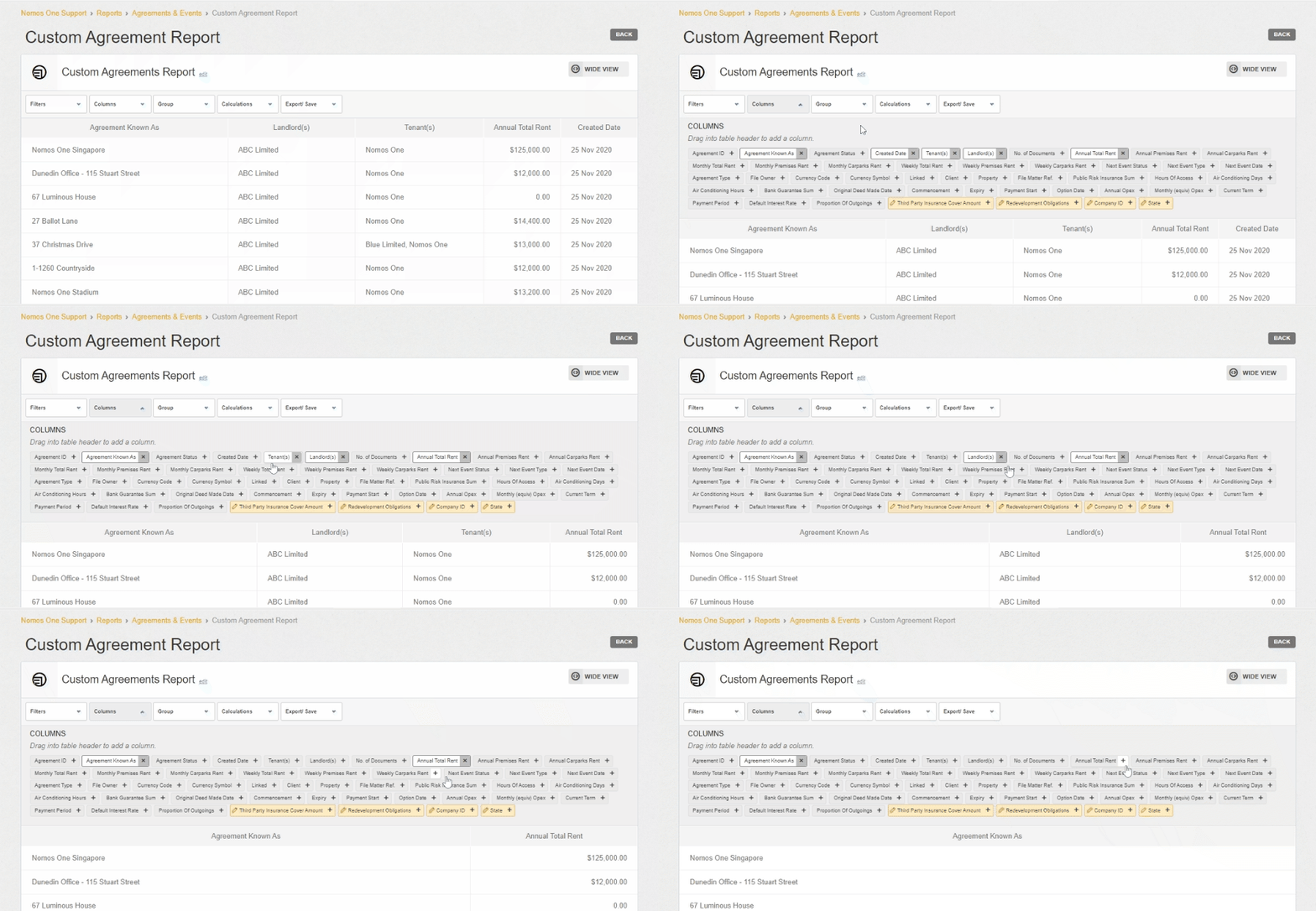
- Remove all columns except for the “Agreement Known As” column.
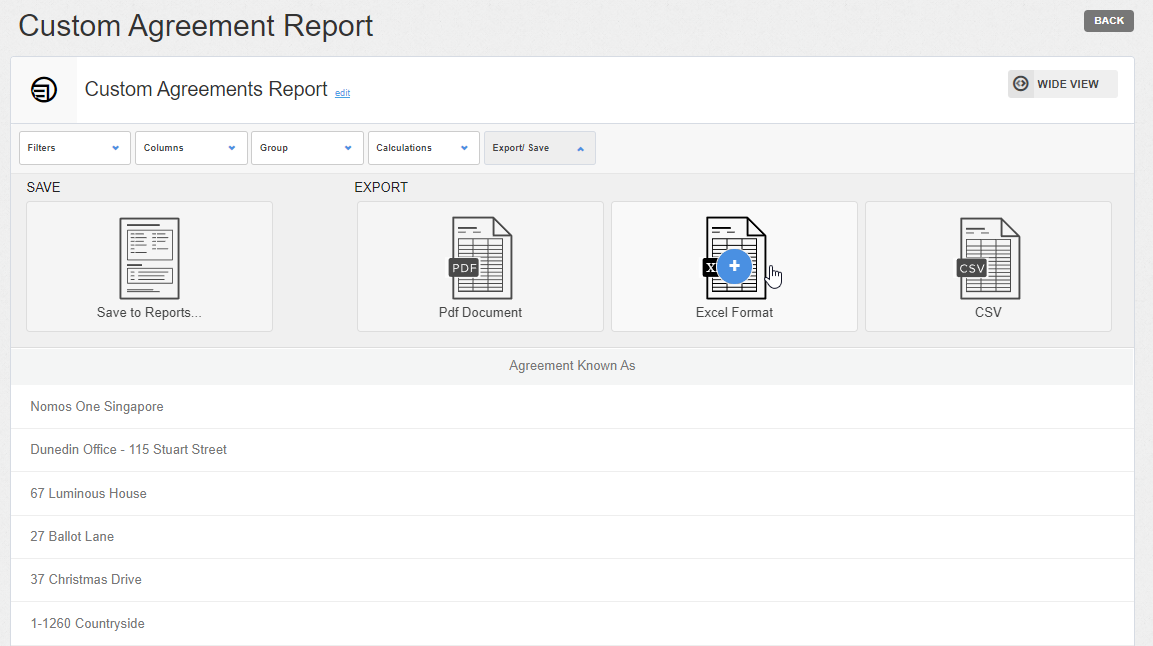
- Export the Custom Agreement Report using the Excel or CSV format.
- Outside of Nomos One, open both of your exported reports in your spreadsheet software. Copy the list of Agreement names from one report, and paste it into an adjacent column in the other report. Make note of the list that has come from the Journal report, as we know those Agreements already have GL templates attached. Any Agreements that are not in that list, but are in the list from the Custom Agreement Report, do not have GL templates attached.
There are numerous ways to view these lists to determine which Agreements do not have GL templates attached. One option is to do the following in Excel:
- Highlight the list of Agreement names in both columns. In the “Home” tab, click "Conditional Formatting.

- Click “Highlight Cell Rules”, then “Duplicate Values”.

- A pop-up window will appear. Change the selection for “Format cells that contain:” to be “Unique”. The default formatting is dark red text on a light red background, but you can change the formatting option here. Click “OK”.

Any Agreements that are highlighted are those which do not have a GL Template assigned. You can use this as a guide to know which Agreements require a GL Template to be added to see them reflected in your Journal Report in Nomos One.

If you're experiencing any issues performing this process, please contact our support team at support@nomosone.com, and we'll be able to assist you.
Nomos One does not provide or purport to provide any accounting, financial, tax, legal or any professional advice, nor does Nomos One purport to offer a financial product or service. Nomos One is not responsible or liable for any claim, loss, damage, costs or expenses resulting from your use of or reliance on these resource materials. It is your responsibility to obtain accounting, financial, legal and taxation advice to ensure your use of the Nomos One system meets your individual requirements.