
If you have an unscheduled change to the Rent in your Agreement, this article will step you through how you can use a Variation Event to record this change.
Video Tutorial: Varying Rent
Check out this video guide on how to Vary the Rent in your Agreements.
When to use a Variation Event to change Rent
You should use a Variation to change the Rent on your Agreement when both of the following apply:
- The rent is changing.
- There is no scheduled Rent Review Event for the date that the Rent changes. Meaning, there was no Rent Review scheduled for that date in either the initial Agreement contract (known at Commencement) or in a varied version of the contract.
If your Rent is changing due to a scheduled Rent Review, you should complete that Rent Review Event to update the Rent.
How to update your Rent using a Variation Event
To update your Rent using a Variation:
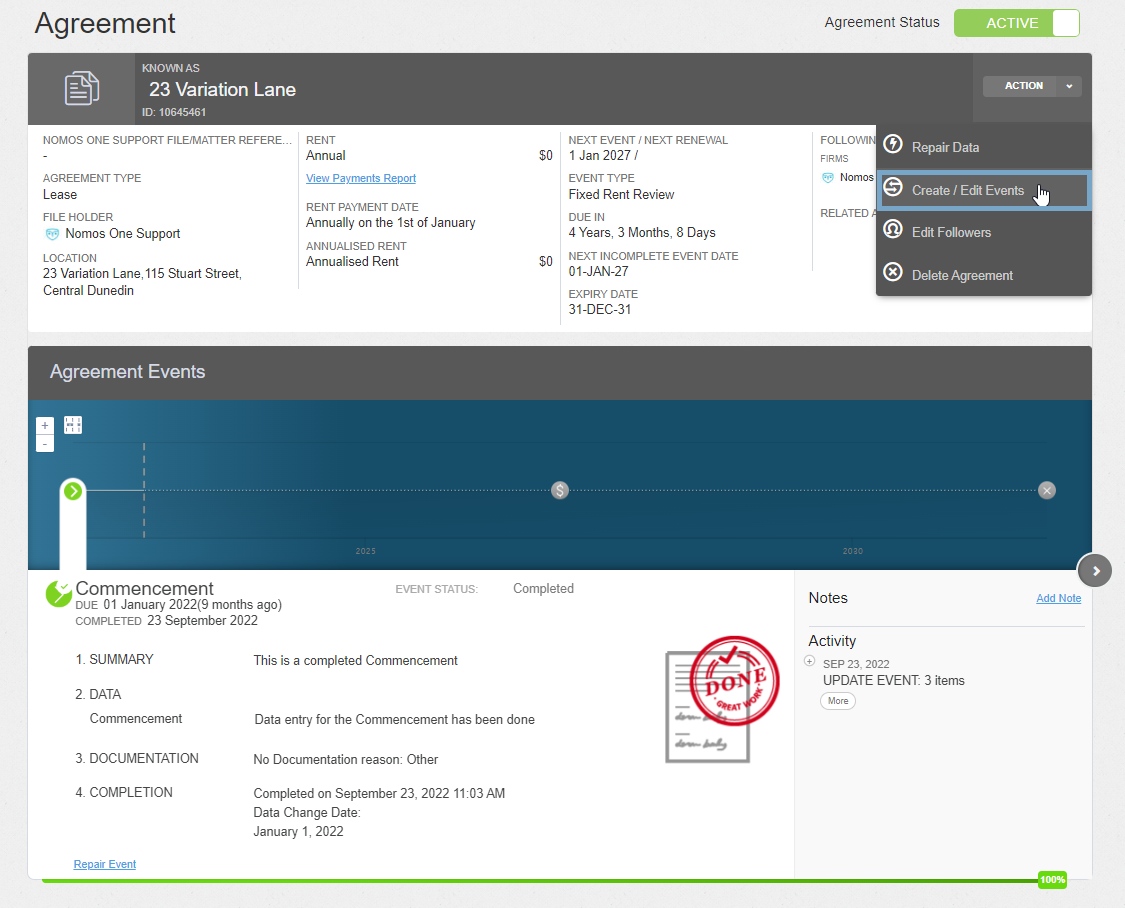
- On the relevant Agreement, click “Action”, then “Create / Edit Events”. This will take you to the Events page of the Agreement creation process.
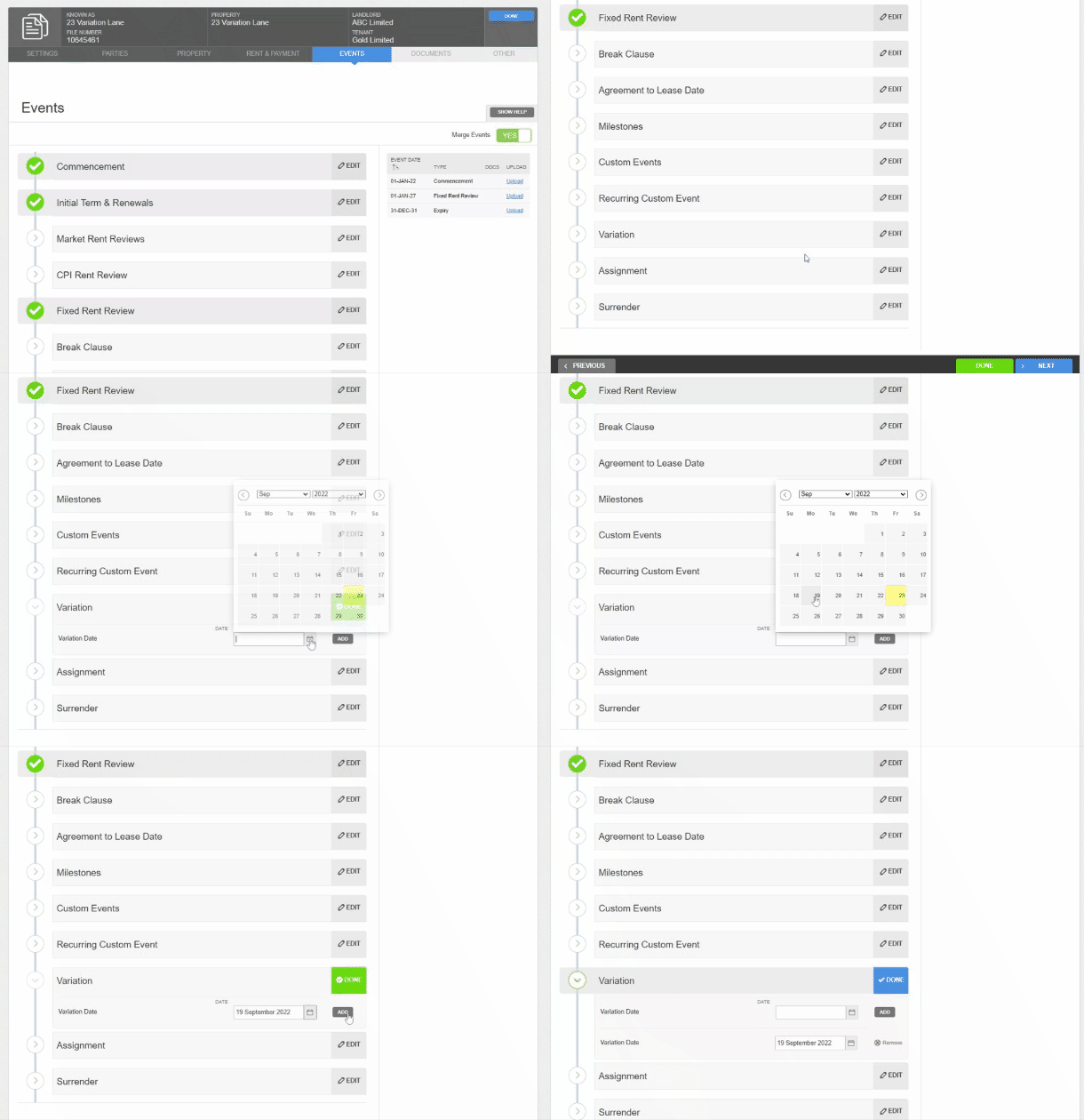
- Scroll to the Variation section and click “Edit”. Using the calendar tool or text field, enter the date that the Rent changes. Click “Add”.
Please note: We recommend that you do not edit other Event information while adding this Variation event. If you alter Events that were known at the commencement of the Agreement, this may impact your IFRS 16 Opening Balances for this Agreement. This warning also applies to Events that are scheduled during a period already factored into IFRS 16 reporting. Additionally, do not navigate to the Rent & Payment page to change the rent at this point of the process, as that will apply retrospectively and impact your IFRS 16 Opening Balances for this Agreement.
- Click “Done” at the top or bottom of the page to return to the Agreement Timeline.
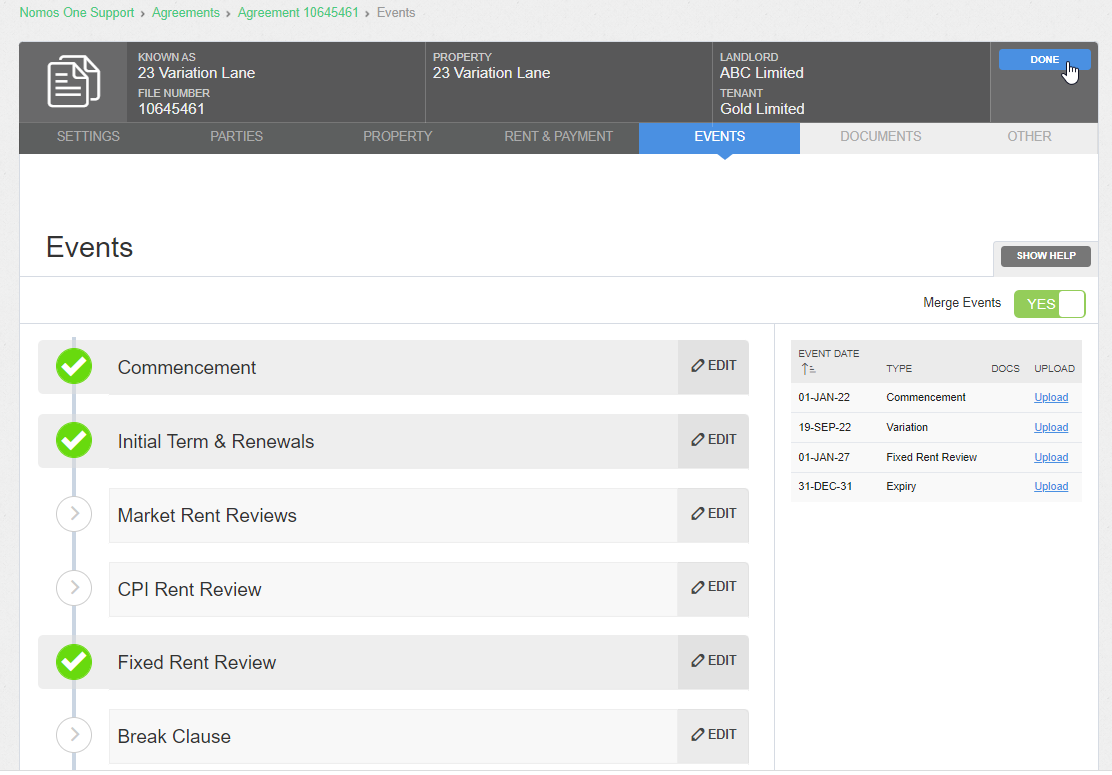
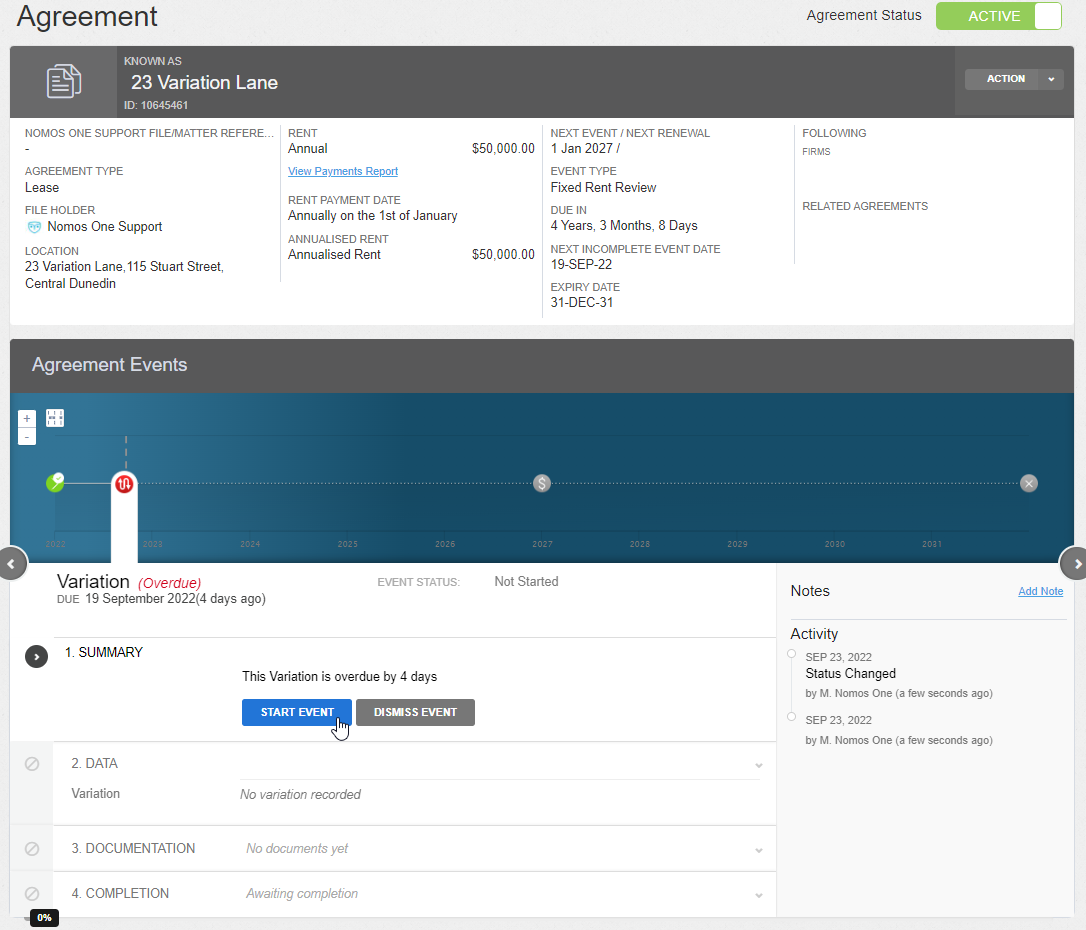
- You'll now see a new icon on the Agreement Timeline representing the Variation Event. At Step 1, click “Start Event”.
While you can add Events on a date that is within a locked period, you cannot complete these Events on the Agreement Event Timeline. If your Variation Event is within a locked period, you'll need to ask a user with the Administrator permission in your Organisation to edit the Lock Date before you can complete the Event. Check out this article for more information.
Additionally, please note that if there are other Variations effective from this date, there are certain limitations around what you can change within a Variation Event. We recommend checking out this article on Variation Events for a full list of these changes.
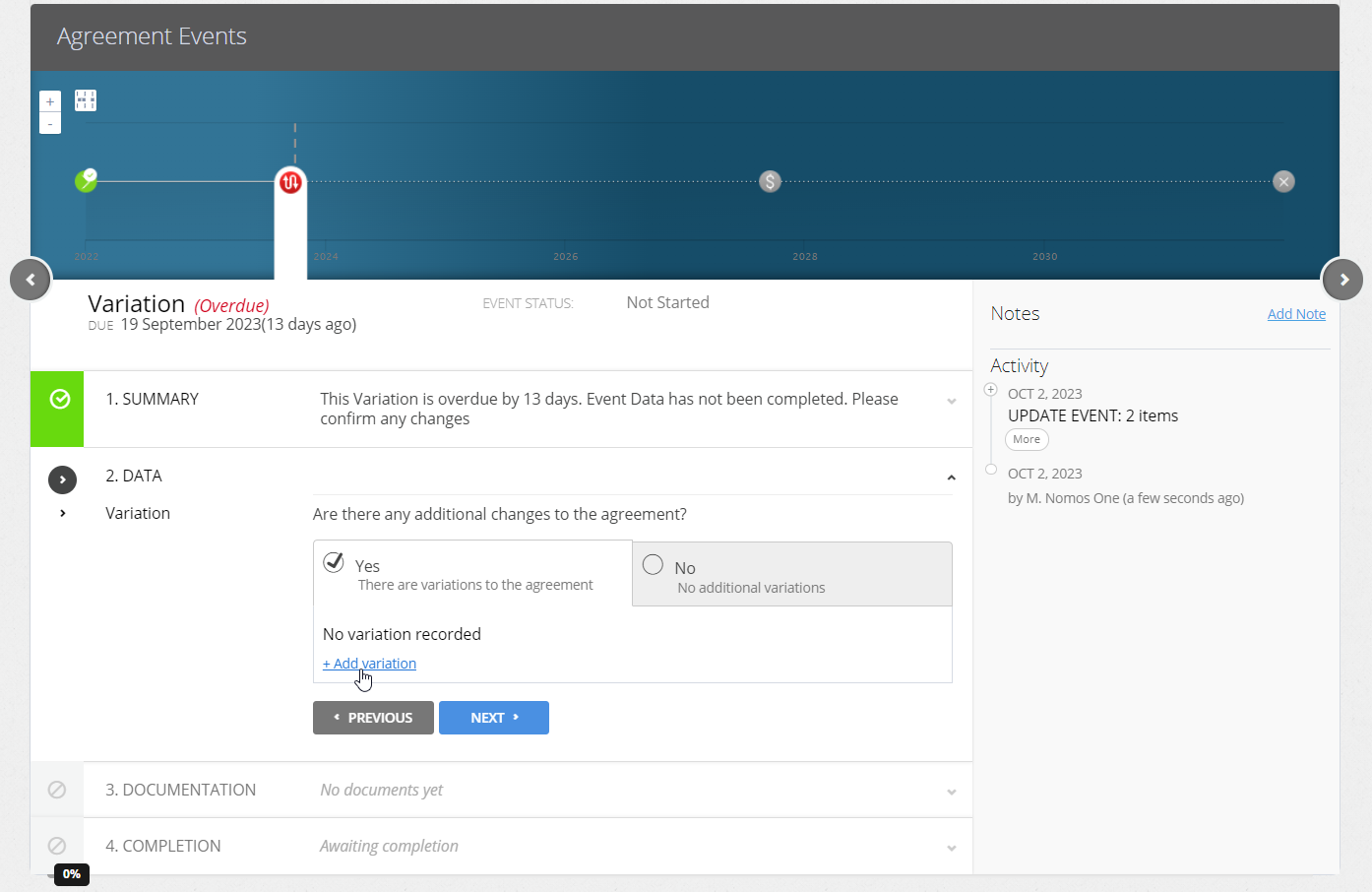
- At Step 2, select “Yes, there are variations to the agreement”, then click “+ Add variation”.
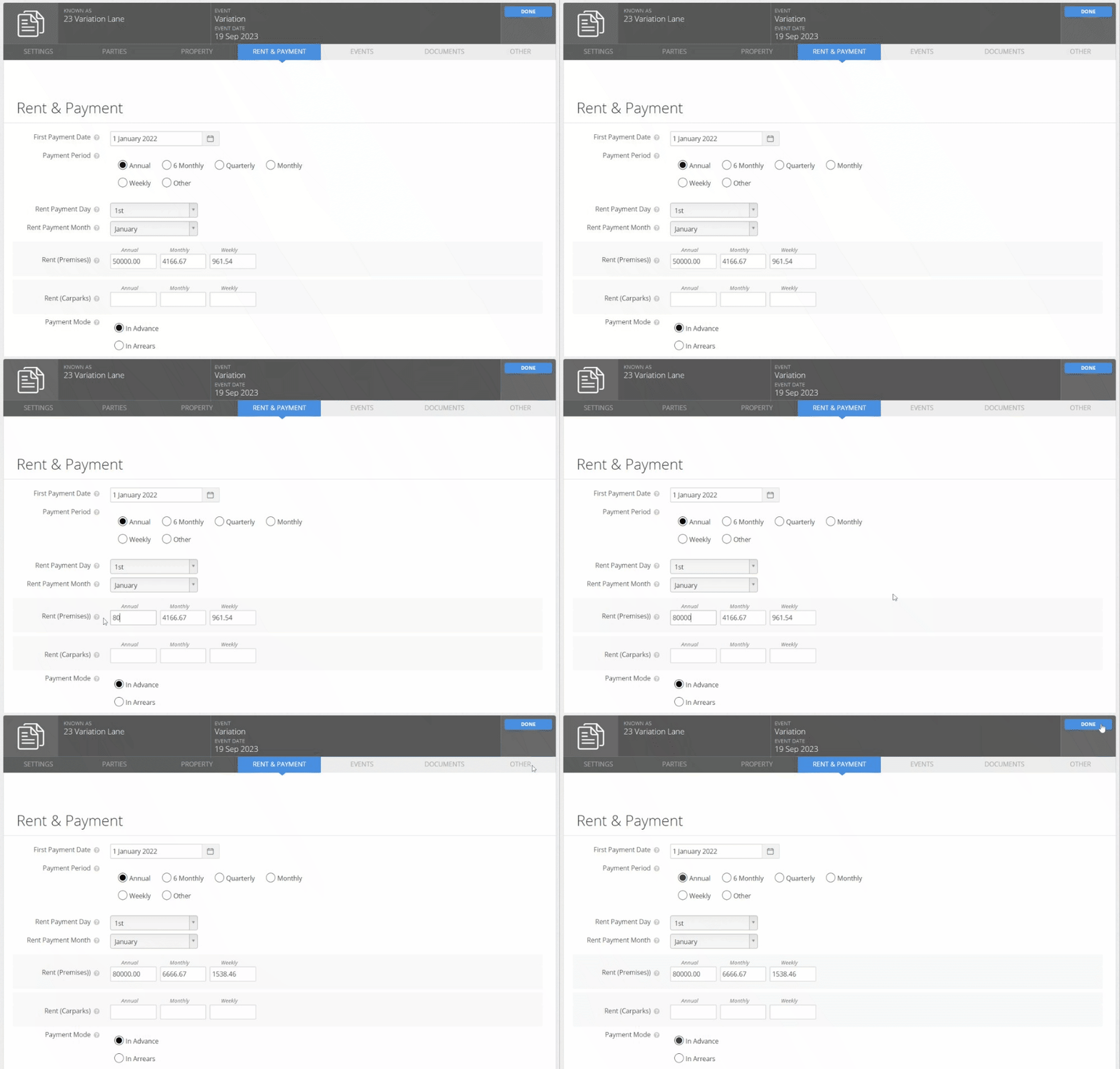
- Navigate to the “Rent & Payment” page of the Agreement creation process. In the Rent (Premises) field, replace the existing Rent with the new amount that is effective from the Variation date. Once you've done this, click “Done” at the top or bottom of the page to return to the Agreement Timeline.
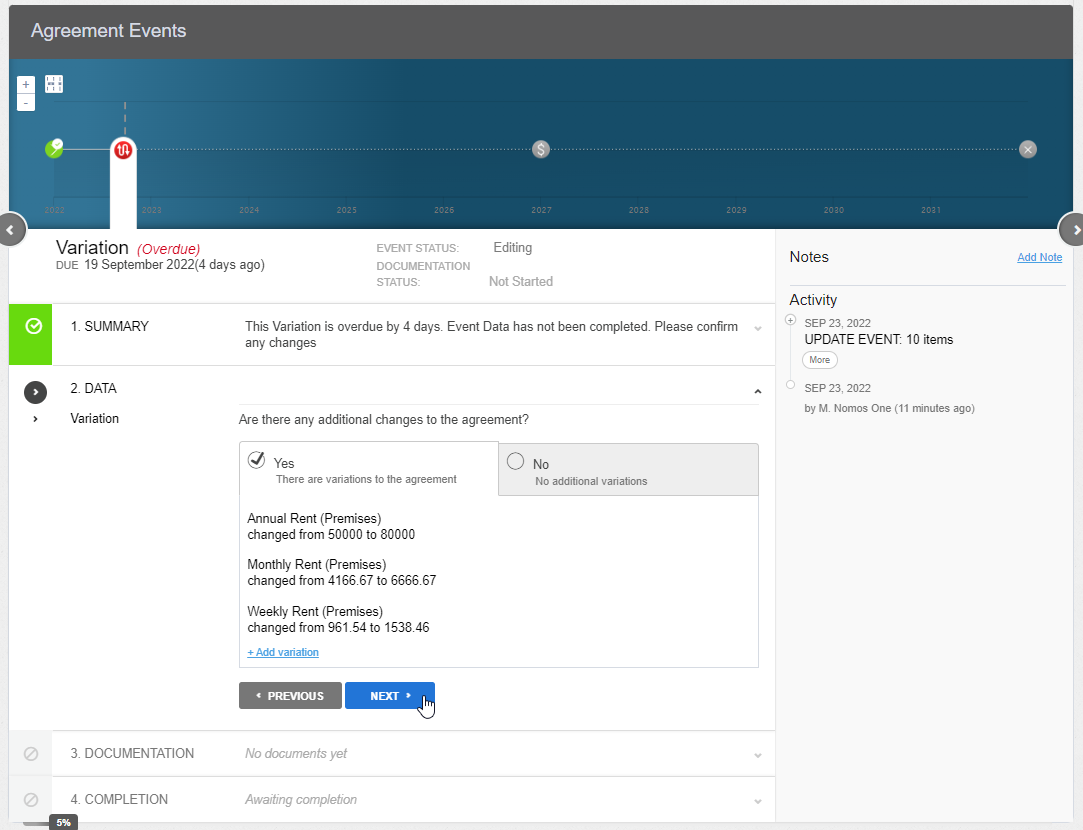
- On the Agreement Timeline, you will see a summary of the rent change you just made. Click “Next” at step 2 of the Variation Event.
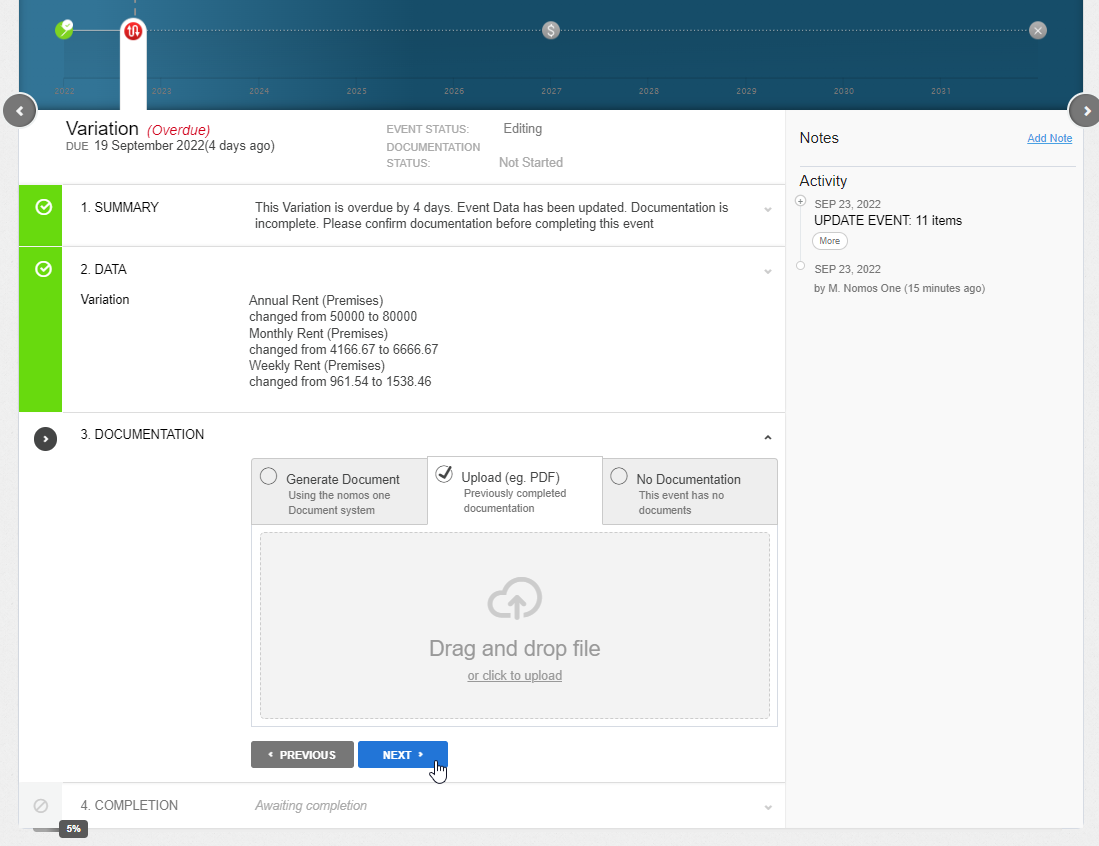
- Upload any supporting Documentation, or select “No Documentation”, then click “Next”.
- Click “Complete”. You'll see a certification noting that Event has been completed, and the Variation Event icon will turn green.
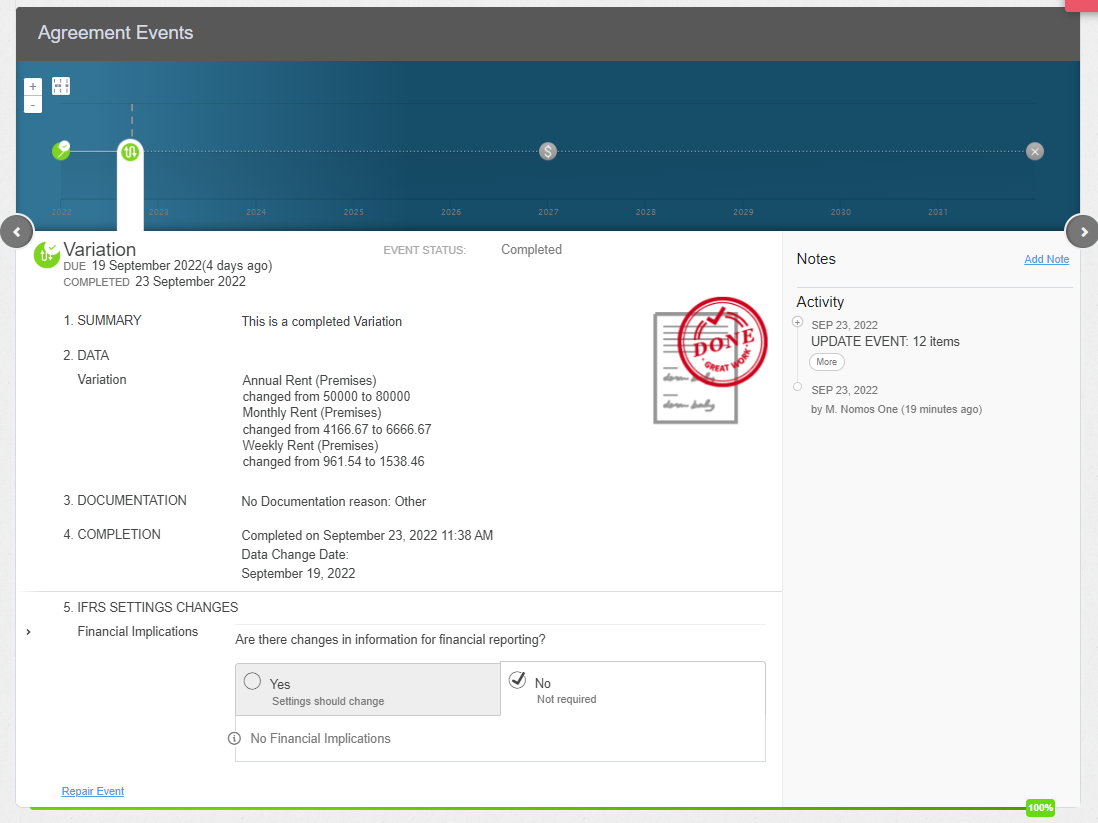
Validating your Rent Variation
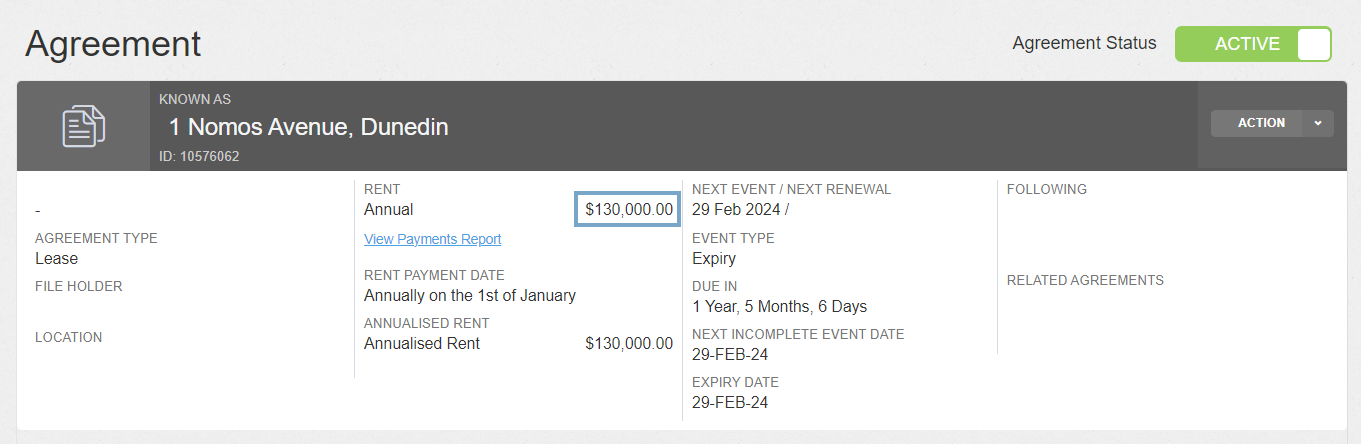
To check that your Rent Variation has been completed correctly, you can check the Agreement header and to see the new Rent amount displayed. Please note that if your Variation Event is for a future date, the Rent in the header won't reflect the new amount until that date has passed.
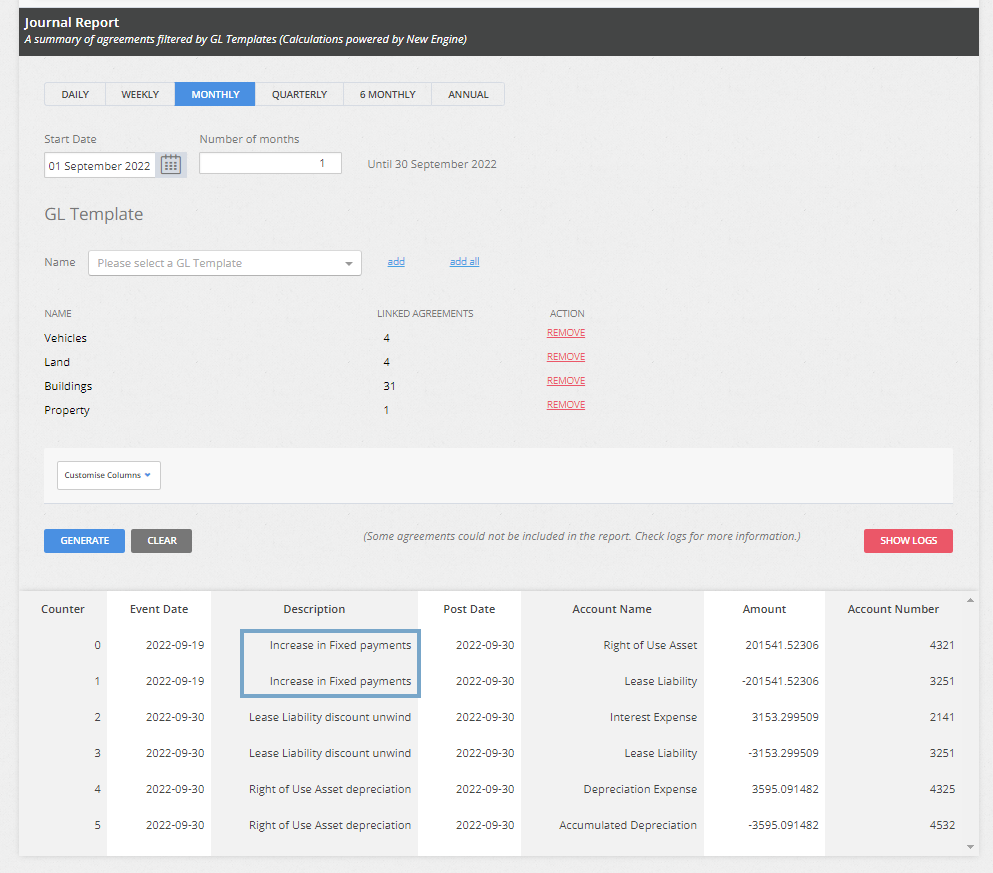
If you use Nomos One for IFRS 16 Reporting, you can validate your Rent change correctly applied using the Journal Report. Run the report for this Agreement across the date of the Variation to see an 'Increase in Fixed payments' entry.
Still have questions? Reach out to us at support@nomosone.com with your scenario and we'll be able to help!
Nomos One does not provide or purport to provide any accounting, financial, tax, legal or any professional advice, nor does Nomos One purport to offer a financial product or service. Nomos One is not responsible or liable for any claim, loss, damage, costs or expenses resulting from your use of or reliance on these resource materials. It is your responsibility to obtain accounting, financial, legal and taxation advice to ensure your use of the Nomos One system meets your individual requirements.