
Custom Events can be used to mark and remind you of any important dates in your Agreement, or to serve as placeholders to update your IFRS 16 Settings.
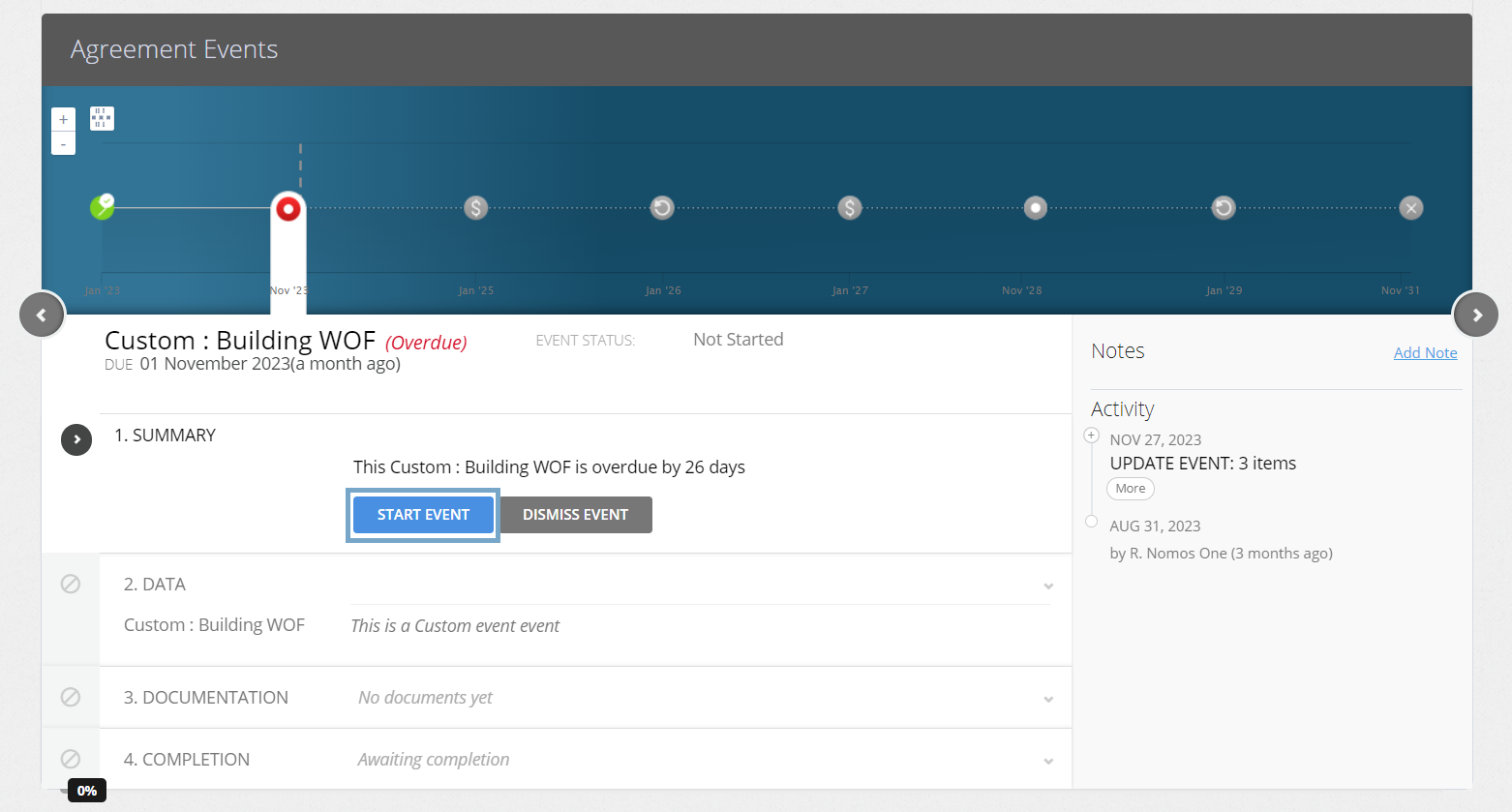
- Select the Custom Event icon you would like to update. Then, click “Start Event”.
Is your Custom Event in a locked period? If yes, you'll need to ask a user with the Administrator permission in your Organisation to edit the Lock Date before you complete the Event. Check out this article for more information.
- At the Data step, select “Next”.
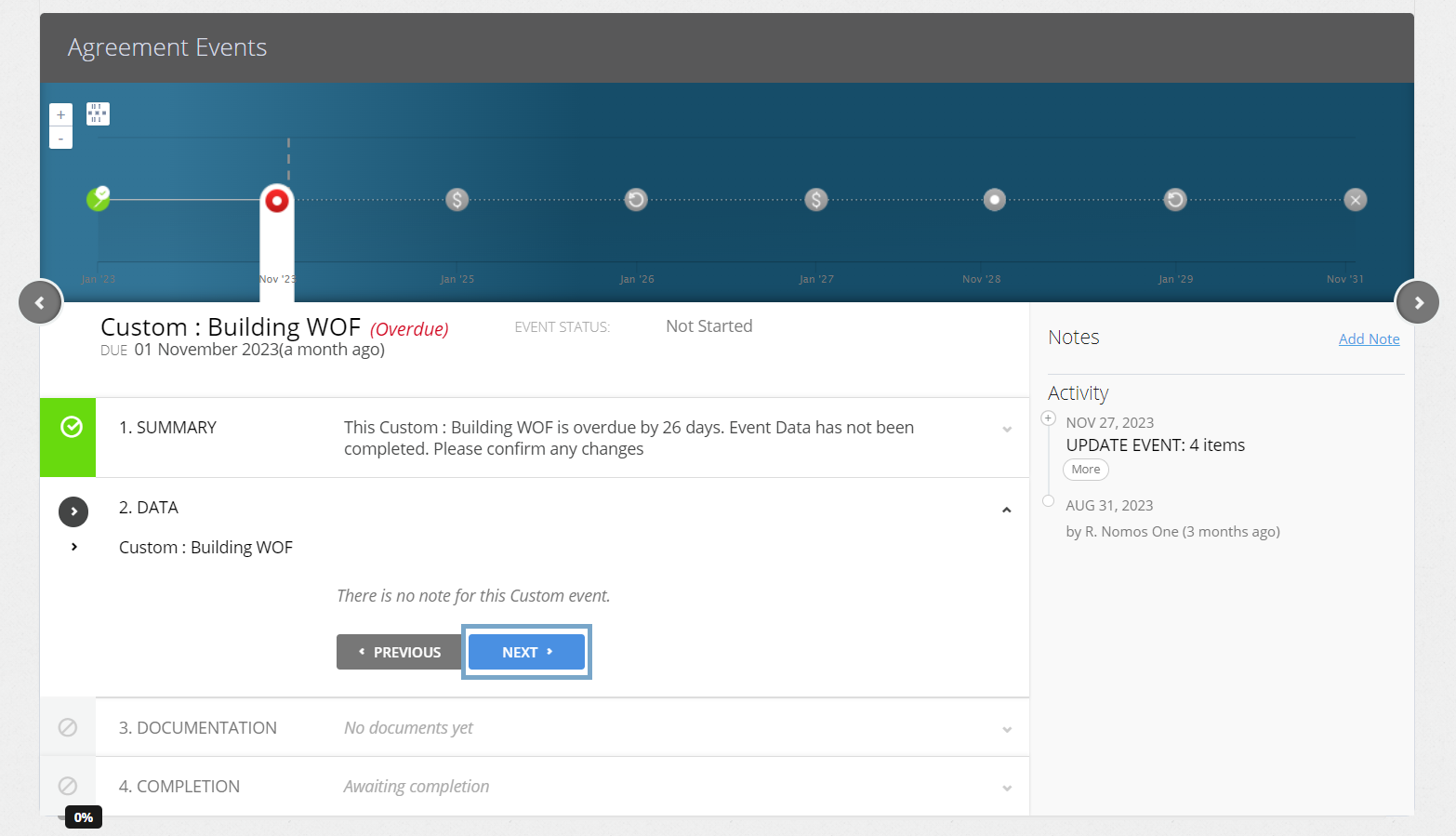
Handy Tip: If you want to add a note to your Custom Event at the Data step, you can edit this on the right hand side of the Events Page. Simply click “Add Note”.
This can be particularly useful for other users in your Organisation that may need more context as to why the Custom Event was created.
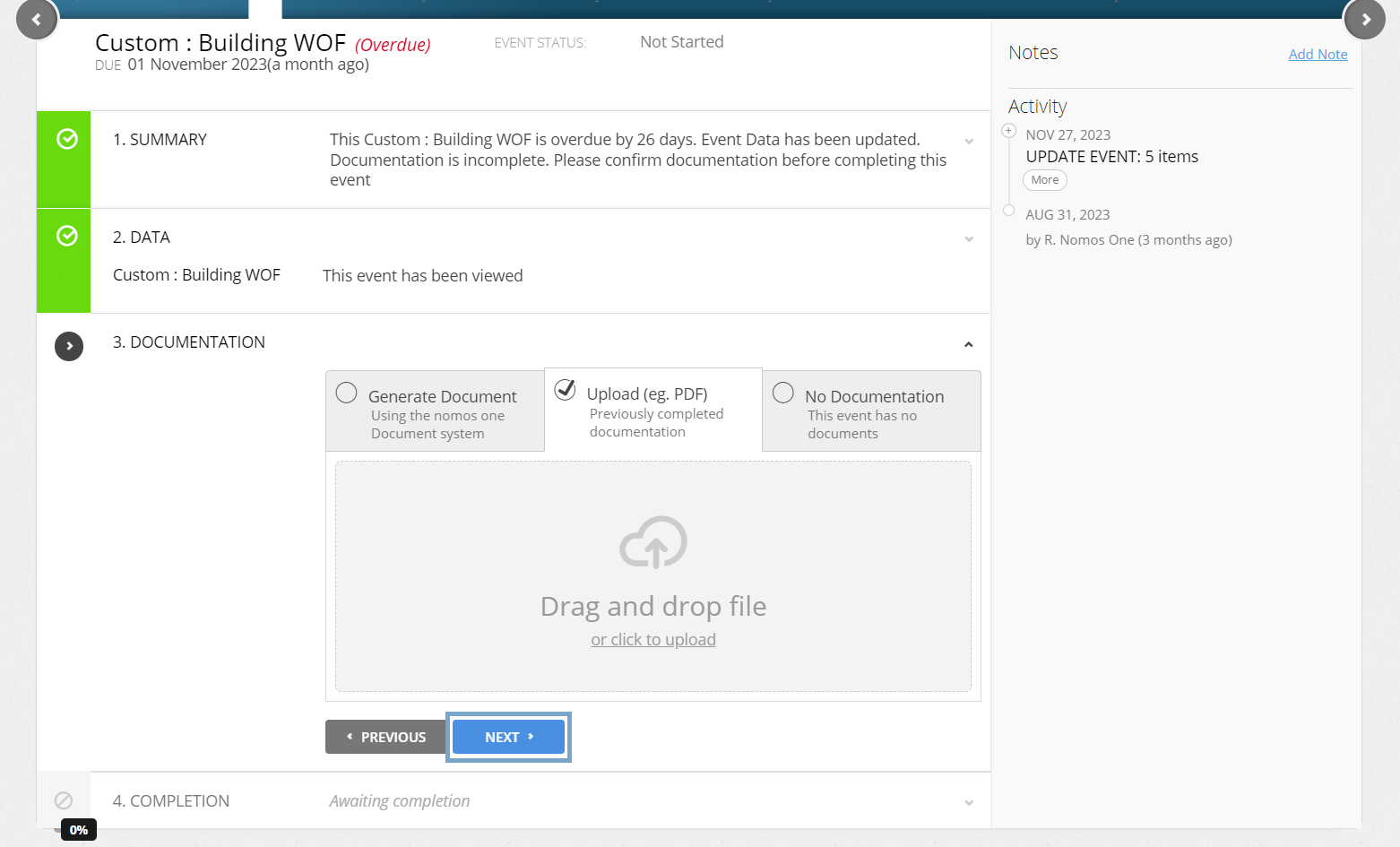
- Upload any supporting Documentation, or select “No Documentation”. Then, click “Next”.
- Click “Complete”. You'll see a certification nothing that the Event has been completed, and the event icon will turn green.
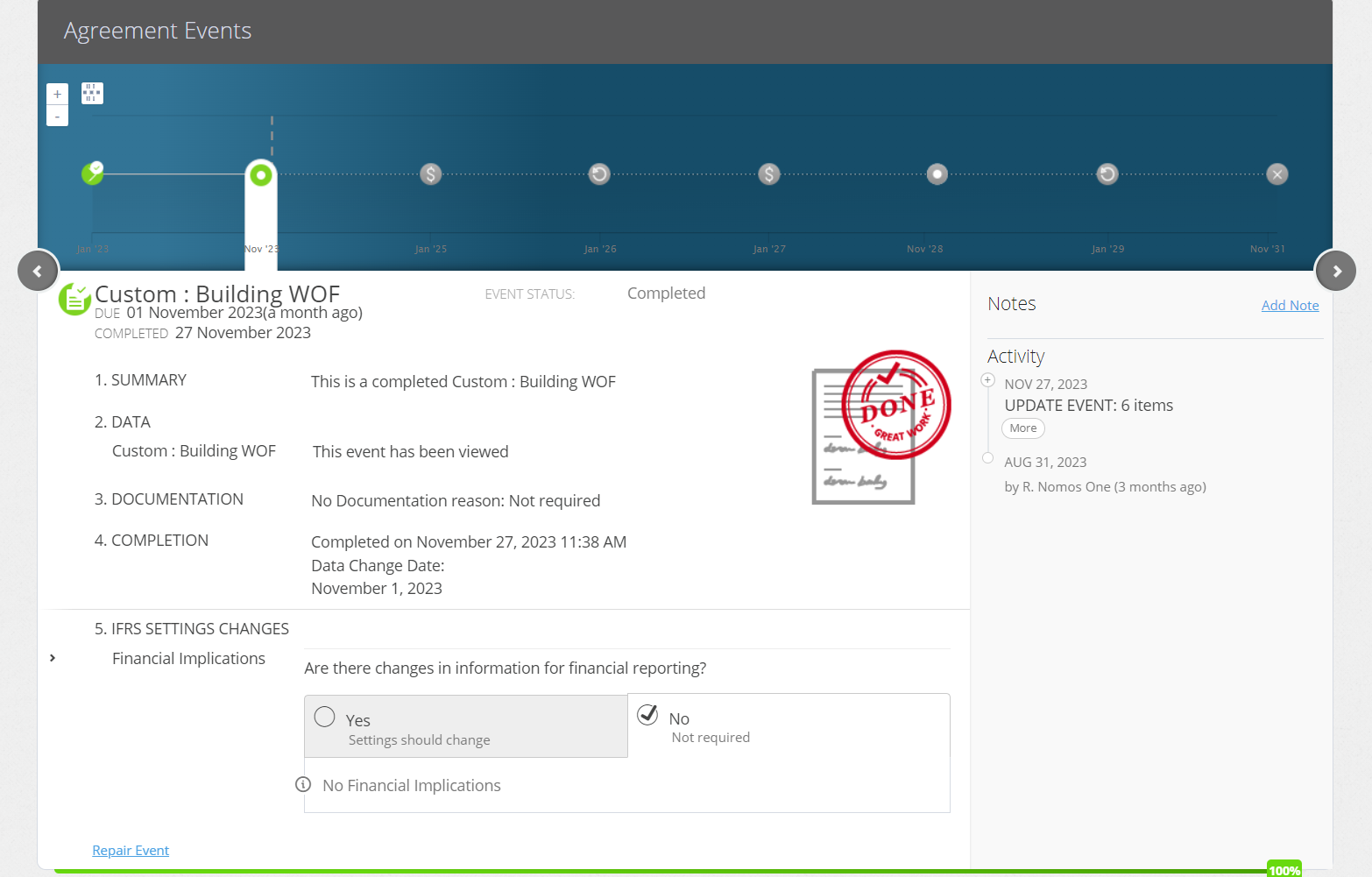
Remember: You can update your IFRS 16 Settings using a Custom Event. Simply click, “Yes, Settings should change” at Step 5: IFRS 16 Settings Change Questionnaire, and make the necessary changes.
Nomos One does not provide or purport to provide any accounting, financial, tax, legal or any professional advice, nor does Nomos One purport to offer a financial product or service. Nomos One is not responsible or liable for any claim, loss, damage, costs or expenses resulting from your use of or reliance on these resource materials. It is your responsibility to obtain accounting, financial, legal and taxation advice to ensure your use of the Nomos One system meets your individual requirements.