
Please Note: If your organisation uses IFRS 16 Reporting, please do not delete any Commencement, Renewal, Fixed Rent Review, Market Rent Review, or CPI Rent Review events.
The deleting Events feature was designed as a lease management tool and doesn't communicate with IFRS 16 Reports, meaning if it is used, it can cause unexpected variances to your reporting values. For example, deleting a Fixed Rent Review tells the system it should not be included in your IFRS 16 report calculations and may alter the Opening Balances.
If you have a Renewal that was not exercised, please complete the Renewal Event with instructions that the Agreement will expire. Note that you may also need to update your Expected Number of Renewals to reflect the expiry in reports, as outlined in the linked article.
If you have a Rent Review that was not actioned, please complete the Rent Review Event saying that the rent will not change, rather than deleting the Event.
If you've added an Event to your Agreement Timeline that shouldn't be there, for example, it was added accidentally, you can delete it from the Event Timeline.
Deleting an Event
Before you begin this process, check whether the Event has been completed on the Event Timeline. If it has, you will need to reset the Event before deleting it. If the IFRS Settings Change Questionnaire has been used on the Event you wish to delete, toggle each question to read “NO”, then turn the Questionnaire off by selecting “No, not required” at step 5 of the Event, before resetting the Event.
To delete an Event:
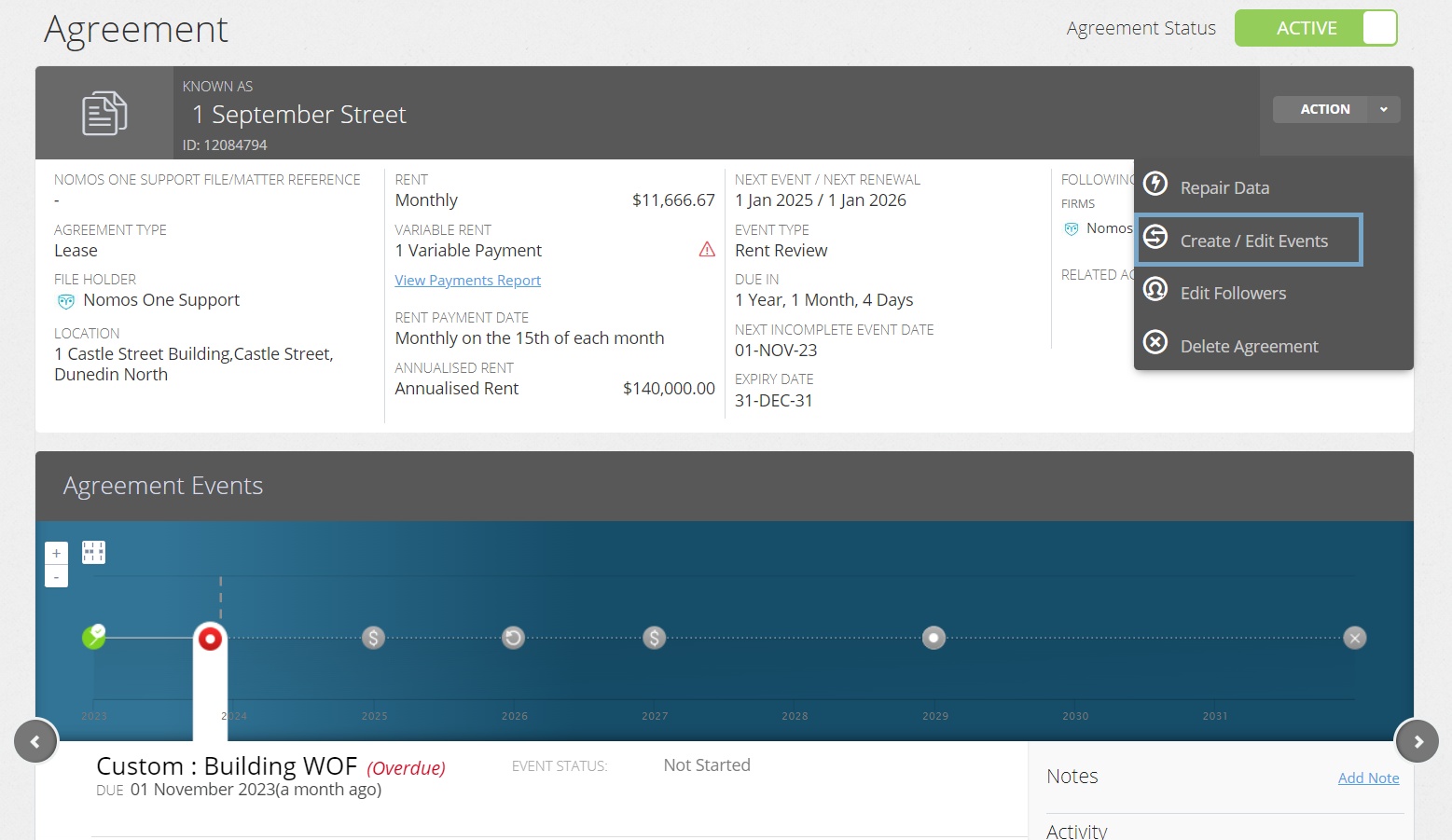
- On the relevant Agreement, click “Action”, then “Create / Edit Events”.
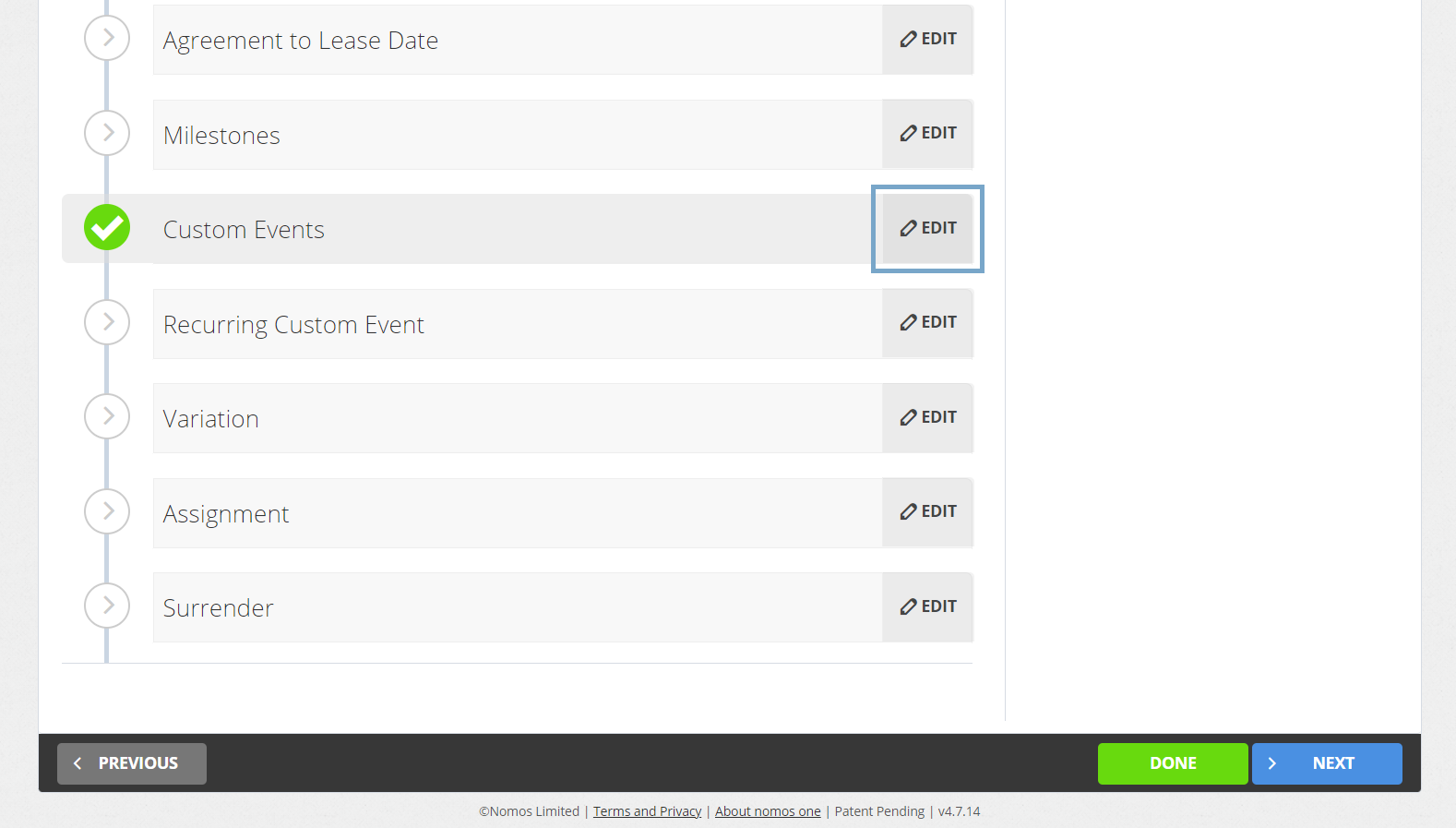
- Navigate to the Event you would like to delete, and click “Edit”.
- Next to the Event you would like to delete, click “Remove”.
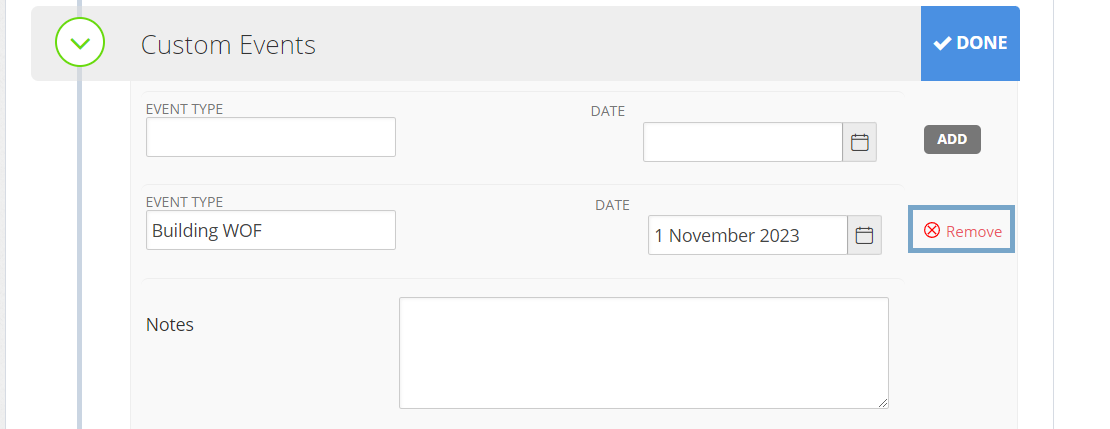
If you want to delete an Event that is scheduled between other Events of that type, you'll need to click “Remove” from the bottom of the list until you have removed the Event(s) you want, and then add back in future Events you would like to retain.
- Scroll to the top or bottom of the page, and click “Done”.
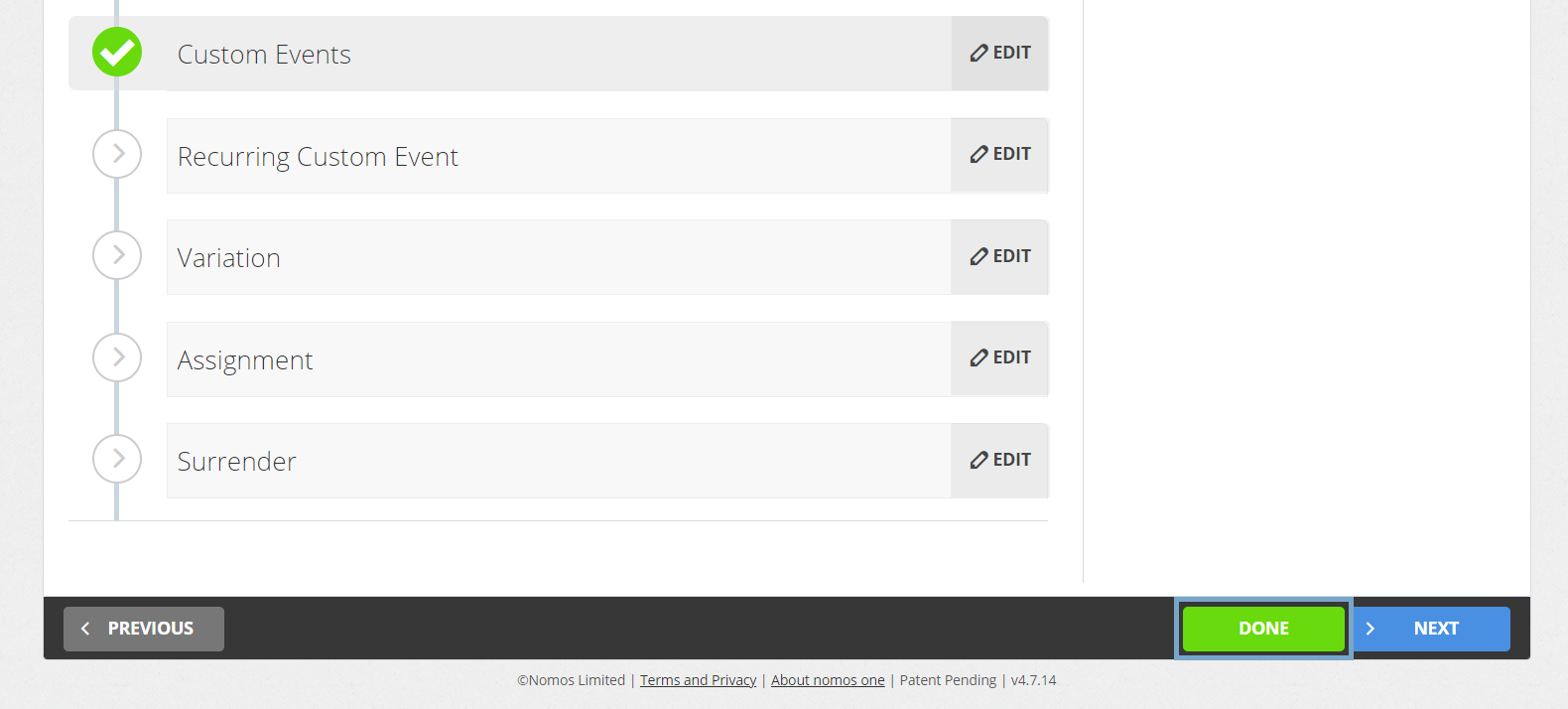
The Event(s) you deleted should no longer appear on your Agreement Timeline.
Nomos One does not provide or purport to provide any accounting, financial, tax, legal or any professional advice, nor does Nomos One purport to offer a financial product or service. Nomos One is not responsible or liable for any claim, loss, damage, costs or expenses resulting from your use of or reliance on these resource materials. It is your responsibility to obtain accounting, financial, legal and taxation advice to ensure your use of the Nomos One system meets your individual requirements.