
Maintaining your IFRS 16 reporting values is essential to posting accurate reports. A big part of maintaining these values is recording updates to Agreements correctly. Given the complexity of lease management and lease accounting, sometimes users may input changes incorrectly. This can retrospectively impact the opening balances reflected in the Transition Take Up or Commencement date values you see in reports.
In this article, we'll show you how to prevent these unwanted changes by identifying the causes and discussing how you can review accidental changes in order to determine what needs to be fixed.
All about opening balances
The opening balance for each of your Agreements is reflected in the Journal Report as the “Transition Take Up” or “Commencement” value, depending on when your Agreement commenced (whether before or after your Organisation's Transition Date). The balance is calculated using all of the Commencement-level information entered when the Agreement is set up, specifically information relating to:
- Initial IFRS Questionnaire
- Rent
- IFRS Component Payments with an effective and/or payment date on or before the Commencement date
- Events (specifically Initial Term & Renewals, and Rent Reviews)
- Floors applied to Rent Reviews
All of the above information is factored into the opening balance of the Agreement, reflecting the financial commitment of the contract.
The Opening Balance reflected at the Transition or start date of your Agreement can still be altered retrospectively, if changes are made to Commencement-level data. Our Product Team has introduced a Lock Date as a way to reduce the chance of changes being made between reporting periods, however this doesn't stop all changes. This also does not lock the balances directly. Our team are working to develop further functionality on this.
You can follow our guide here if you have accidentally altered your balances. Check in with our Support Team at support@nomosone.com if you need any further help.
How does an opening balance change retrospectively?
The content below is an explanation of how opening balances may be changed through user error. Users should not do any of the below actions, as the action will likely result in a change to opening balances. The explanation is intended to inform users of reasons why balances may have changed, so that they can identify what action may have been done on their Agreement, resulting in a change to balances.
Users are always technically able to update the commencement-level information of an Agreement. There are two main ways that users do this:
- By clicking “Action”, then “Repair Data” and directly editing the Agreement information.
- By creating a Variation event and changing one of the following details through it:
- First Payment Date
- Commencement Date
- Payment Period
- Rent Payment Day
- Payment Mode
- The Initial IFRS 16 Questionnaire
- The Amount, Effective Date, Payment Date, or Start/End Dates of IFRS Component Payments relevant to the Commencement date
- The length of Renewal terms that are factored into existing reporting periods
- Types, Frequency, Dates, and increase amounts of Rent Reviews that are factored into existing reporting periods
- Caps & Floors applied to Rent Reviews
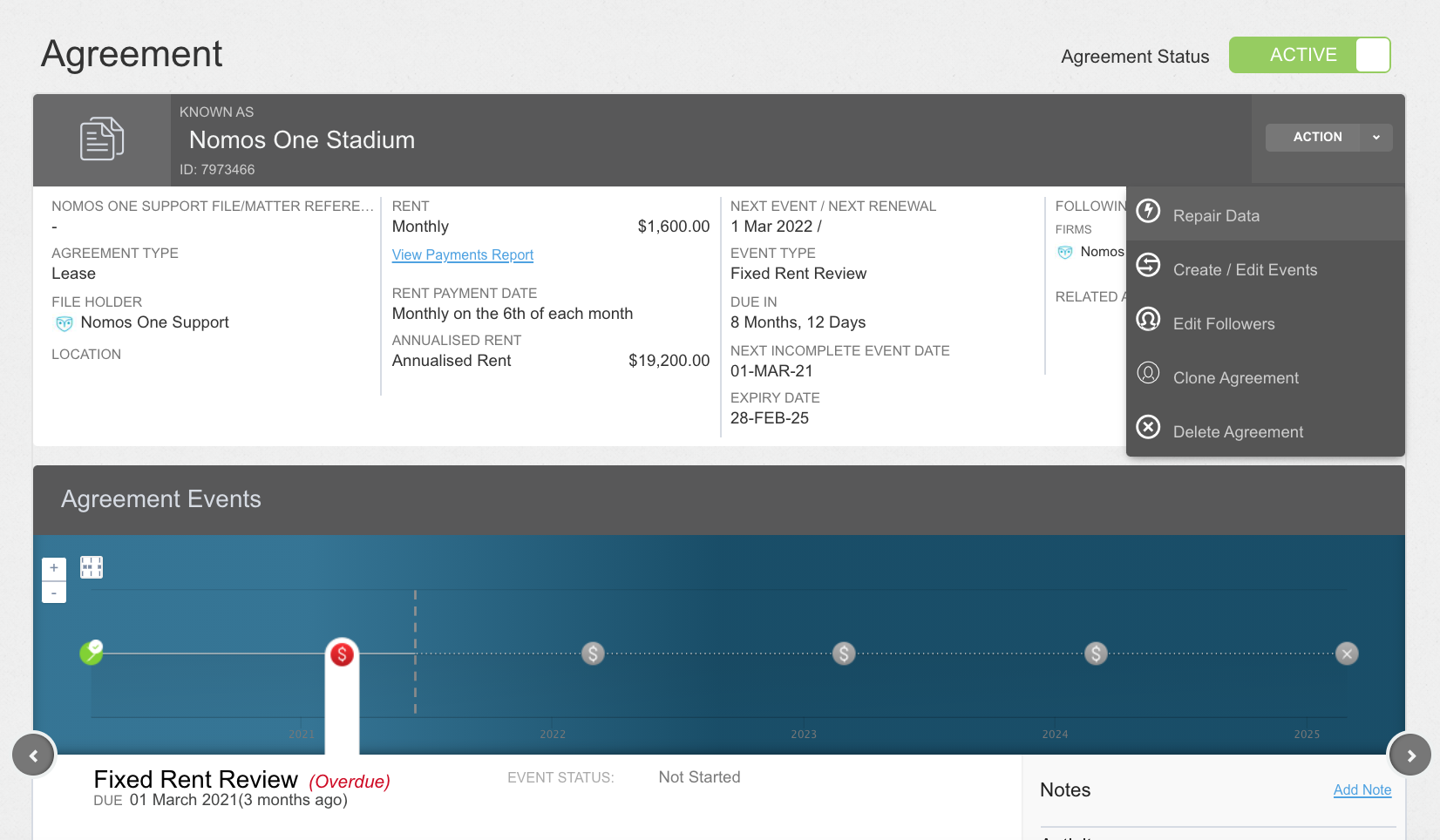
Changing the opening balance using Action > Repair Data
Accessing your Agreement's data entry process by clicking “Action” then “Repair Data” allows a user to directly update the data, effective from the Commencement date of your lease, meaning that opening balances will adjust to match the changes made.
For example, let's say someone in your team has been asked to update the 2021 Fixed Rent Review Event on your Agreement timeline, but instead of updating the Event, they:
- On the relevant Agreement, click “Action”, then “Create / Edit Events”.
- Change the commencement-level rent amount on the Rent & Payment page, thinking this is how the rent is updated.
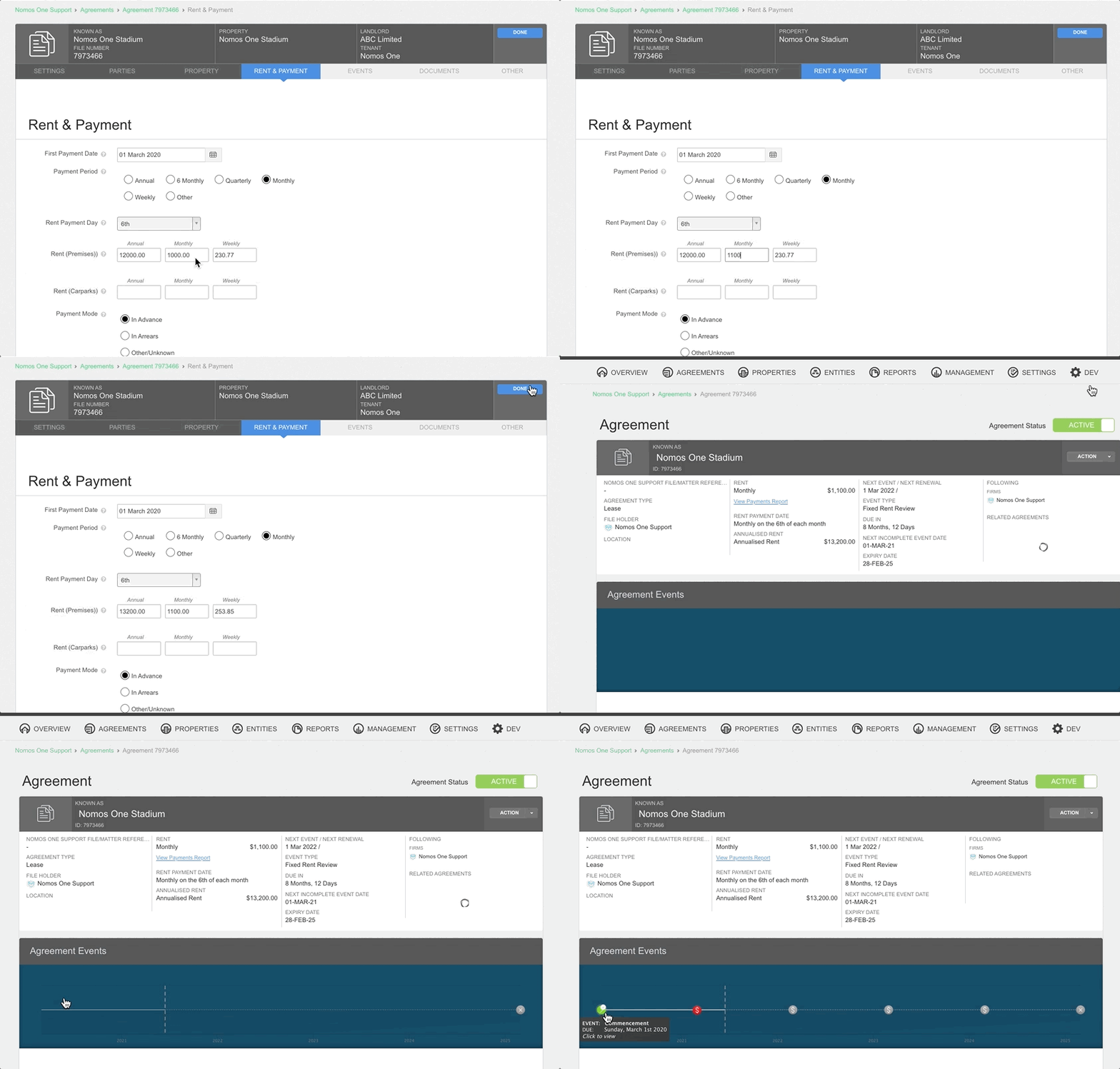
As this has updated the rent effective from Commencement, the impact will show from the Commencement or Transition Take Up dates on your IFRS 16 Reports, changing your Opening Balances from what they were when the Agreement was first created.
Changing the opening balance by varying specified data
Although the majority of changes actioned using a Variation event communicate with the IFRS 16 Reports and only impact from the Variation date, some are not yet developed to do so. Some changes will not apply at the Variation date, but rather the Commencement date, thus impacting your opening balance.
Please Note: Lock Dates will stop users from completing Variation Events that are scheduled during the locked period.
Changes that may be applied through Variation Events that impact opening balances:
- First Payment Date: If you alter this date, the system will display as if the First Payment Date was always the date you have updated it to. For example, if initially the First Payment Date was scheduled to be 1 January 2021, but later this is changed to 1 February 2021, the system will not reflect this as a variation, and instead will mark the 1st February 2021 as the only First Payment Date recorded in the Agreement's history. The opening balances will be changed.
- Payment Period: This records the regular frequency with which rent payments are made. If you alter this date, the system will display as if the Payment Period was always the option you have updated it to. For example, if initially the Payment Period was monthly, but later this is changed to annually, the calculations will not reflect this as a variation, and instead will appear as if the rent has always been paid annually. The opening balances will likely be changed.
- Rent Payment Month/Day: Similar to the First Payment Date and Payment Period, If you alter this selection, the system will display as if the rent was always paid on the month/day you have updated it to. The opening balances will likely be changed.
- Payment Mode: If you alter this selection, the system will display as if the Payment Mode was always the option you have updated it to. For example, if initially the Payment Mode was In Arrears, but later this is changed to In Advance, the calculations will not reflect this as a variation, and instead will reflect that the selection was always In Advance. The opening balances will likely be changed.
-
The Amount, Effective Date, Payment Date, or Start/End Dates of IFRS Component Payments: If the IFRS Component Payment has an Effective Date, Payment Date, or Start Date on or before the Commencement or Transition Take Up date of the Agreement, changes to the Payment will likely result in changes to opening balances. If you alter these dates, or the amount of the payment, the system will display as if those details were always the information you have updated them to.
- If the dates of the Payment are after the Commencement or Transition Take Up date of the Agreement, they are not factored into opening balances. Changes to these Payments will still impact previous balances, based on the Effective Date of the Payment. Users should still take a cautious approach to making any changes.
- The length of Renewal terms that are factored into existing reporting periods: If you alter the dates of Renewal Terms that are already taken up as Expected Renewals in the Initial IFRS Questionnaire, this will alter the initial calculation of opening balances. If you alter the dates, the system will display as if the Renewal Term start or end date were always the date(s) you have updated it to. The opening balances will be changed.
- Types, Frequency, Dates, and increase amounts of Rent Reviews that are factored into existing reporting periods: If you alter any of the mentioned details for any Rent Reviews that are scheduled within Renewal Terms that are already taken up as Expected Renewals in the Initial IFRS Questionnaire, this will likely alter the initial calculation of opening balances. If you alter the details, the system will display as if the details were always what you have updated them to.
-
Rent Review Floors: The Floor becomes the minimum expected increase for the rent review type it relates to. If there are rent reviews of that type within Renewal Terms that are already taken up as Expected Renewals in the Initial IFRS Questionnaire, this will likely alter the initial calculation of opening balances.
- Caps & Floors cannot be applied to individual rent reviews within an Agreement. For example, within one Agreement, you cannot have a floor of 3% on one CPI rent review, then a floor of 5% on the next CPI rent review.
If you need to vary any of the information mentioned above, we do have workarounds we can apply. Please contact our Support Team to find out more.
Fixing changes to your opening balance
If you do notice that your opening balance has changed, don't panic, we should be able to identify what the cause was and then revert changes made to reinstate your original opening balance.
Here's some tips on how you can identify the cause:
- Navigate to the Activity Report. Click “Reports” and then select the “Activity Report”.

- The Activity Report has a pre-set filter only showing activity from the last month. We recommend removing the filter: click “Clear All”, then click “Regenerate” so you can see activity for all time.

- Using the Filter option, enter a filter to only view information for the Agreement wherein the opening balances have changed. The “Target” column displays the Agreement name, so enter the filter “Target Is Agreement Name”. This will only display activity for one Agreement.

- The report output will be ordered by when the activity was recorded, based on the Timestamp column. Scroll to the bottom of the report to review the initial data entered.
- Compare the initial data entered with any changes made. If you know the exact date or have an idea of when the opening balance changed, look at the changes made to the Agreement from that date onwards. If you see any changes that don't directly follow creation of a Variation Event, and the changes are Event, Rent, or Payment-related, this is likely why the opening balance has changed.
- If there is no activity noting that information has been changed, it could be that the initial IFRS 16 Settings have been altered. Please reach out to our Support Team if you believe this is the case.
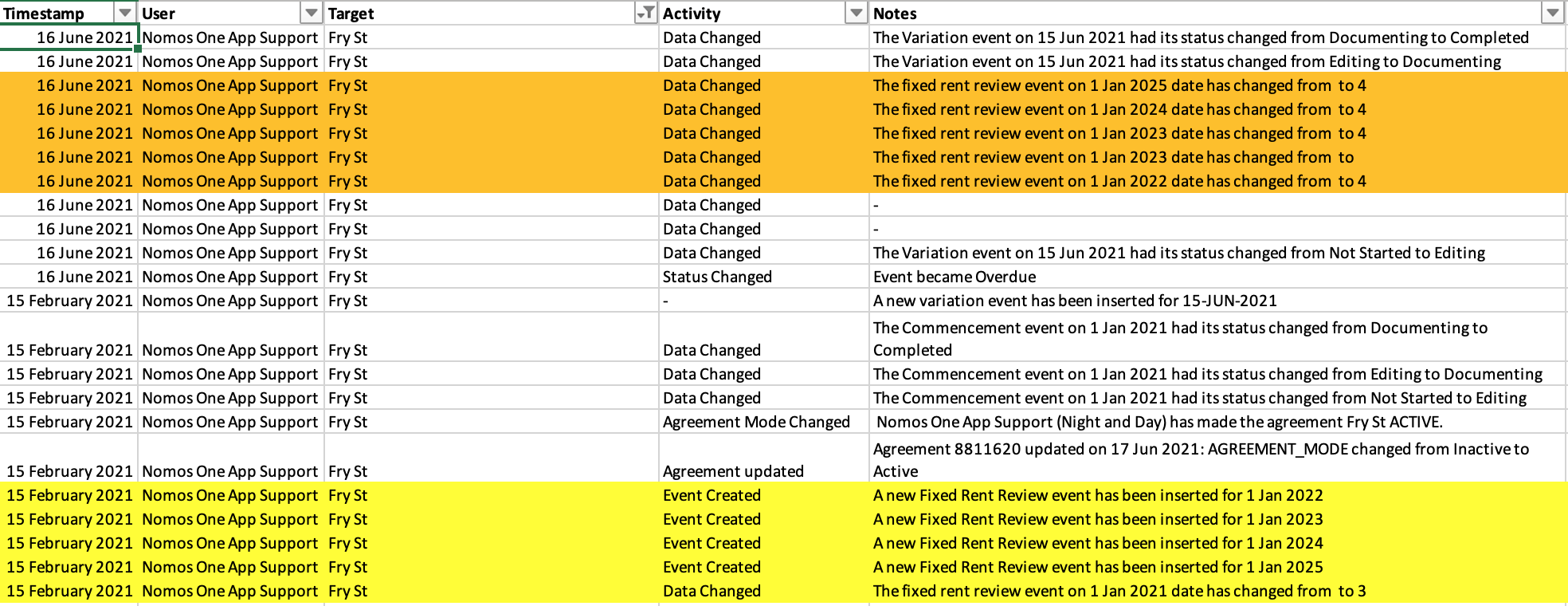
Using the Agreement "Fry St" as an example, having highlighted the columns displaying initial and subsequently changed information in Excel, we can see that the Fixed Rent Reviews had their rate varied from 3% to 4%. This is one of the changes that can't be modified, either directly or through a Variation:
- If you feel confident to revert the changes that were made in error, go ahead. If not, feel free to contact our Support Team and we can assist.
- Once any changes are reverted, check your opening balance. It should match the original opening balance.
Referring back to our "Fry St" example, see below how reverting the Fixed Rent Reviews back to 3% returned the opening balance to 2367871.769286 from 2414297.350514.
Before incorrect changes to Fixed rent review increase:

After incorrect changes to Fixed rent review increase: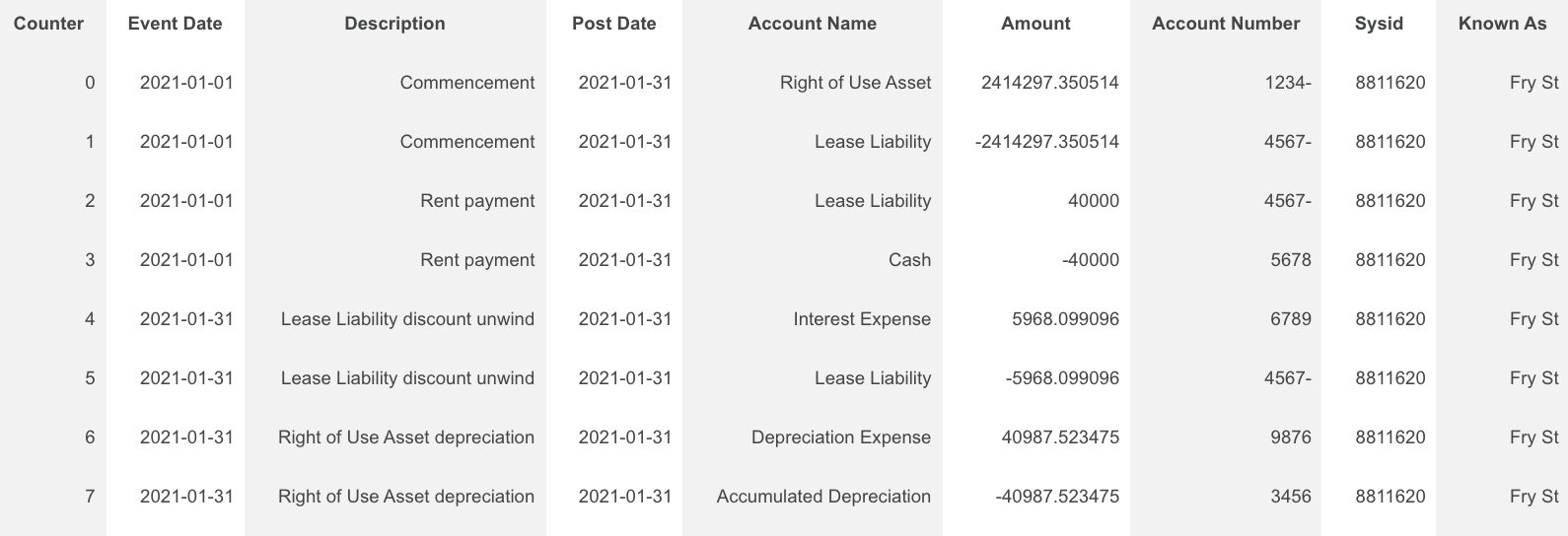
After incorrect changes were reverted: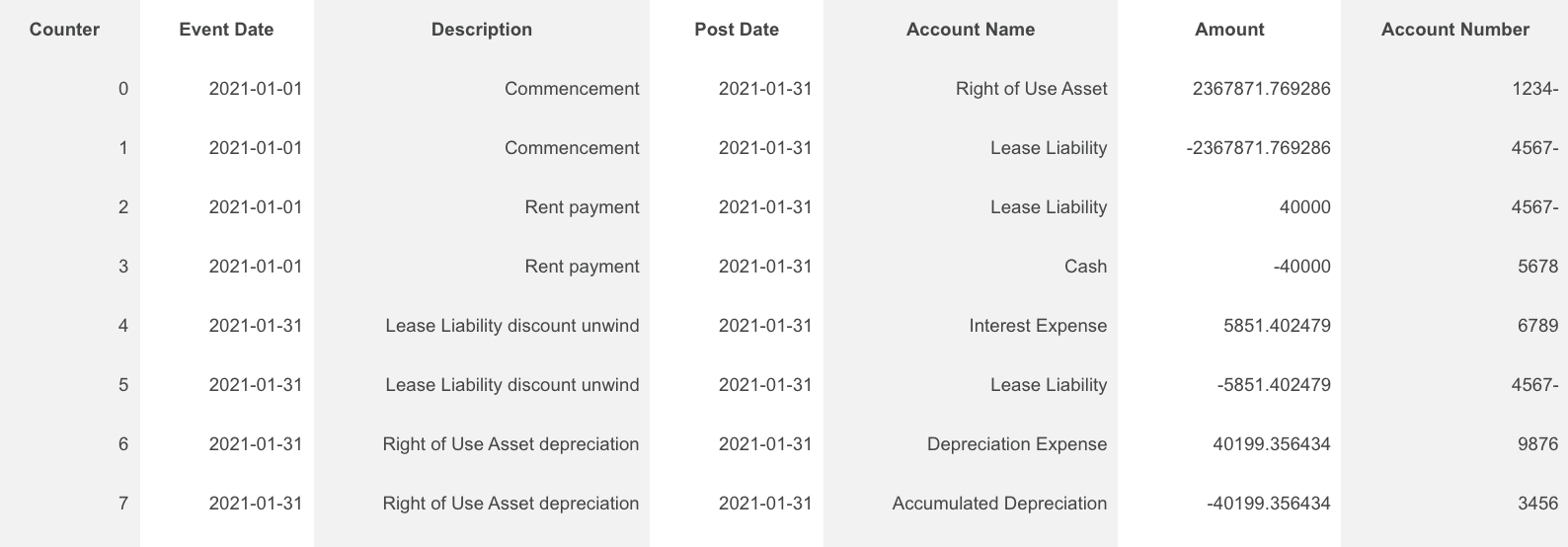
If the change made was something you do need to record, but due to system limitations you can't process it, contact our Support Team with your query. They can provide guidance on how you may be able to record this in Nomos One without altering your opening balance.
Nomos One does not provide or purport to provide any accounting, financial, tax, legal or any professional advice, nor does Nomos One purport to offer a financial product or service. Nomos One is not responsible or liable for any claim, loss, damage, costs or expenses resulting from your use of or reliance on these resource materials. It is your responsibility to obtain accounting, financial, legal and taxation advice to ensure your use of the Nomos One system meets your individual requirements.