
If you need to update the IFRS 16 Judgments applied to an Agreement after it has commenced, you can do so using the IFRS 16 Settings Change Questionnaire. This can only be accessed from a Completed Event on the Agreement Timeline.
In this article, we're showing you how you can use a Variation Event to update your IFRS 16 Judgments after commencement when you don't have an Event on the Timeline that matches the date your new assumptions took effect.
Video Tutorial: How to Update your IFRS 16 Data after Commencement
How to Add a Variation Event to update your IFRS 16 Judgments
To add a Variation Event to your Agreement:
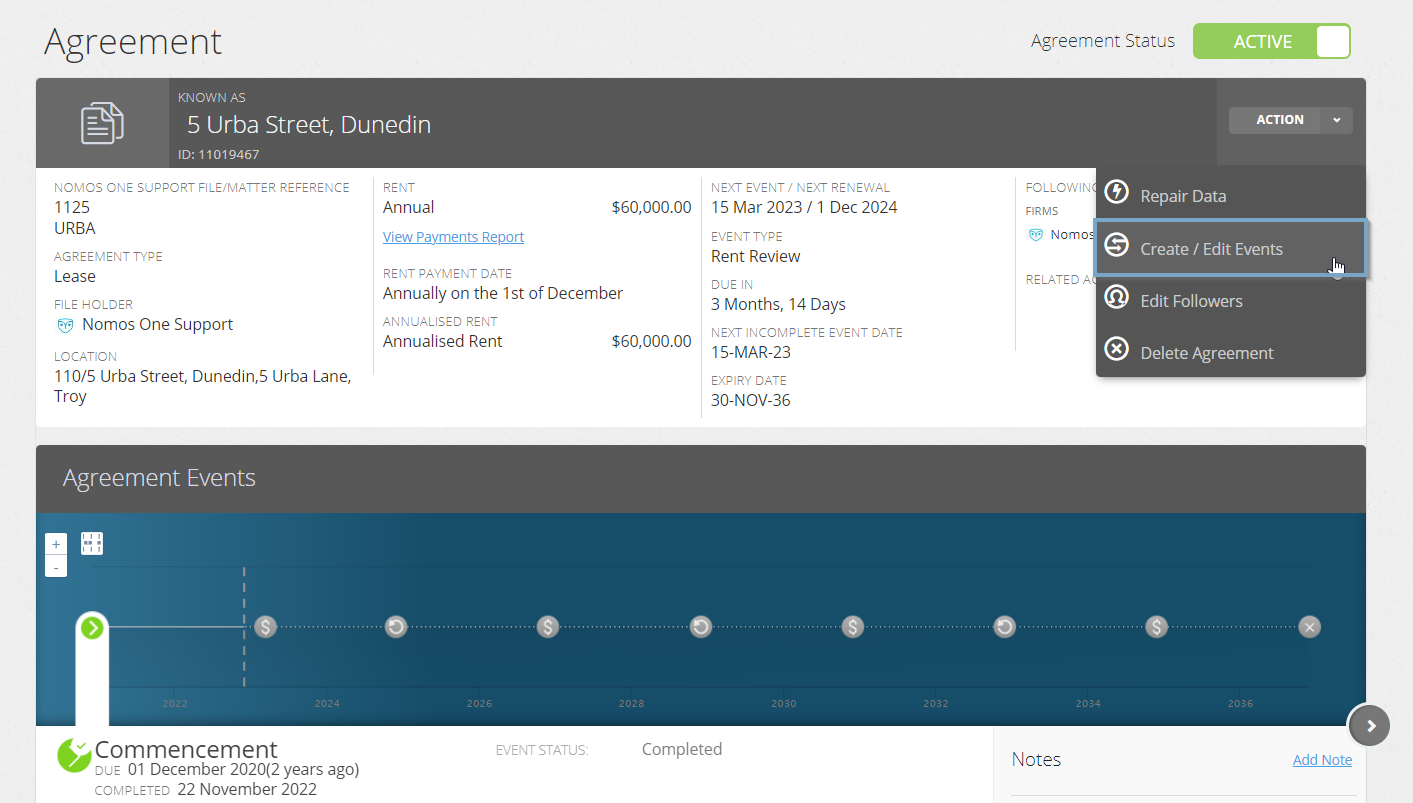
- From the Agreement Timeline, click “Action” > “Create / Edit Events”.
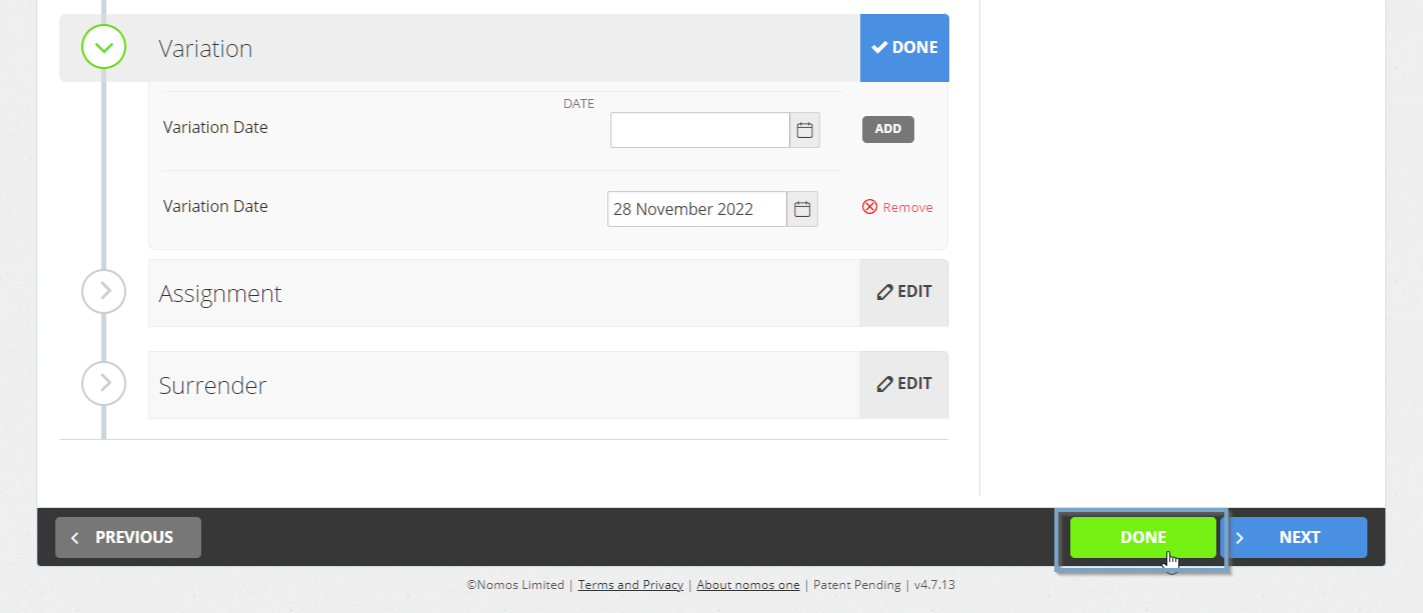
- This will take you to the Events page of the Agreement Wizard. Scroll down to the Variation section and using the calendar tool or text field record the date the change to your IFRS 16 Judgments should take place from. Remember to click “Add”.

Please note: You should not edit any of the Agreement data or information while inside the Agreement Wizard. Any changes made here will alter the data known at the Commencement of your Agreement, and will result in a change to your Opening Balances.
- Click “Done” at the top of the page to return to the Agreement Timeline.
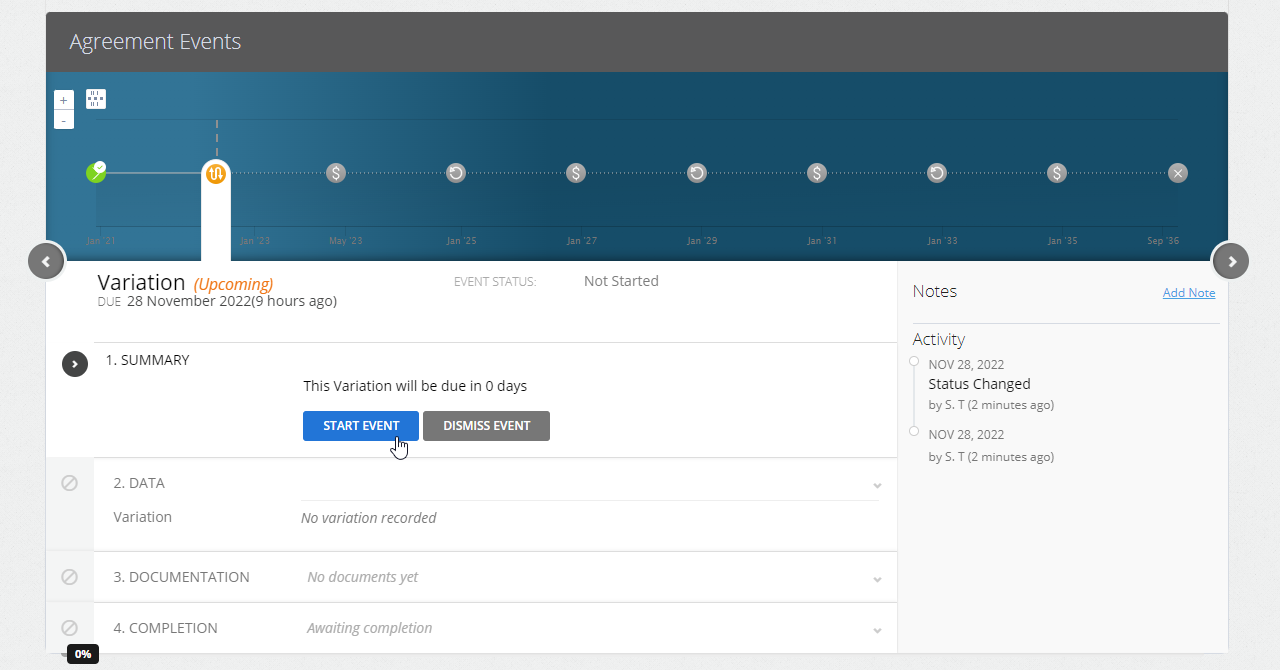
- You'll now see a new icon on the Agreement Timeline representing the Variation Event you just added in.

How to Complete the Variation Event and update your IFRS 16 Judgments
To complete the Variation Event:
- Click on the Variation Event icon, and at Step 1 click “Start Event”.
Please note: While you can add Events on a date that is within a locked period, you cannot complete these Events on the Agreement Event Timeline. If your Variation Event is within a locked period, you'll need to ask a user in your Organisation with the Administrator permission to edit the Lock Date before you can complete the Event. Check out this article for more information.
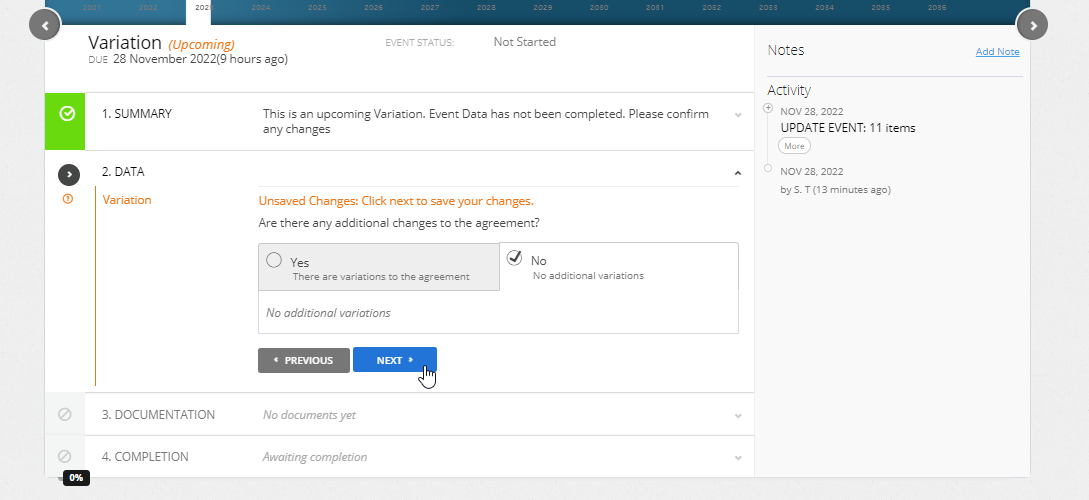
- At the Data step, you can select “No; No additional Variations” to this Agreement, then click “Next”.
- Upload any supporting Documentation, or select “No Documentation” and click “Next”.
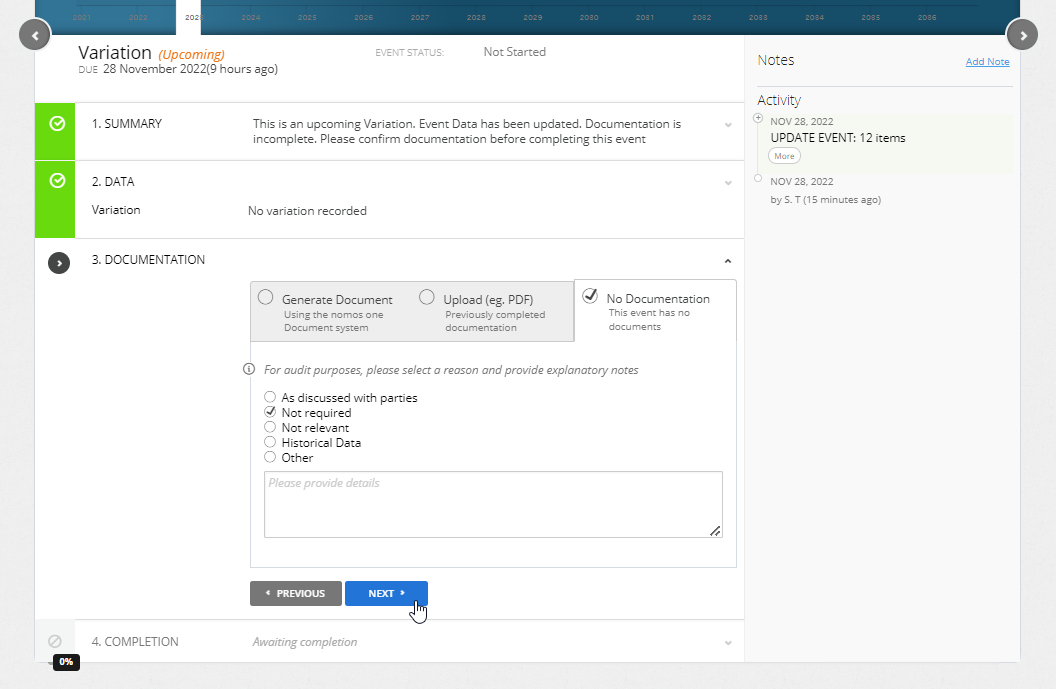
- At Step 4, click “Complete”. You'll see a certification noting that the Event has been completed, and the event icon will turn green.

- At Step 5, on the IFRS 16 Settings Change Questionnaire, select “Yes; Settings Should Change”.
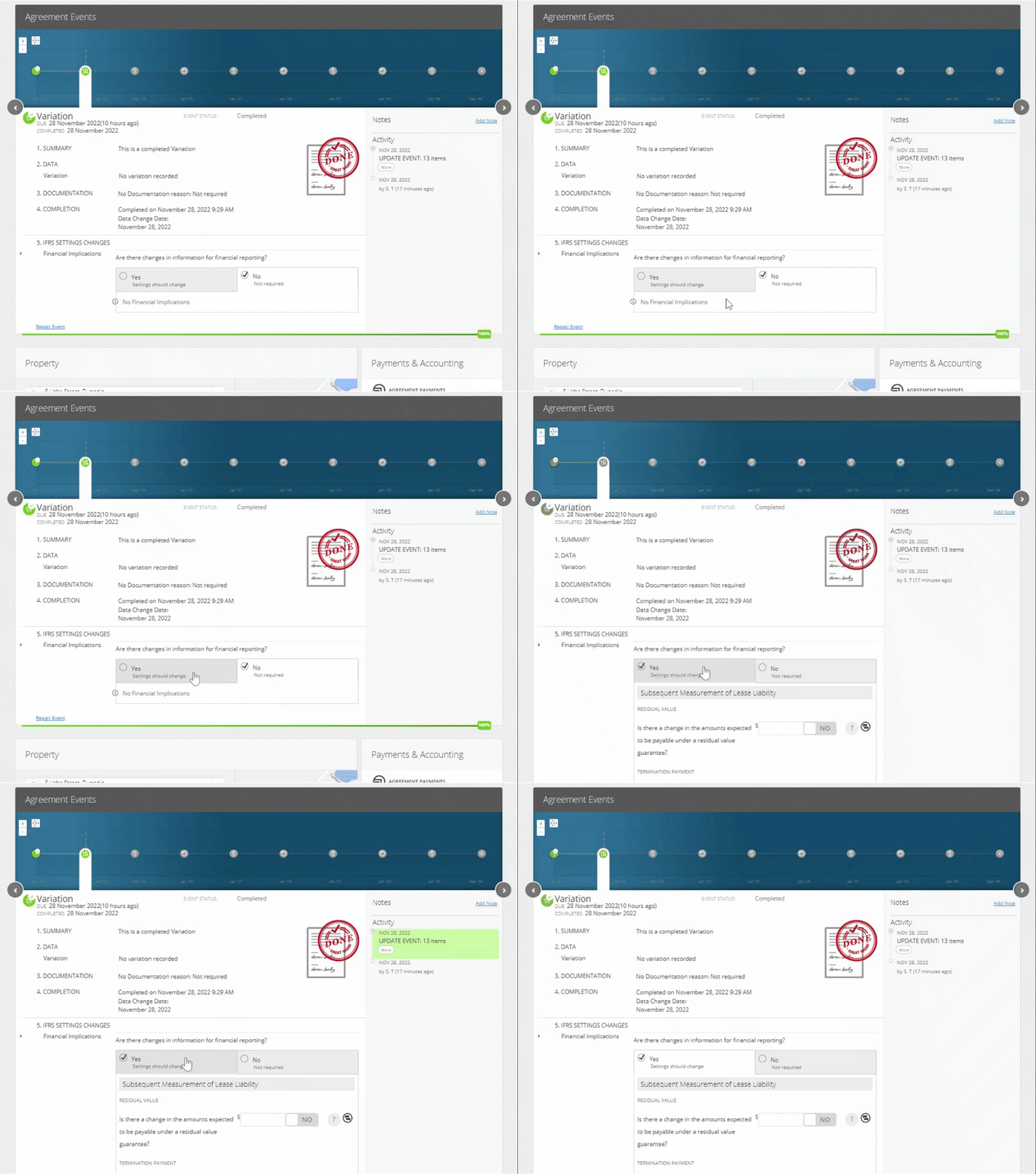
- Scroll to the part of the Questionnaire you need to update and enter the new Judgments to be applied from the Variation Date.
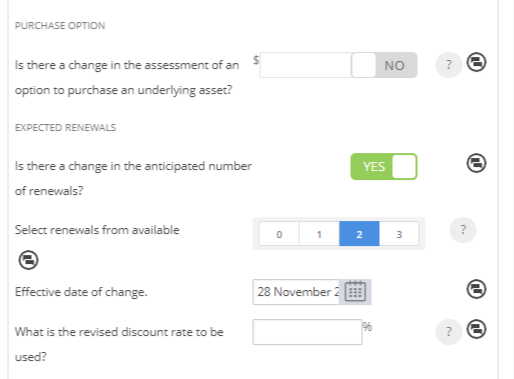
When filling out the IFRS 16 Settings Change Questionnaire, make sure that you answer all required fields for your selection, and that you don't use any special characters or symbols in the text fields. To read a full breakdown of the IFRS 16 Settings Change Questionnaire, you can click here.
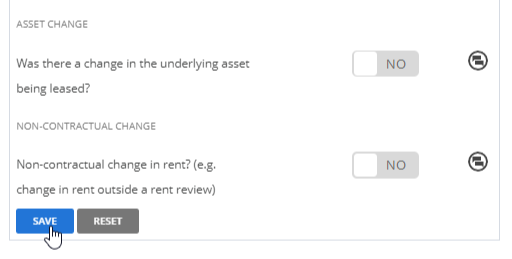
- Once the new assumptions have been recorded, scroll to the bottom of the Questionnaire and click “Save”.
Validating your IFRS 16 Settings Updated Correctly
Depending on the update you made in the IFRS 16 Settings Change Questionnaire, there are a number of ways you can validate that the change has been correctly applied to your Agreement. In any instance, the key to checking your change correctly applied is to run your IFRS 16 Reports over the Effective Date of the Variation Event which you used to process this change.
Importantly, when an update has been processed correctly, you should not see a remeasurement or change to your Opening Balance or Transition Take Up. If these amounts have changed, you can check out this article for tips on how to investigate and revert this change.
Nomos One does not provide or purport to provide any accounting, financial, tax, legal or any professional advice, nor does Nomos One purport to offer a financial product or service. Nomos One is not responsible or liable for any claim, loss, damage, costs or expenses resulting from your use of or reliance on these resource materials. It is your responsibility to obtain accounting, financial, legal and taxation advice to ensure your use of the Nomos One system meets your individual requirements.