
This article will show you how to complete a scheduled Expiry Event.
Please note: If you're surrendering your Agreement instead, check out our guide on Surrendering Agreements.
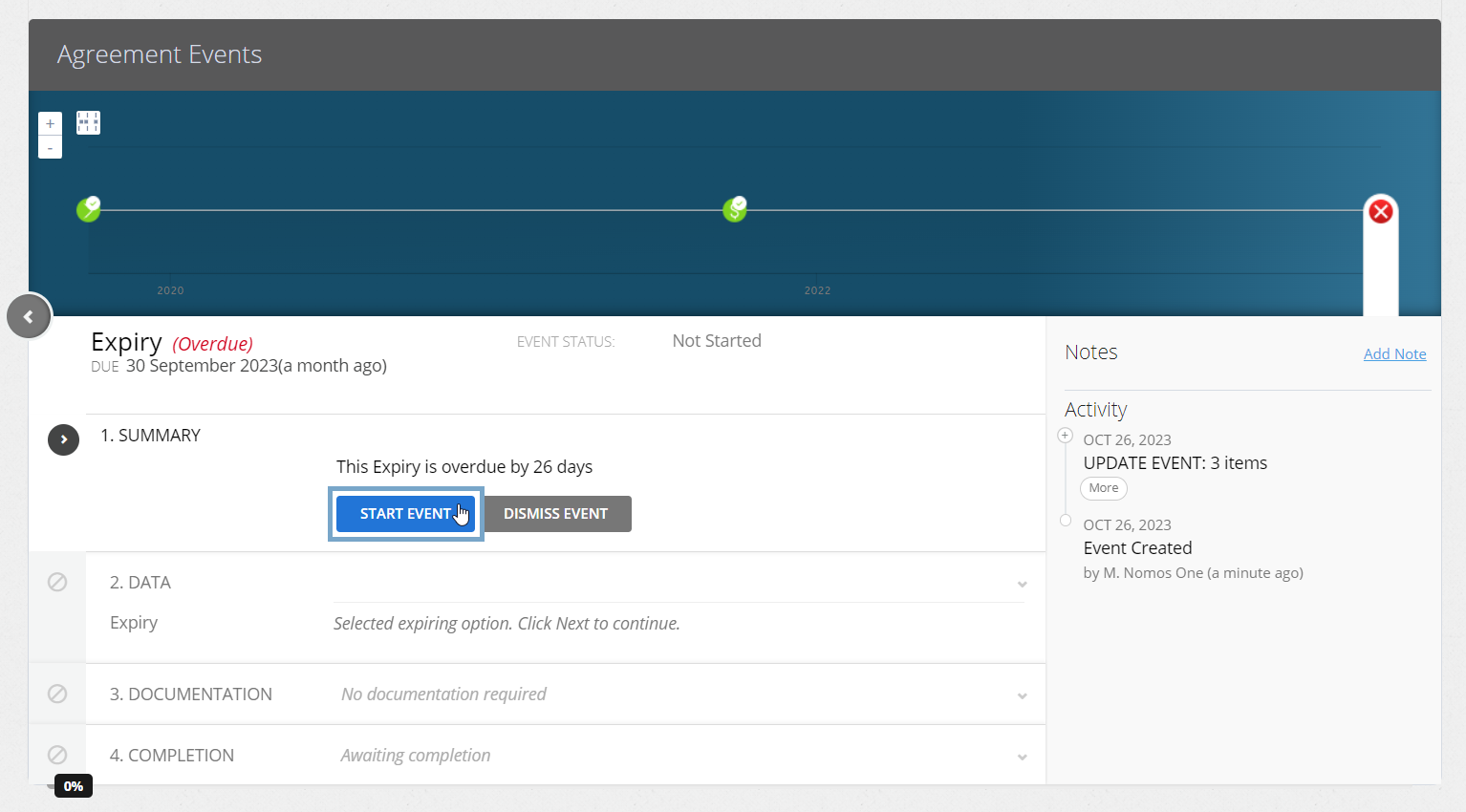
- Select the Expiry Event icon, and click “Start Event”.
- At the Data step, you'll see the question, “Is this agreement expiring?”. Select “Yes, the agreement will expire”, then click “Next”.
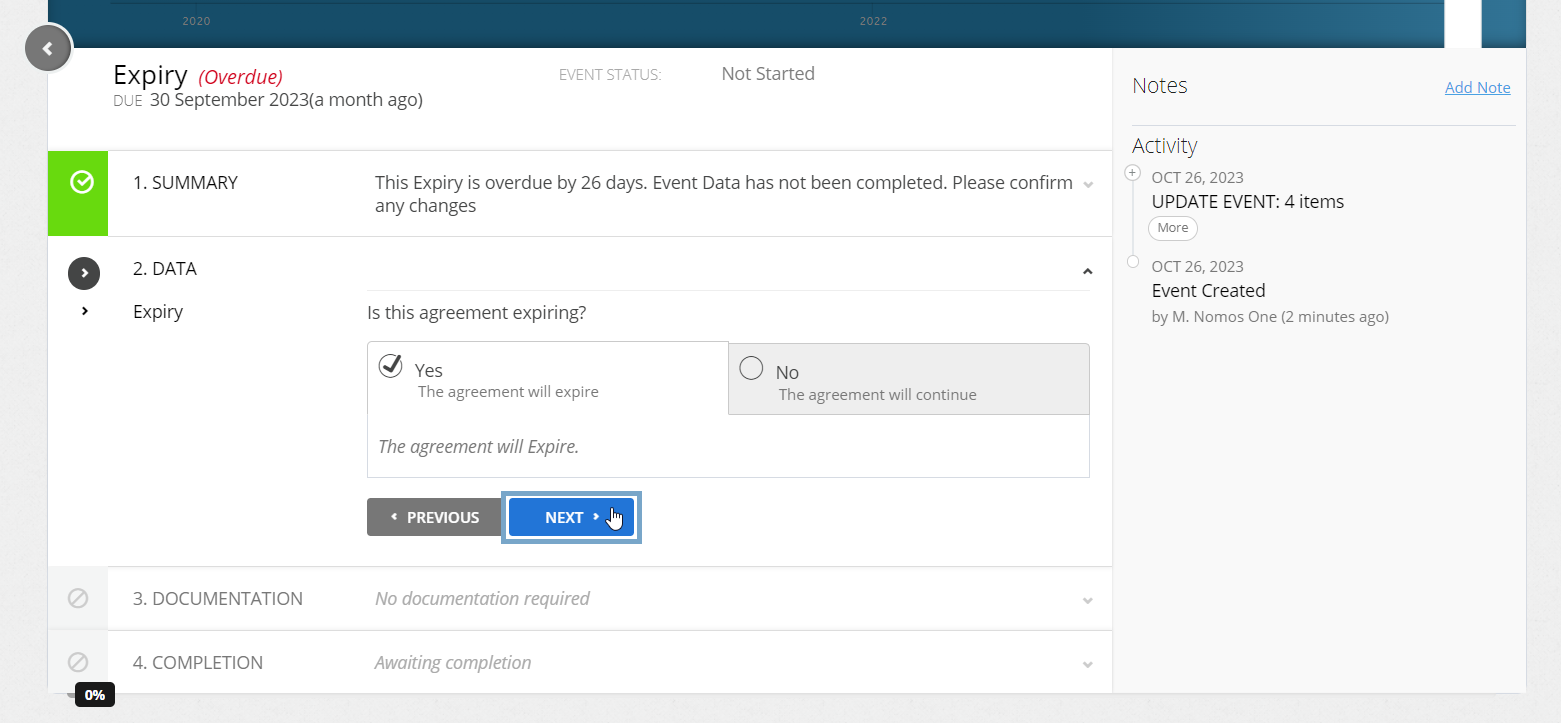
There is the option to select “No, the Agreement will continue” and to edit Agreement Events. Check out this article on how to update your Expiry date to reflect different termination scenarios, and this article to learn how to extend your Agreement's term.
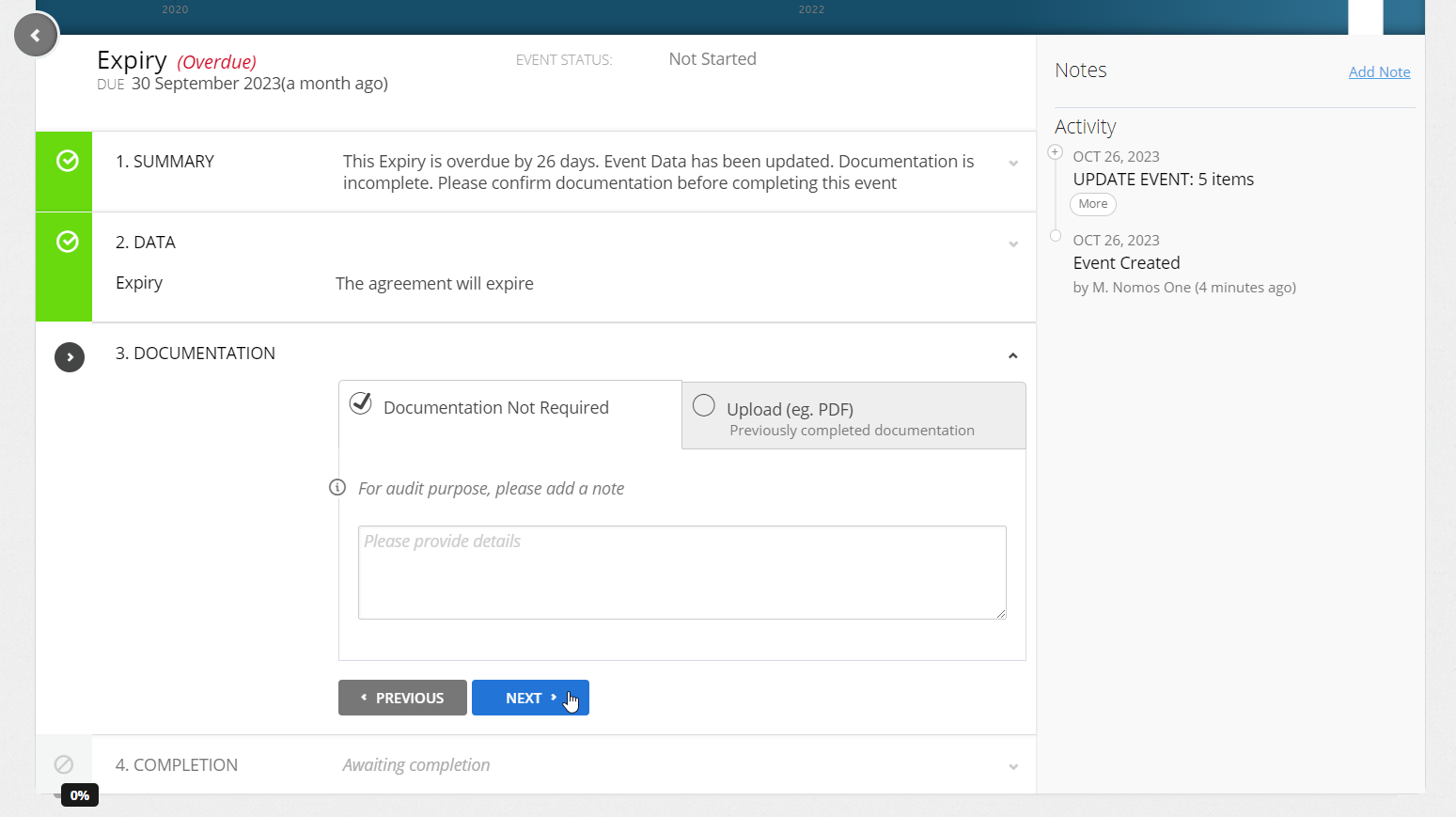
- Upload any supporting Documentation, or select “Documentation Not Required”, and click “Next”.
- Click “Complete”. You'll see a certification noting that the Event has been completed, and the event icon will turn green.
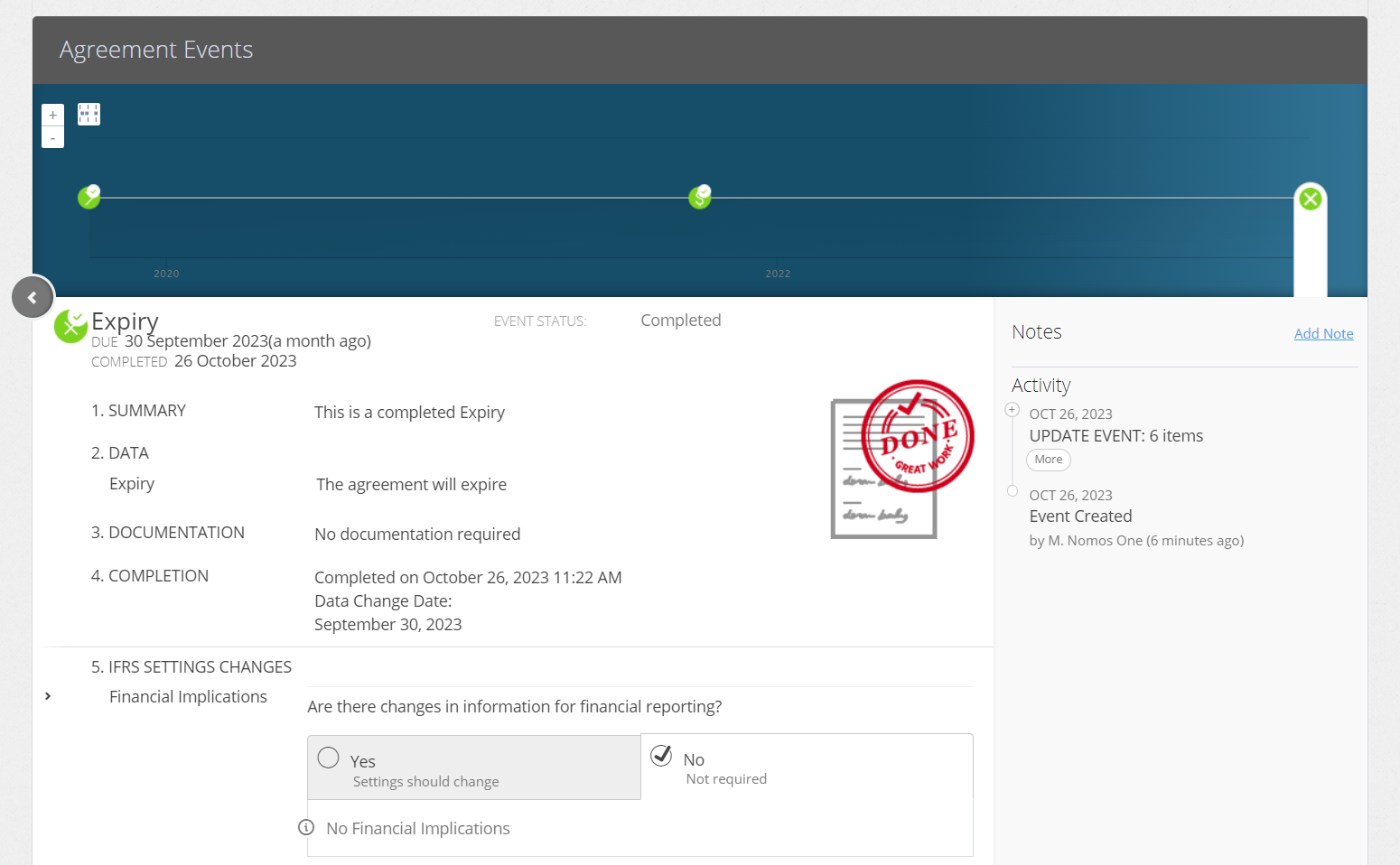
Please remember: Even if your Agreement has expired, you'll need to keep it Active for the duration of your current reporting period. Once reporting has commenced for the following reporting period, you can make the Agreement Inactive and excluded from future reports.
Nomos One does not provide or purport to provide any accounting, financial, tax, legal or any professional advice, nor does Nomos One purport to offer a financial product or service. Nomos One is not responsible or liable for any claim, loss, damage, costs or expenses resulting from your use of or reliance on these resource materials. It is your responsibility to obtain accounting, financial, legal and taxation advice to ensure your use of the Nomos One system meets your individual requirements.